
Table of Contents

How Does n8n Binary Data Work? (2026 Complete Guide)

n8n binary data is how n8n handles files inside a workflow. Any time a file passes through a node — whether it is an image from a form submission, a spreadsheet from Google Drive, or a PDF from an API — it lives in the binary layer rather than the standard JSON output.

This guide covers everything: how to get binary data into n8n, the key nodes for reading and converting files, how to analyze images with AI models, how to handle Base64-encoded files, and the new features for accessing binary data from previous nodes added in the October 2025 update.

If you are new to n8n, start with the n8n beginner guide before diving into binary data.

What Is Binary Data in n8n?

Binary data in n8n is any file-type data that exists outside the standard JSON items. This includes images, spreadsheets, PDFs, CSVs, and any other file format. When a node outputs a file, n8n stores it in a separate binary layer attached to the workflow item.

In the n8n editor, binary data is hidden by default. You will normally see Schema, Table, and JSON tabs when inspecting node output. The Binary tab only appears when the node actually produced file data — this is expected behavior, not a bug.

Each binary file has a set of attributes attached to it:

  • filename — the original name of the file (e.g., report.xlsx)
  • mimeType — the file type indicator (e.g., image/jpeg, application/pdf)
  • fileSize — the file size in bytes
  • data — the Base64-encoded file content stored internally by n8n

The binary field also has a name you assign or that the originating node assigns automatically. This name must match exactly when you reference the file in downstream nodes.

How to Get Binary Data Into Your n8n Workflow

There are several ways to bring binary data into an n8n workflow. The method depends on where the file comes from.

n8n Form Trigger (File Upload)

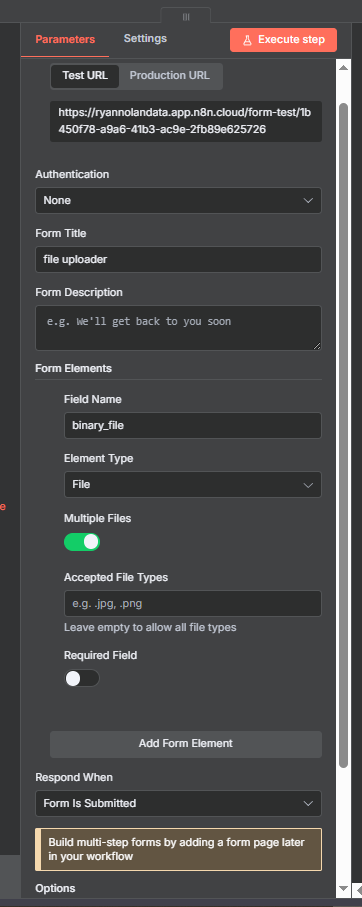
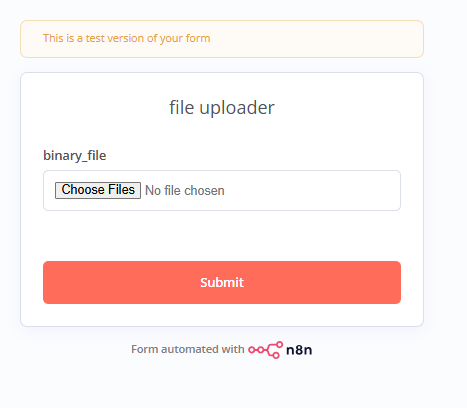
The n8n Form Trigger node is the most direct way to accept file uploads. In the form configuration, add a field and set the Element Type to File. You can specify single or multiple files and restrict accepted file types.

When a user submits the form with a file attached, it appears as binary data in the node output. The binary field name defaults to the field name you configured in the form.

After execution, the Binary tab appears in the node output showing the uploaded file with its filename, mimeType, and size. You can view or download the file directly from the output panel.

Google Drive Download

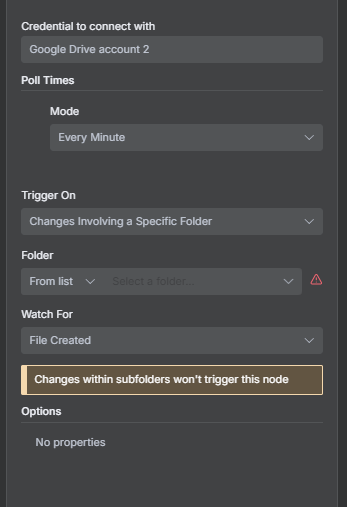
The Google Drive node can download a file from a specific folder or by file ID. Set the Operation to Download and the file arrives as binary data in the output. For a full setup walkthrough, see the Google Drive integration in n8n guide.

You can use Google Drive mid-workflow rather than only as a trigger, letting you pull a file based on data generated earlier in the same workflow.

HTTP Request Node (Binary Mode)

When an API returns a file as its response, the HTTP Request node needs to be set to return binary data. In the node settings, set Response Format to File. This tells n8n to store the response as binary rather than trying to parse it as JSON.

Once Response Format is set to File, the node output shows the Binary tab with the downloaded file. The mimeType is automatically detected from the response headers.

FTP, SFTP, and Read from Disk

For self-hosted n8n instances, FTP and SFTP nodes let you pull files from remote servers as binary data. The Read/Write Files from Disk node works on self-hosted n8n to read files from the server file system. Neither option is available on n8n Cloud — use the Form Trigger, HTTP Request, or a cloud storage integration instead.

Join Our AI Community

Get access to the JSON workflow files from this article, weekly live sessions, and a community of builders working through the same challenges. Everything is free and the community is active.

How to Extract Data From a Binary File

Once you have a binary file in your workflow, you often need to read its contents as structured data. n8n has two main approaches depending on the file type.

Extract From File Node

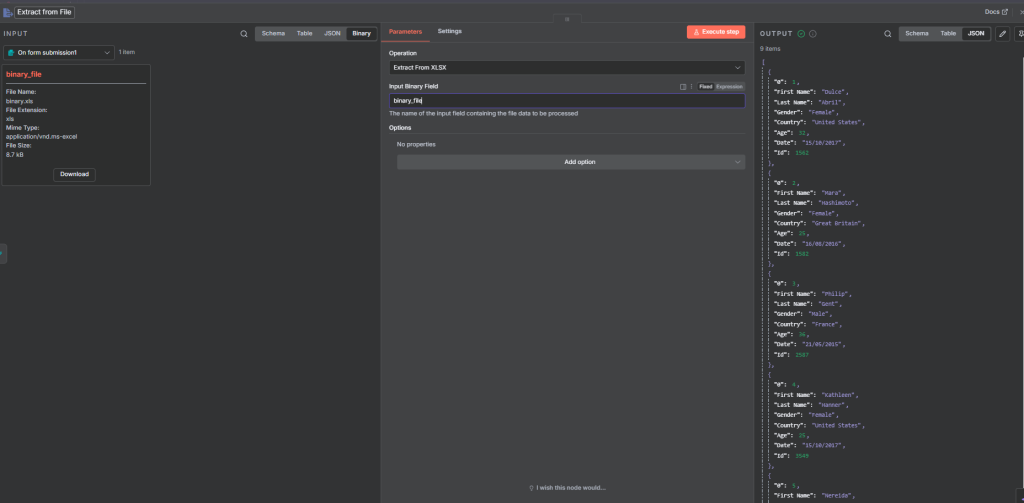
The Extract From File node converts a binary file into JSON that the rest of your workflow can use. Supported operations include: Extract From CSV, Extract From XLS/XLSX, Extract From ODS, Extract From PDF (plain text), Extract From JSON, Extract From RTF, and Extract From iCal.

Critical setup detail: the Input Binary Field setting must match the binary field name from the previous node exactly. Mismatched names are the most common reason this node fails — copy the field name directly from the Binary tab of the upstream node.

Use Extract From File when you have a structured document (spreadsheet, CSV, PDF with text) and need to work with its contents downstream. After extraction, the Binary tab disappears and the data appears as JSON items you can loop through, filter, or pass to any other node.

Mistral for OCR and Document Extraction

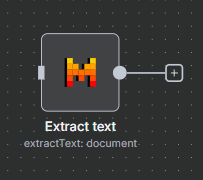
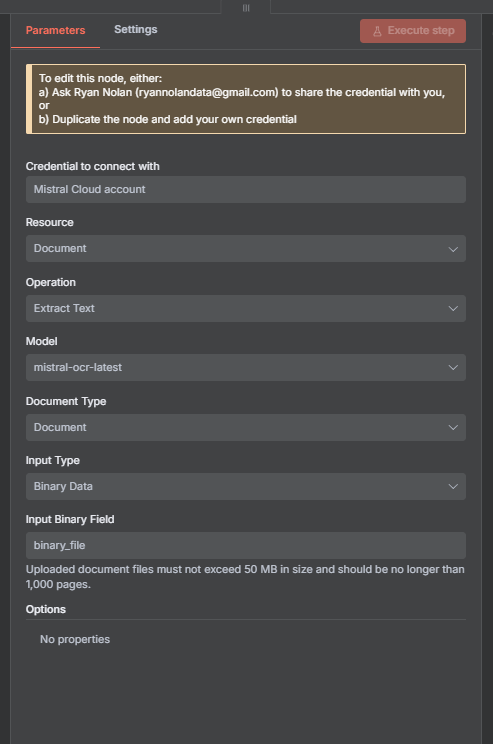
For PDFs and images where you need to extract text rather than structured data, the Mistral node handles OCR extraction and returns the content as markdown. Ideal for scanned documents, invoices, and images containing readable text.

Mistral file limits: files cannot exceed 50 MB and documents cannot be longer than 1,000 pages.

The output from Mistral arrives as markdown text rather than a binary file. From there you can pipe it into a language model, clean it up with a Code node, or use it for any downstream automation.

How to Analyze Images With AI in n8n

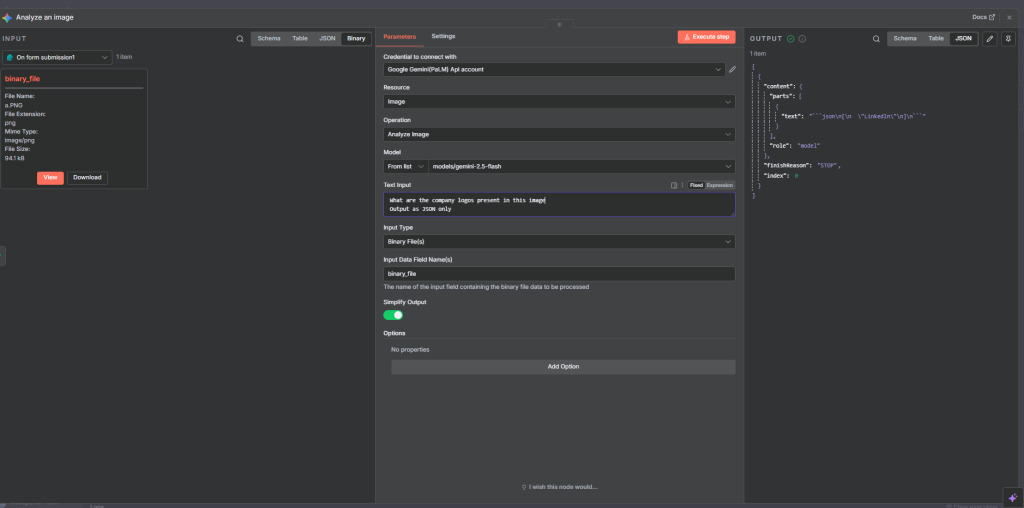
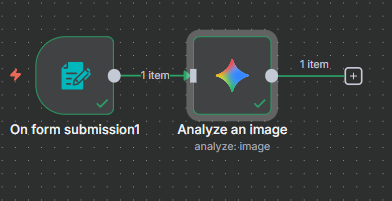
When the binary file is an image and you want to understand what is in it rather than extract text, multimodal AI models are the right tool. The Gemini node supports image analysis using Google’s visual language models.

Set up the Gemini node with your API credentials, choose a model, and write a text prompt. Adding output examples to the prompt — like “Output JSON only” — reduces the need for downstream parsing.

A real use case from a client hackathon: analyzing uploaded ID documents to determine whether an image was in color or black and white as part of an identity verification workflow. Gemini returned the classification, which was used for downstream branching logic.

After execution, Gemini returns its analysis as text or JSON depending on how you prompt it. You can clean up the output with a Code node, send it to further AI processing, or use it directly for conditional logic in the workflow.

How to Convert Data to a Binary File

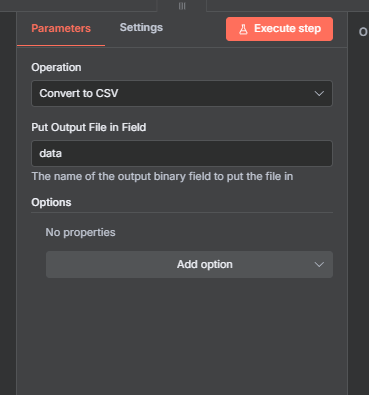
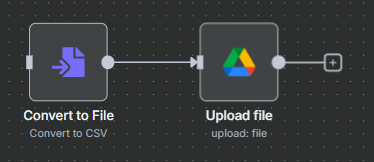
The n8n Convert to File node works in the opposite direction: it takes JSON or text data and outputs it as a downloadable file. This is one of the most common binary data patterns in n8n.

A typical workflow for automated reporting:

  1. Fetch data with an HTTP Request or database node
  2. Add a Convert to File node set to CSV, XLSX, JSON, or another supported format
  3. Connect the output to a Google Drive Upload node
  4. The file appears in the specified folder automatically

Supported output formats include CSV, XLSX, ODS, JSON, HTML, and plain text.

New n8n Binary Data Features (October 2025 Update)

n8n released a significant binary data update in October 2025. Two features change how you work with files across a workflow.

Rename Binary Files in the Edit Fields Node

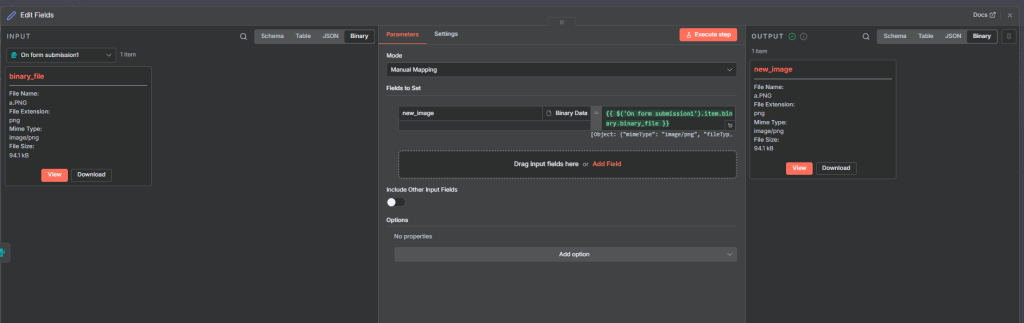
The Edit Fields (Set) node now includes Binary Data as a field type. This lets you rename a binary file within a workflow without adding a separate node. Add a field, set the type to Binary Data, enter the new name, and reference the original binary field from the upstream node.

After execution, the binary file appears under its new name in the output. Useful when binary field names from external APIs or form submissions do not match what your downstream nodes expect.

Access Binary Data From Earlier Nodes Using Expressions

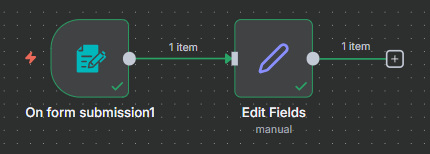
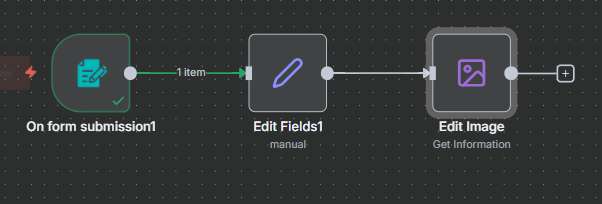
Before this update, binary data was lost once it passed through a node that did not forward it. For example, if a Form Trigger accepted a file upload and then an Edit Fields node created new JSON fields, the binary file would disappear from the output.

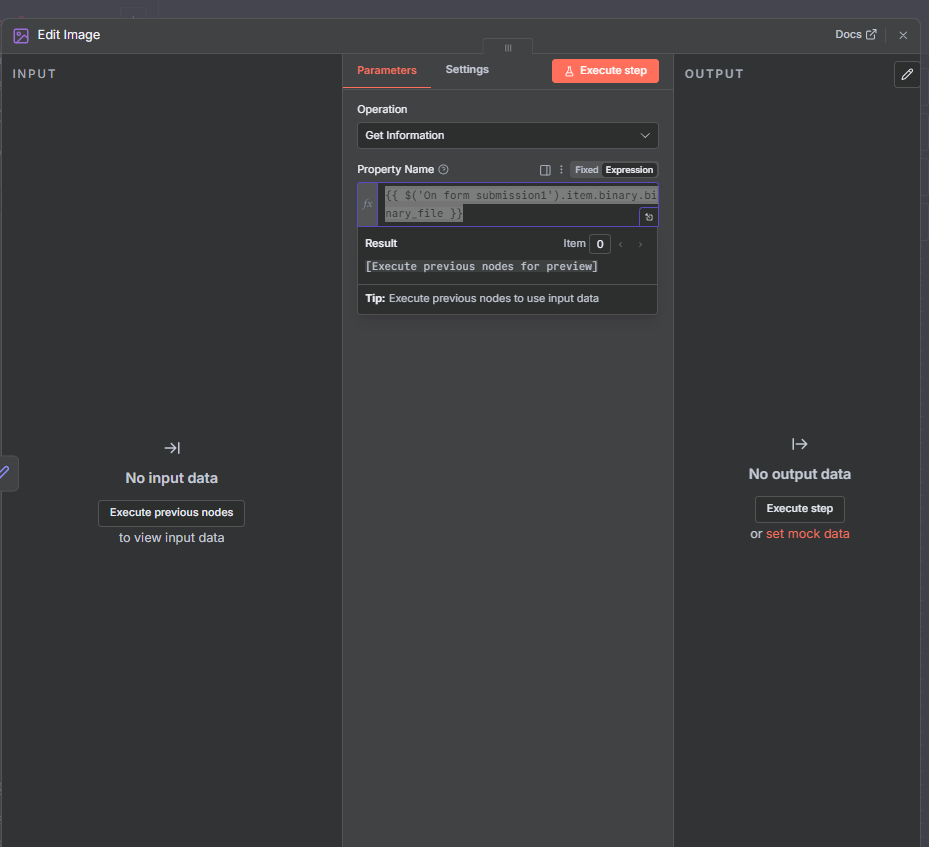
The new expression syntax lets you reach back to any previous node and retrieve its binary data:

$('NodeName').item.binary.binaryFieldName

For example, if your Form Trigger is called “On Form Submission” and the uploaded file is named “binary file”:

$('On Form Submission').item.binary['binary file']

This expression works in any node that accepts expressions — Edit Fields, Code nodes, AI nodes, HTTP Request nodes, and more. It eliminates the need to restructure your workflow just to keep a binary file accessible after intermediate nodes.

How to Handle Base64-Encoded Files in n8n

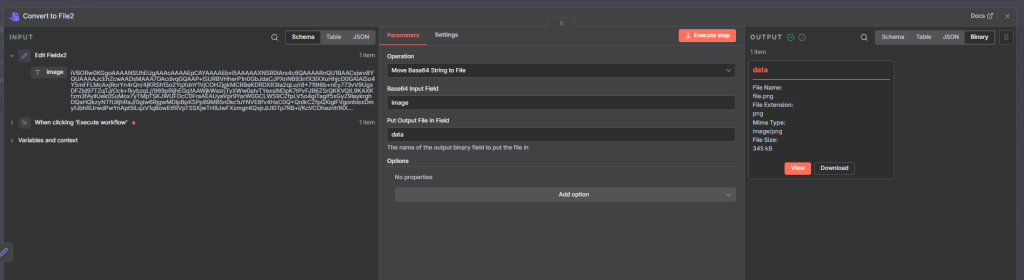
Some external APIs return images or files as Base64-encoded strings rather than direct binary files. This is common with AI image generation APIs and document scanning services. The raw output is a long alphanumeric string representing the binary file in text form.

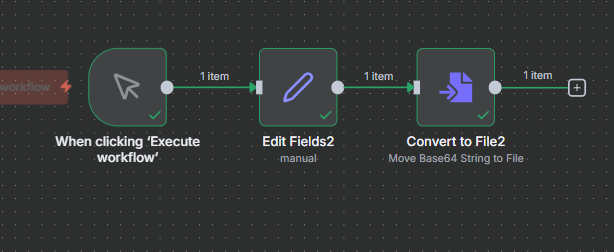
To convert a Base64 string into a usable binary file, use the Convert to File node and set the operation to From Base64 String. Map the Base64 string from the API response to the input field and choose the target file type (JPEG, PNG, PDF, etc.).

After conversion, the binary file behaves like any other binary data in n8n. You can view it in the output, pass it to Gemini for analysis, upload it to Google Drive, or attach it to an email. Base64 conversion is the standard bridge between APIs that return file content as strings and the binary layer inside n8n.

Common n8n Binary Data Mistakes

Binary Data Lost After an Edit Fields Node

By default, the Edit Fields (Set) node does not pass binary data to subsequent nodes. Fix this by referencing the binary data using the expression syntax or adding it as a Binary Data field type in the same Edit Fields node.

Wrong Input Binary Field Name

The Input Binary Field setting in Extract From File must match the binary field name from the upstream node exactly. Copy the field name directly from the Binary tab — including case and spaces.

Not Setting HTTP Request to Binary Mode

When downloading a file via HTTP Request, Response Format must be set to File. If left on Auto or JSON, n8n will try to parse the binary response as text and the file will be missing or garbled.

Using Extract From File on Images

Extract From File is for structured files where you need the content as data. For images, use Mistral for text extraction or Gemini for visual analysis.

Frequently Asked Questions

What is binary data in n8n?

Binary data in n8n is any file-type data attached to a workflow item — images, spreadsheets, PDFs, CSVs, and other file formats. It is stored separately from JSON data and appears in the Binary tab of a node’s output. The Binary tab is hidden by default and only shows when a node produces a file.

How do I pass binary data between nodes in n8n?

Binary data passes automatically between nodes that forward it. If a node drops it (like Edit Fields), use the expression $('NodeName').item.binary.fieldName to reference binary data from any earlier node. This syntax was added in the October 2025 n8n update.

Why is binary data not showing in my n8n output?

Most common causes: the node does not forward binary data, the HTTP Request Response Format was not set to File, or the binary field name in a downstream node does not match the upstream field name. Check the Binary tab and copy the exact field name.

What is the difference between Extract From File and Convert to File in n8n?

Extract From File takes a binary file and converts its contents to JSON data. Convert to File takes JSON or text data and outputs it as a binary file. They do opposite things.

Can n8n Cloud read files from disk?

No. The Read/Write Files from Disk node requires direct file system access, only available on self-hosted n8n. On n8n Cloud, use the Form Trigger, HTTP Request, or cloud storage integrations instead.

Next Steps

Understanding binary data opens up a wide range of practical n8n workflows. From here:

  • Build a file processing pipeline: accept uploads via a Form Trigger, extract text with Mistral, summarize with an AI Agent, and email the result
  • Create automated reporting: fetch data from an API, use Convert to File to generate a CSV or XLSX, and upload to Google Drive on a schedule
  • Add image analysis: accept uploads via a form, analyze with Gemini, and route the workflow based on what the model detects
  • Handle Base64 API responses: convert AI-generated images returned as strings into real binary files for storage or display

Binary data handling unlocks a completely different category of automation once you understand how it works in n8n.

Join Our AI Community

Get access to the JSON workflow files from this article, weekly live sessions, and a community of builders working through the same challenges. Everything is free and the community is active.

Free Community

Join 1,000+ AI Automation Builders

Weekly tutorials, live calls & direct access to Ryan & Matt.

Join Free →

Keep Learning

n8n Email Automation: Build an AI Classifier and Autoresponder (2026)

How to Connect ClickUp to n8n: Step-by-Step (2026)

The n8n ClickUp integration (see n8n clickup node documentation) gives you 57 actions and 27 triggers to automate almost anything in your...

How to Connect Notion to n8n: Step-by-Step (2026)

The n8n Notion integration lets you automate your Notion workspace without writing a single line of code. You can create pages, update...

How to Set Up the n8n Slack Integration (2026)

Slack is one of the most popular integrations in any n8n workflow. Customers want daily data reports pushed into specific channels, onboarding...