
How to Use the n8n Convert to File Node — Full Guide (2026)
The n8n Convert to File node takes data from anywhere in your workflow and exports it as a real downloadable file. Whether you’re pulling records from a database, getting JSON back from an AI agent, or receiving a base64-encoded image from an API — this node turns that raw data into a CSV, spreadsheet, JSON file, image, or text document in a single step.
This guide covers all 10 operations available in the Convert to File node with practical examples for each one. You’ll learn the exact settings, the common mistakes to avoid (especially with base64 strings), and how the node fits into larger automation workflows.
What Is the n8n Convert to File Node?
The Convert to File node is a core n8n node that converts structured JSON data or text into binary file output. Once the node runs, the output switches from JSON format to binary format — meaning the data is now stored as an actual file rather than a plain key-value object.
For a deeper look at how binary data works in n8n workflows, check out the n8n binary data guide.
The main value of this node is letting you export data from any point in a workflow. You could have a 20-node automation that fetches, filters, and transforms data from multiple APIs — and at the very end, the Convert to File node packages everything up as a spreadsheet or document that a teammate can download, email, or store in Drive.
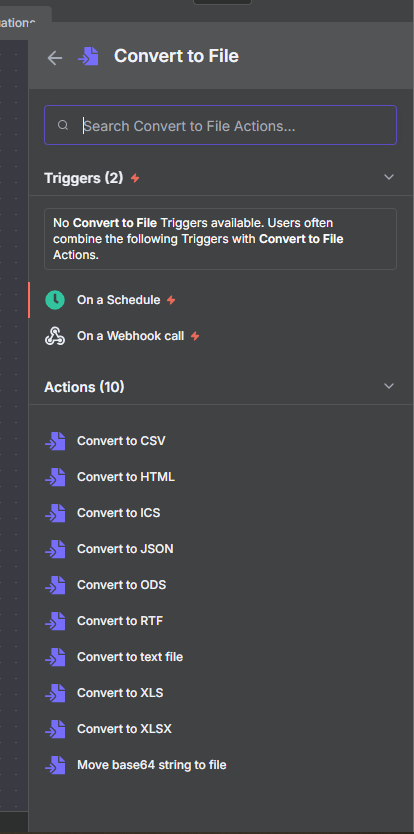
The node currently supports 10 operations: CSV, HTML, ICS, JSON, ODS, RTF, Text File, XLS, XLSX, and Move Base64 String to File.
All 10 Supported File Formats
Here’s a quick reference for every format the Convert to File node supports:
- CSV — Comma-separated values. Best for flat, single-sheet data exports. Works with Excel, Google Sheets, and pandas.
- XLSX — Microsoft Excel format. Supports multiple sheets, custom sheet names, and file compression.
- XLS — Older Excel format. Less common but occasionally needed for legacy systems.
- JSON — Exports data as a .json file. Useful for passing structured data between systems or storing AI output.
- Text File — Converts any string value to a plain .txt file.
- HTML — Converts data to an HTML file. Useful for generating web snippets or email templates.
- ICS — iCalendar format for calendar events. Supports all-day events and attendees.
- ODS — OpenDocument Spreadsheet format. Compatible with LibreOffice and Google Sheets.
- RTF — Rich Text Format. Supports fonts and colors in text documents.
- Move Base64 String to File — Converts a base64-encoded string back to its original binary format (images, PDFs, etc.).
How to Convert Data to CSV in n8n
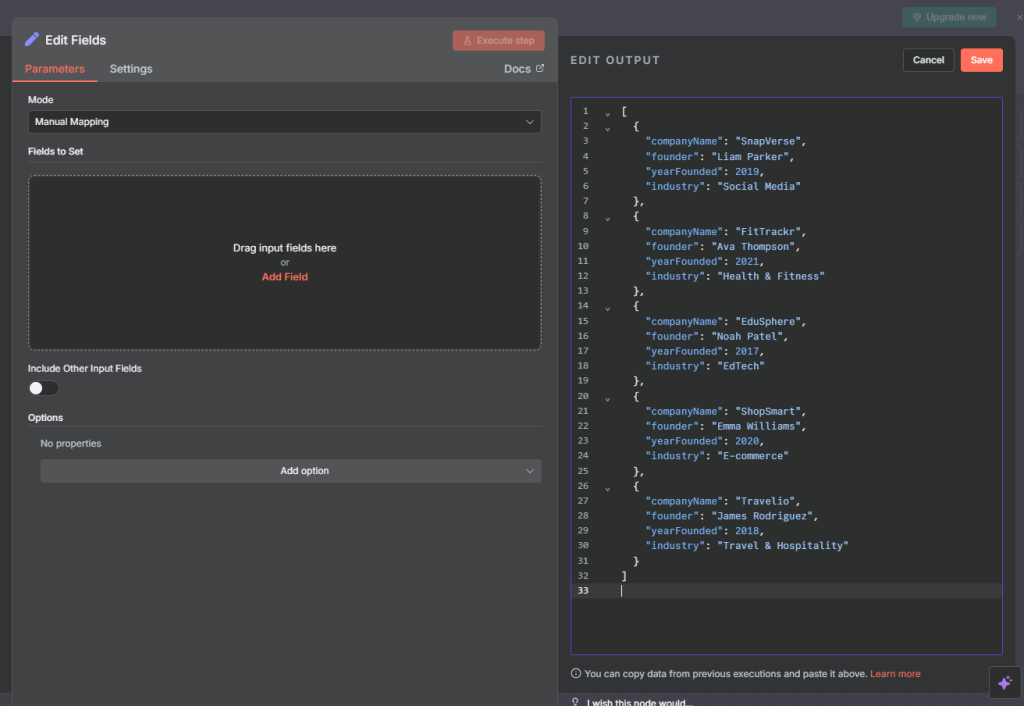
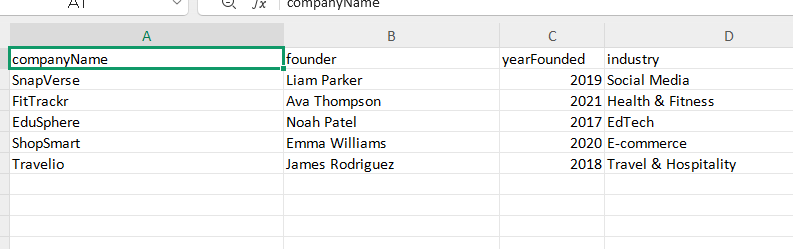
Converting JSON data to a CSV file is one of the most common uses for this node. It’s especially useful at the end of workflows that aggregate records from a database, CRM, or API.
Step-by-Step: CSV Export
- Add your data source — a Code node, HTTP Request, or database query that outputs an array of items with consistent keys.
- Connect a Convert to File node. Set Operation to Convert to CSV.
- In Put Output File in Field, enter a name for the binary field — “data” works fine as a default.
- Set a File Name with the .csv extension (e.g., export.csv). Without the extension n8n won’t append it automatically.
- Set the Delimiter — comma is standard. Leave it unless you need semicolons or tabs.
- Toggle Include Header Row on to include your field names as the first row.
- Execute the node. The output switches to binary — click the binary tab and download to verify.
The CSV will contain one row per input item and one column per JSON key. If your JSON has nested objects, flatten them first with a Set node or Code node before converting.
How to Convert Data to XLSX in n8n
XLSX is the native Excel format and supports features that CSV doesn’t — most importantly, multiple sheets and custom sheet names. If you’re building reports or dashboards that people will open in Excel or Google Sheets, XLSX is usually the better choice.
Step-by-Step: XLSX Export
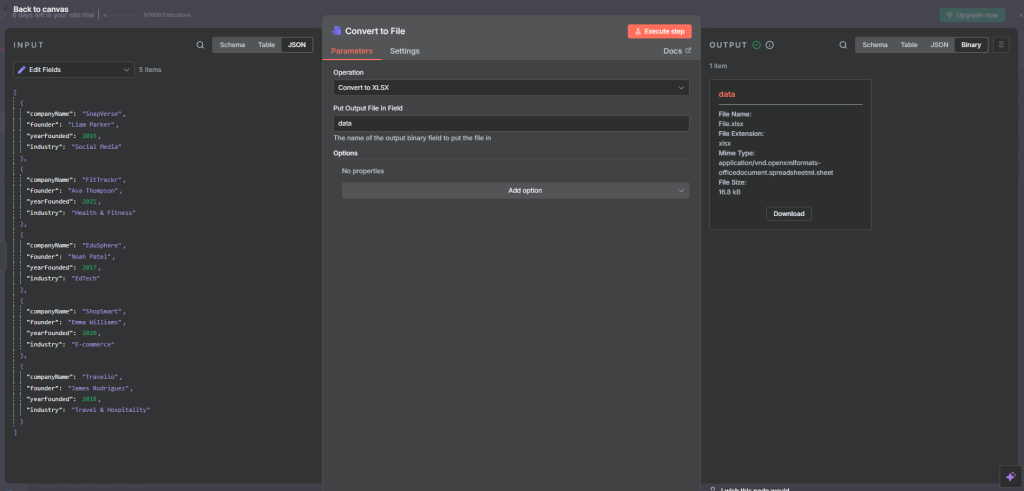
- Connect your data source to a Convert to File node. Set Operation to Convert to XLSX.
- Set Put Output File in Field to your chosen binary field name.
- Set a File Name ending in .xlsx (e.g., report.xlsx).
- Set a Sheet Name — this names the tab inside the spreadsheet. A meaningful name like “Q1 Sales” or “Leads” makes the file more readable for recipients.
- Toggle Compression on if you want to reduce file size before emailing or uploading.
- Keep Include Header Row on unless your downstream tool doesn’t expect headers.
Unlike CSV, XLSX preserves data types — numbers stay as numbers, dates as dates. This matters if the file will be used for calculations downstream.
How to Export Data as a JSON File in n8n
Exporting data as a JSON file is useful when you need to pass structured output between systems, store AI-generated content, or archive API responses. The JSON operation supports two output modes and optional formatting.
Step-by-Step: JSON Export
- Connect your data (AI agent output, API response, or Code node) to a Convert to File node. Set Operation to Convert to JSON.
- Choose Output Mode: “All Items to One File” combines every input item into a single JSON array. “Each Item to Separate File” creates one .json file per input item.
- Set a File Name ending in .json.
- Toggle Format JSON on for indented, human-readable output. Leave it off for smaller file size.
A common pattern is pairing this with an AI agent that uses a structured output parser. The agent returns a JSON object, and the Convert to File node turns it into a .json file ready to download, email, or upload to cloud storage. The n8n HTTP Request node is another frequent data source — any API response can be piped straight into a JSON file export.
How to Convert a Base64 String to a File in n8n
Many APIs return images, PDFs, or other binary files encoded as base64 strings rather than direct file downloads. The Move Base64 String to File operation decodes that string back into its original binary format.
The Base64 Prefix Problem
This is the most common mistake with this operation. When you copy a base64 string from an online converter or receive it from certain APIs, it often includes a data URI prefix like this:
data:image/png;base64,iVBORw0KGgoAAAANSUhEUgAA...n8n’s Convert to File node cannot process the string if this prefix is included. You must strip everything up to and including the comma first. Use an expression in a Set node:
{{ $json.image.replace(/^data:[^;]+;base64,/, '') }}Step-by-Step: Base64 to File
- Receive your base64 string and store it as a string field (e.g., “image”).
- If the string has a data URI prefix, remove it with a Set node using the expression above.
- Add a Convert to File node. Set Operation to Move Base64 String to File.
- Set Base64 Input Field to your string field name (e.g., “image”).
- Set a File Name with the correct extension (e.g., photo.png, document.pdf).
- Execute — the node outputs binary data. Use the binary tab to preview or download.
This operation is especially useful in AI image generation workflows — models like DALL-E return images as base64, and this node converts them back to a PNG ready to save to Drive or email.
Join Our AI Community
How to Convert Text to a File in n8n
The Text File operation converts any string value in your workflow to a downloadable .txt file. This is handy for saving AI-generated content, log output, or transcript data as a plain text document.
Step-by-Step: Text File Export
- Make sure your data has a string field — for example, “transcript” containing plain text.
- Add a Convert to File node. Set Operation to Convert to Text File.
- Set Text Input Field to the name of your string field.
- Set a File Name ending in .txt (e.g., summary.txt).
- Leave Encoding as utf8 unless you need a specific character set.
A common use case is saving the output of an AI summarization node — the summary comes back as a string, and this node packages it as a .txt file you can attach to an email or save to a folder.
ICS, HTML, ODS, and RTF: The Other Supported Formats
The remaining four formats cover more specialized use cases.
ICS — Calendar Events
ICS (iCalendar) is the standard format for calendar events. The Convert to ICS operation outputs a .ics file that can be imported into Google Calendar, Outlook, or Apple Calendar. You can configure event title, start time, end time, all-day toggle, and attendees. Useful for automating meeting invites or event notifications.
HTML — Web Content
The HTML operation converts data into a structured .html file. Useful for generating email templates, web snippets, or preview documents from workflow data.
ODS — OpenDocument Spreadsheet
ODS is the spreadsheet format used by LibreOffice and supported by Google Sheets. It works similarly to XLSX but uses an open standard — use it when recipients use LibreOffice or when you need an open-format spreadsheet.
RTF — Rich Text Format
RTF preserves fonts, colors, and basic text formatting in a document. It’s an older format but opens in a wide range of word processors without compatibility issues.
Extract From File: The Companion Node
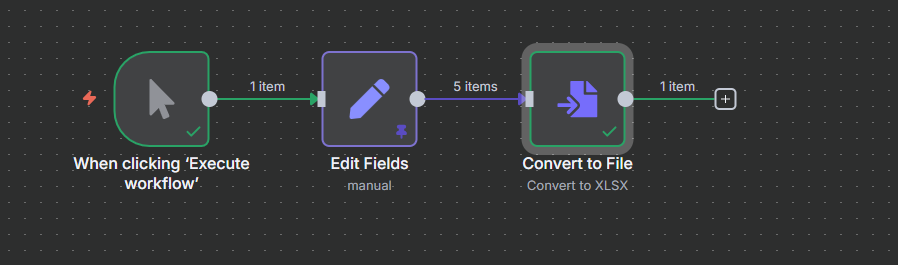
The Convert to File node has a counterpart: the Extract From File node. While Convert to File takes JSON data and creates a binary file, Extract From File does the reverse — it takes a binary file and converts it back to structured JSON data that downstream nodes can work with.
For example, if a workflow receives a CSV attachment from an email, Extract From File parses it into JSON rows you can filter, transform, or write to a database. The same works for XLSX, JSON, ICS, and text files.
If you’re newer to n8n, the n8n for beginners guide is a good place to see how these nodes fit into broader workflow patterns. And if you specifically need to generate PDFs rather than downloadable data files, check out the n8n PDF generator guide.
Knowing both nodes lets you build bidirectional file workflows — receive a file, process it, transform the data, and output a new file in a different format, all within a single n8n workflow.
Join Our AI Community
Frequently Asked Questions
What is the n8n Convert to File node used for?
The Convert to File node converts structured data or text strings from your n8n workflow into downloadable binary files. It supports 10 file types: CSV, XLSX, XLS, JSON, Text, HTML, ICS, ODS, RTF, and Base64 to File. Use it at the end of a workflow when you need to export data as a real file rather than pass it as JSON.
Why does my base64 to file conversion fail in n8n?
The most common cause is an included data URI prefix in the base64 string. If the string starts with “data:image/png;base64,” (or any similar prefix), n8n cannot decode it. Strip everything up to and including the comma before passing it to the Convert to File node. Use the expression {{ $json.image.replace(/^data:[^;]+;base64,/, '') }} in a Set node to remove it.
What is the difference between CSV and XLSX in the Convert to File node?
CSV is a plain text format with one sheet of data — simple, universal, and widely supported. XLSX is the native Excel format that supports multiple sheets, custom sheet names, data type preservation, and file compression. For most data exports, CSV is fine. For formatted reports that people will open in Excel, use XLSX.
Can I set a custom sheet name in the n8n Convert to XLSX node?
Yes. In the Convert to XLSX operation, the Sheet Name field lets you set any tab label you want inside the Excel file. Setting a meaningful name like “Monthly Report” or “Leads” makes the file more useful for recipients who open it in Excel or Google Sheets.
What is the difference between “All Items to One File” and “Each Item to Separate File”?
“All Items to One File” combines all input items into a single file — for example, all JSON items become one JSON array. “Each Item to Separate File” creates one file per input item. Use the second mode when each item is independent and you want to distribute files individually, such as generating a separate report per client.
Next Steps: Using Convert to File in Real Workflows
The Convert to File node works best as the last step in a workflow that has already done the hard work — fetching, filtering, transforming, and shaping data. Once you have clean, structured data flowing through, converting it to a file takes one node and a few settings.
A few practical starting points: connect it after an HTTP Request node to save API responses as JSON files, use it after a Code node that formats report data as XLSX, or drop it after an AI agent to export structured output as a CSV for stakeholders who don’t use n8n.
For even more control over file handling in n8n — uploading files, reading files, or passing binary data between nodes — the n8n binary data guide covers the full picture of how file data flows through workflows.
