
How to use Monday.com in n8n

Table of Contents

How to Integrate monday.com with n8n — Step-by-Step (2026)

monday.com is one of the most popular task management platforms out there, and with the n8n monday.com integration you can automate it end-to-end. Whether you want to create boards automatically, update item statuses, or trigger a full workflow the moment a column changes — n8n makes it possible without writing a single line of glue code.

This guide covers everything you need to set up the monday.com n8n integration from scratch. You’ll learn how to connect your credentials, walk through the 18 built-in nodes, configure a webhook trigger for real-time automation, and use the monday.com API directly inside n8n’s HTTP Request node for advanced queries.

What Is monday.com and Why Automate It with n8n?

monday.com is a cloud-based work operating system that lets teams plan projects, track tasks, and manage workflows through customizable boards. Items on a board represent tasks, leads, tickets, or any unit of work — and each item can have columns for status, assignee, due date, files, and more.

n8n is an open-source workflow automation tool that connects apps and services through a visual node-based editor. With n8n, you can automate repetitive monday.com tasks — creating items from web form submissions, syncing data with other tools, or triggering downstream workflows the moment a status changes.

The combination is especially powerful for teams already living inside monday.com who want to reduce manual work — things like auto-creating a Google Drive folder when a task is marked Done, or notifying Slack every time a new lead item appears on a board.

Join Our AI Community

Get access to the JSON workflow files from this article, weekly live sessions, and a community of builders working through the same challenges. Everything is free and the community is active.

How to Set Up monday.com Credentials in n8n

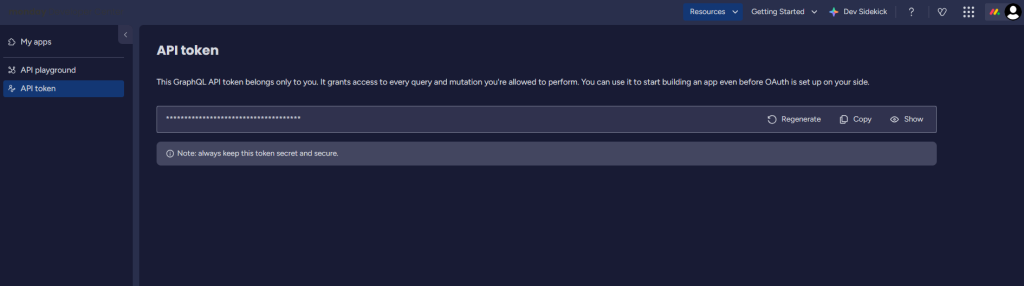
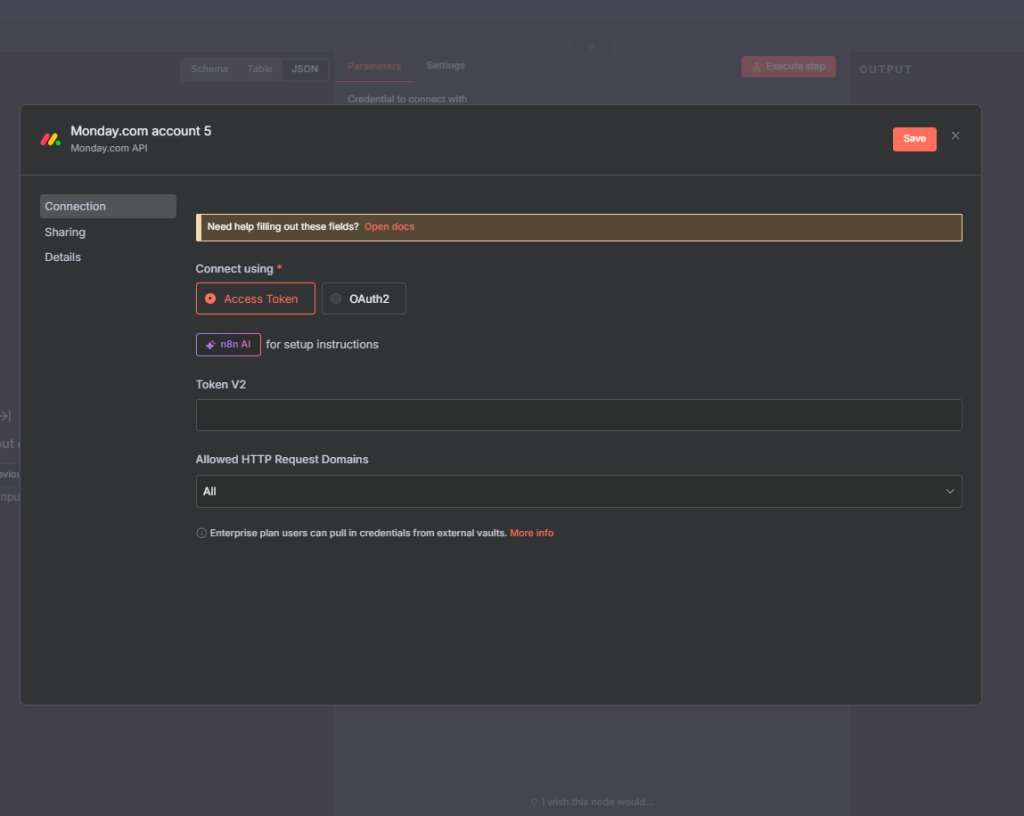
Before you can use any monday.com node in n8n, you need to connect your API token. monday.com uses a Token V2 for all API authentication — here’s how to get it:

  1. Log in to your monday.com account and click your profile picture in the top-right corner.
  2. Select Developers from the dropdown menu.
  3. In the Developer Center, click My Access Tokens and then Show.
  4. Copy your personal API token.
  5. Back in n8n, add any monday.com node to your workflow. Click the Credential dropdown and select Create New.
  6. Paste your token into the Token V2 field and click Save. You should see “Connection tested successfully.”

Once connected, that credential will be available across all 18 monday.com nodes in every workflow you build.

Overview: The 18 monday.com Nodes in n8n

Search “monday.com” in the n8n node panel and you’ll see 18 operations grouped into four resource types: Board, Board Column, Board Group, and Board Item. You don’t need to use all of them — knowing the structure is enough to piece together any workflow.

Board Operations

Archive a board, Create a new board, Get a board by ID, Get many boards. These are your starting point for any workflow that provisions or manages boards programmatically — useful for onboarding automation or recurring project setup.

Board Column Operations

Create a new column, Get many columns. Helpful when you’re dynamically building boards and need to add specific column types after creation.

Board Group Operations

Create a group in a board, Delete a group, Get many groups. Groups are the sections within a board (like “To Do”, “In Progress”, “Done”). Creating groups programmatically lets you template a consistent board structure.

Board Item Operations

This is where most automations live: Add an update to an item, Change a column value, Change multiple column values, Create an item, Delete an item, Get an item, Get items by column value, Get many items, Move item to group.

Think of items as the rows in your board. These operations let you read, write, and move them — connecting monday.com to any upstream or downstream service.

Working with Boards and Groups in n8n

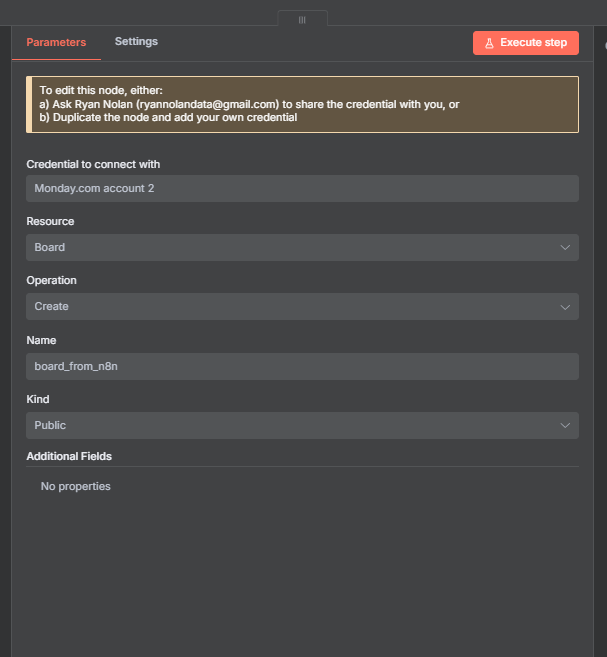
To create a board, add a monday.com node, set the Resource to Board and the Operation to Create. Give the board a name — you can use a static value or pull one from earlier in your workflow using an expression. Execute the node and the board appears in monday.com immediately, along with its default group.

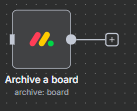
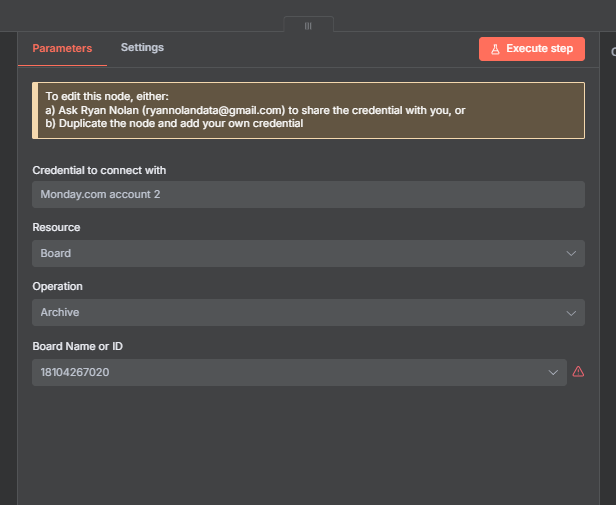
To archive a board, add another monday.com node set to Board > Archive. You can reference the board by name or by ID. The ID appears in the monday.com URL after /boards/ — copy it directly or pull it from the output of a previous Create Board node using an expression.

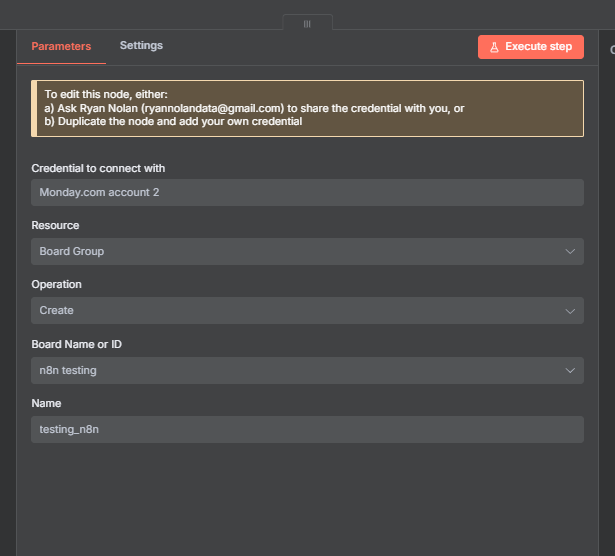
Creating and deleting board groups works the same way. Set Resource to Board Group, pick Create or Delete, specify your board, and give the group a name. If you’re templating new boards for clients or recurring projects, chaining Create Board and Create Group nodes saves a significant amount of manual setup.

Creating, Getting, and Updating Items in n8n

Items are the core unit of monday.com — they’re the tasks, leads, or records you actually work with. Here’s how the key item operations work in practice.

Create an Item

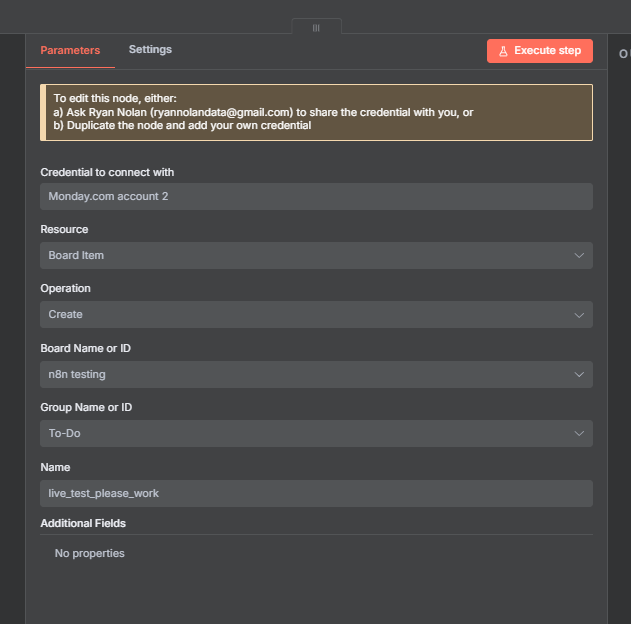
Set Resource to Board Item and Operation to Create. Pick your board, the group within that board (like “To Do”), and enter a name for the item. This is perfect for appending new records from other systems — a web form submission, a CRM event, or an incoming email can all create a new item automatically.

Get Items by Column Value

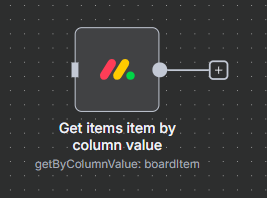
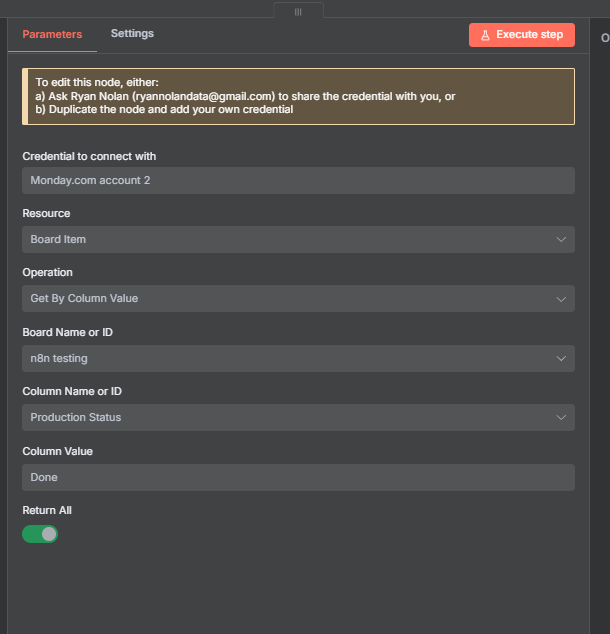
Use Get Items by Column Value when you want to filter items based on a specific field. Select your board, choose the column (like “Production Status”), and set the value you want to match (like “Done”). Set the limit to Return All and apply a Filter node afterward — this is more flexible than relying on monday.com’s built-in filtering.

Get Many Items

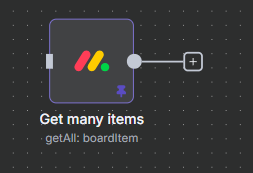
Get Many Items pulls all items from a specific board group. Select your board, your group, and execute. The output includes each item’s ID, name, column values, and metadata. Use a Sort node or Filter node downstream to narrow results.

Add an Update to an Item

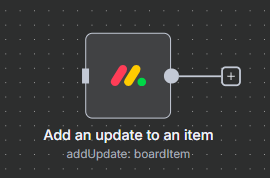
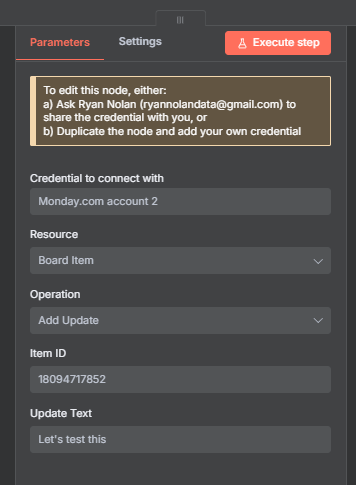
Add Update writes a comment or note to a specific item — similar to leaving a message in the item’s Updates section. You need the item’s ID to do this. The easiest way to get an item ID in a workflow is from the output of a previous Get or Create node. If you need to update multiple items at once, connect the Get Many Items node output directly into an Add Update node — n8n will loop through each item automatically.

Change a Column Value

Change Column Value lets you update a specific field on an item — like flipping a status from “Working on it” to “Done”. The tricky part is the JSON payload. For a status column, the body looks like this:

{ "label": "Done" }

Make sure capitalization matches exactly what’s in your monday.com column settings. For example, if your column shows “Stuck” with a capital S, use “Stuck” — not “stuck”. You can also change multiple column values at once using the Change Multiple Column Values operation, which accepts a JSON object with multiple column IDs as keys.

Join Our AI Community

Get access to the JSON workflow files from this article, weekly live sessions, and a community of builders working through the same challenges. Everything is free and the community is active.

Setting Up a monday.com Webhook Trigger in n8n

monday.com has no native trigger node in n8n — there’s no “When an item status changes” event you can just drop in. To trigger a workflow from a monday.com event, you need to set up a webhook manually. This takes a few more steps but unlocks real-time automation.

What You’ll Need Before Starting

Webhook automations require a paid monday.com plan. The Basic plan starts at roughly $50/month for a minimum of three seats, so budget for that before building webhook-based workflows.

Step 1: Create the Webhook Node in n8n

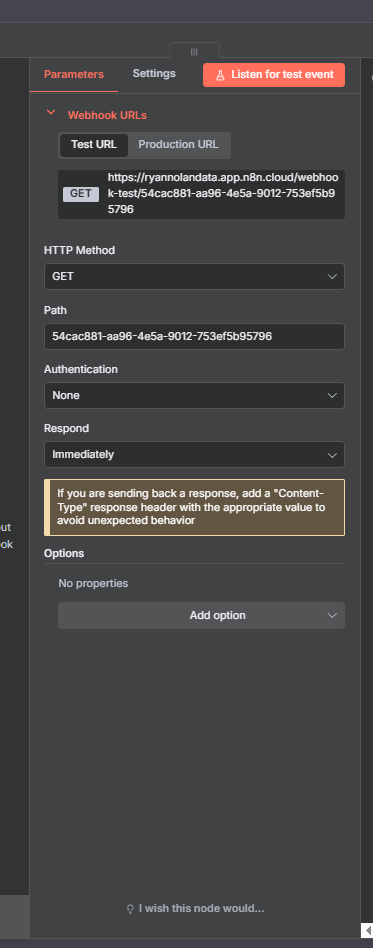
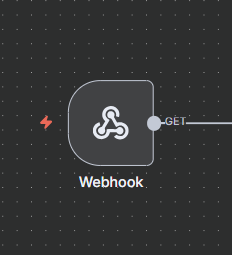
Add a Webhook node to your workflow. Set the HTTP Method to POST. The most important setting here is Response Mode — set it to “Respond to Webhook” (not “Respond Immediately”). This is critical and a common source of errors.

Activate the workflow so it has a production URL — not a test URL. monday.com’s webhook verification process works better against a live production endpoint.

Step 2: Handle the Challenge Token

When you register a webhook URL in monday.com, their system sends a verification POST to your URL containing a JSON body like this:

{ "challenge": "abc123xyz" }

Your n8n workflow must return that same challenge value back in the response body, otherwise monday.com rejects the URL and you’ll see this error: “The provided URL has not returned the requested challenge.”

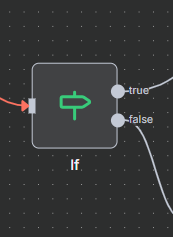
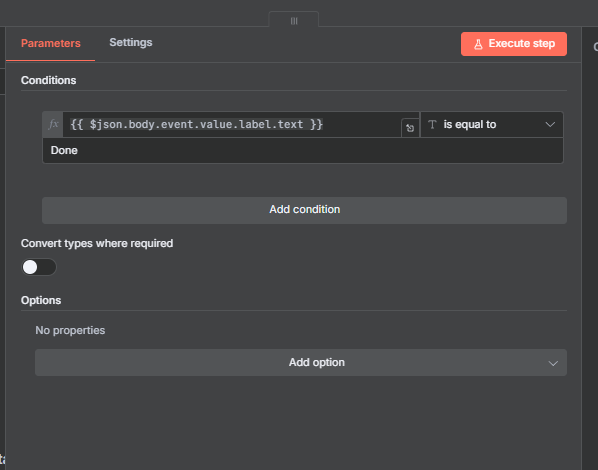
To handle this, add an If node immediately after the Webhook node. Set the condition to check whether the challenge field exists:

{{ $json.body.challenge }}  →  isNotEmpty

On the true branch, add a Respond to Webhook node. Set the response body to JSON and return the challenge value:

{ "challenge": "{{ $json.body.challenge }}" }

On the false branch, your actual workflow logic begins — processing the real event data.

Step 3: Register the Webhook in monday.com

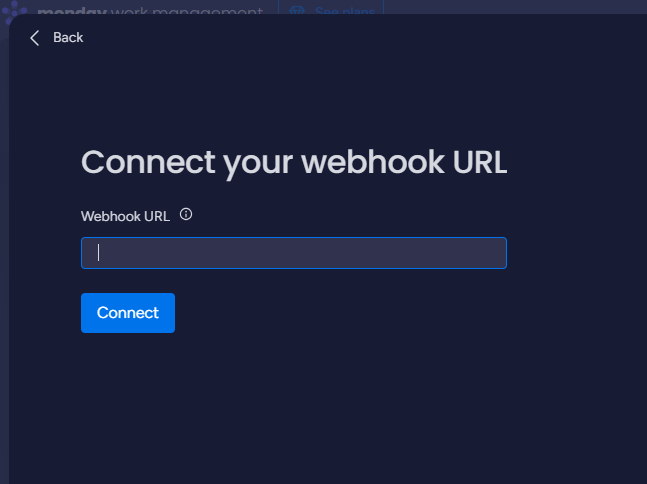
In monday.com, open the board where you want the trigger to fire. Click Automate in the top-right area of the board. Click Create and search for “webhook”. Select “When a status changes to something, send a webhook.”

Paste in your n8n production webhook URL. Click Connect. If the challenge token is handled correctly, monday.com will confirm the connection and your automation becomes active.

Real-World Example: Auto-Save monday.com Items to Google Drive

Here’s a practical workflow built for a real client: when a monday.com item is marked “Done”, automatically save all item updates (text) and uploaded files (images) into a new Google Drive folder.

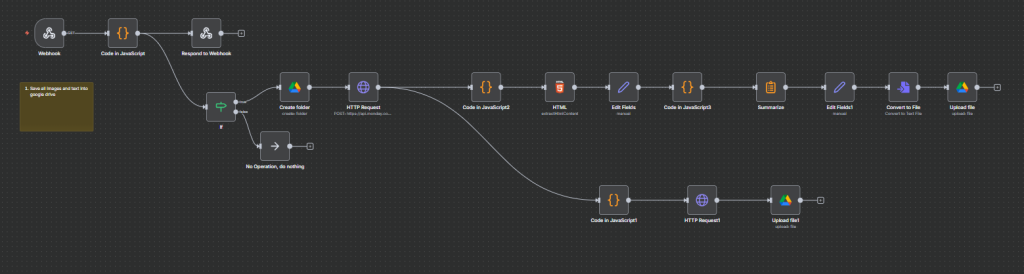
The Workflow Structure

The workflow has six main stages:

  1. Webhook trigger — fires when production status changes to “Done” on the target board.
  2. If node — confirms the event is a real status change (not the challenge verification request).
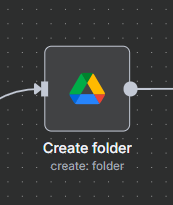
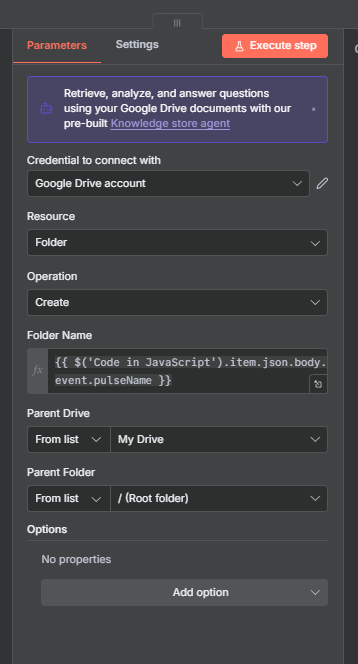
  3. Create Google Drive folder — named after the board name and item name (e.g., “Project Alpha / Task One”).
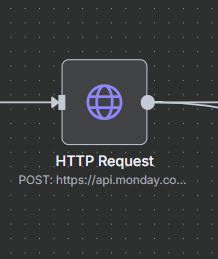
  4. HTTP Request to monday.com API — fetches the full item details including all updates and file attachments.
  5. Split the output — one branch handles images, the other handles text updates.
  6. Upload to Drive — images upload directly by file URL, text updates get combined into a single .txt file.

Why Use an HTTP Request Instead of Built-In Nodes?

The built-in monday.com nodes don’t expose file attachment URLs or the full HTML content of item updates. For those, you need to query the monday.com API directly using the n8n HTTP Request node with a GraphQL query.

Using the monday.com API in n8n’s HTTP Request Node

The monday.com API v2 is a GraphQL API — all requests go to a single endpoint and the query shape determines what data you get back. Here’s how to set it up in n8n.

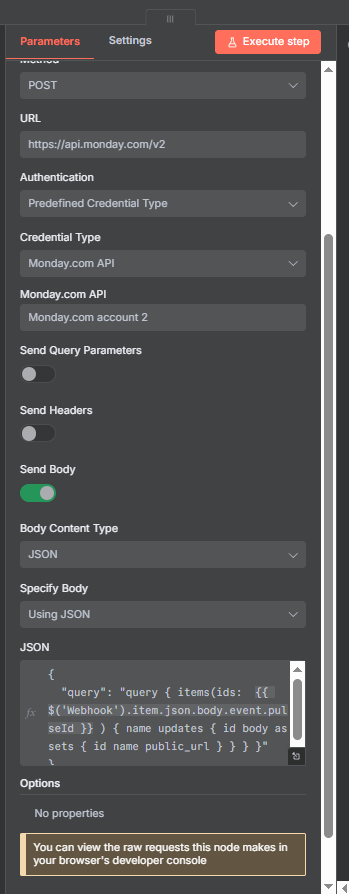
HTTP Request Node Configuration

  • URL: https://api.monday.com/v2
  • Method: POST
  • Authentication: Predefined Credential Type > monday.com API > your saved credential
  • Body Content Type: JSON

Body:

{ "query": "{ boards(ids: [BOARD_ID]) { name items_page { items { id name updates { text_body } assets { public_url } } } } }" }

Replace BOARD_ID with the actual board ID from your monday.com URL. You can make this dynamic by referencing an expression from an earlier node.

Extracting Item Text Updates

Each item in the API response has an “updates” array where each element contains a “text_body” field. To combine all updates into one text file, use a Code node to loop through the updates array and join the text with newlines:

const updates = $input.item.json.updates;
const combined = updates.map(u => u.text_body).join("\n\n");
return [{ json: { text: combined } }];

From there, use an Edit Fields node to label the output, then a Write Binary File node (or Google Drive upload node) to save it as a .txt file.

Extracting File Attachments

Files uploaded to monday.com items appear in the “assets” array with a “public_url” field. Feed those URLs into an HTTP Request node (GET, no auth needed for public assets) to download the binary content, then pass the result into a Google Drive or S3 upload node.

Here is what the full workflow looks like:

Join Our AI Community

Get access to the JSON workflow files from this article, weekly live sessions, and a community of builders working through the same challenges. Everything is free and the community is active.

Frequently Asked Questions

Does n8n have a monday.com trigger node?

No — n8n does not have a native monday.com trigger. To trigger an n8n workflow from a monday.com event (like a status change), you need to set up a webhook manually in monday.com’s Automate section and point it to an n8n Webhook node. The challenge token verification step is required for this to work.

Do I need a paid monday.com plan to use webhooks?

Yes. monday.com’s webhook automations are only available on paid plans. At the time of writing, the minimum plan for webhook access starts at around $50/month (billed for at least three seats). You can test the built-in n8n nodes on a free trial account, but webhook triggers require an active paid subscription.

How do I get a monday.com item ID in n8n?

The item ID appears in the output JSON of any Get or Create item operation. You can also find it in the monday.com URL — it appears after /pulses/ in the item detail view. In a workflow, the cleanest approach is to retrieve items via Get Items by Column Value or Get Many Items and pass the ID downstream using an expression like {{ $json.id }}.

Can n8n access monday.com data that the built-in nodes don’t support?

Yes. The monday.com API v2 is a GraphQL API that exposes far more data than the built-in nodes — including file attachments, update history, subitems, and full column metadata. Use n8n’s HTTP Request node pointed at https://api.monday.com/v2 with a POST method and your GraphQL query in the request body. Select “Predefined Credential Type > monday.com API” to authenticate automatically.

What is the monday.com webhook challenge token and why does it matter?

When you register a webhook URL in monday.com, their system sends a one-time verification POST to your URL containing a JSON field called “challenge”. Your server must immediately return that exact challenge value in the response. In n8n, handle this with an If node that checks for the challenge field and routes to a Respond to Webhook node that echoes it back. If you skip this step, monday.com will reject your webhook URL with the error “The provided URL has not returned the requested challenge.”

Next Steps: Building Your First monday.com Automation

The best way to get started is to pick one repetitive task you do in monday.com today and automate it in n8n. A few good first projects: auto-create a new item when a website form is submitted, bulk update column values based on data from another system, or set up a webhook so Slack gets notified every time an item status changes to “Done”.

Once you’re comfortable with the basics, the real power comes from chaining monday.com nodes with other services — Google Drive, Gmail, Slack, OpenAI. The built-in nodes cover 80% of use cases. For everything else, the monday.com API v2 is well-documented and works cleanly through n8n’s HTTP Request node. You can also add human-in-the-loop review steps to monday.com workflows so that critical changes require approval before they go through.

If you need help building out a monday.com integration for your team or a client, feel free to reach out — freelance projects are welcome.

Join Our AI Community

Get access to the JSON workflow files from this article, weekly live sessions, and a community of builders working through the same challenges. Everything is free and the community is active.

Free Community

Join 1,000+ AI Automation Builders

Weekly tutorials, live calls & direct access to Ryan & Matt.

Join Free →

Keep Learning

n8n Email Automation: Build an AI Classifier and Autoresponder (2026)

How to Connect ClickUp to n8n: Step-by-Step (2026)

The n8n ClickUp integration (see n8n clickup node documentation) gives you 57 actions and 27 triggers to automate almost anything in your...

How to Connect Notion to n8n: Step-by-Step (2026)

The n8n Notion integration lets you automate your Notion workspace without writing a single line of code. You can create pages, update...

How to Set Up the n8n Slack Integration (2026)

Slack is one of the most popular integrations in any n8n workflow. Customers want daily data reports pushed into specific channels, onboarding...