


n8n Summarize Node: How to Count, Sum, and Group Data in Any Workflow (2026)
The n8n Summarize node lets you aggregate workflow data the same way a data analyst would — counts, sums, averages, min, max, and group-by — without writing code. This guide covers every aggregation method with 11 step-by-step examples, explains when to use each one, and points out the gaps you need to work around.
What Is the n8n Summarize Node?
The n8n Summarize node is a data transformation node that collapses multiple incoming items into aggregated results. Instead of passing 500 order records downstream, you pass 5 rows showing totals per region. It works exactly like a GROUP BY in SQL or a pivot table in Excel.
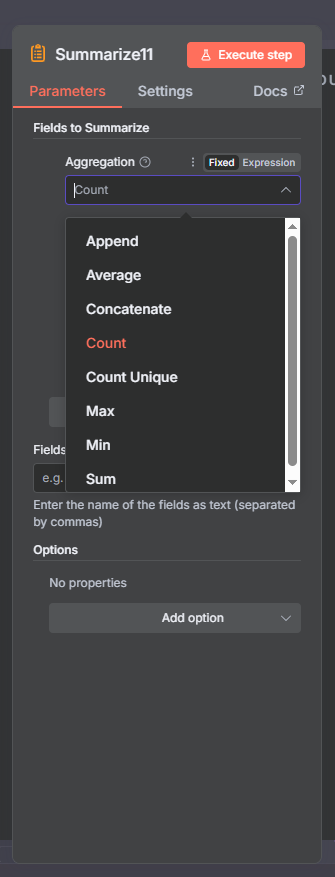
The node supports eight aggregation methods: Count, Count Unique, Sum, Average, Min, Max, Concatenate, and Append. You can run multiple aggregations in a single node and group results by one or more fields at the same time.
Real-world use cases include counting orders per customer, summing sales by region, finding the highest and lowest values in a dataset, joining text fields into a single string, and compiling arrays for downstream API calls or reports.
Join Our AI Community
n8n Summarize Node Parameters Explained
There are three main sections to configure: Fields to Summarize, Fields to Split By, and Node Options. Getting familiar with all three makes the node much easier to use in complex workflows.
Fields to Summarize
This section defines what to aggregate and how. Each entry takes two inputs: the field name and the aggregation method. You can add multiple entries to run several aggregations at once.
The eight aggregation methods are:
- Count — Total number of items, including duplicates.
- Count Unique — Distinct values only. Equivalent to COUNT DISTINCT in SQL.
- Sum — Adds all numeric values together.
- Average — Returns the mean.
- Min — Returns the smallest numeric value.
- Max — Returns the largest numeric value.
- Concatenate — Joins all values into a single string with configurable separator.
- Append — Collects all values into an array.
Count vs Count Unique: Count returns total items including repeats. Count Unique returns only distinct values — equivalent to COUNT DISTINCT in SQL.
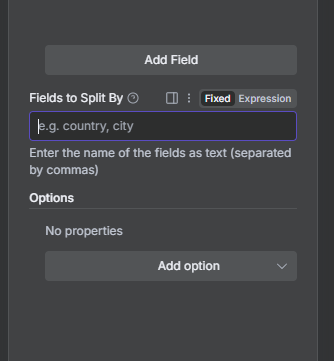
Fields to Split By
This is the GROUP BY of the Summarize node. Enter one or more field names. The node produces one output item per unique value with aggregated results for each group. Leave empty to get one aggregated result across all inputs.
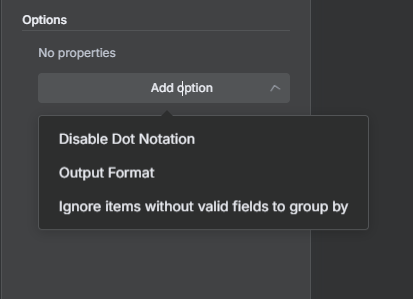
Node Options
- Continue if Field Not Found — Returns empty item instead of throwing an error when a field is missing.
- Disable Dot Notation — Use when field names literally contain dots.
- Output Format — Each Split in a Separate Item (one row per group) or All Splits in a Single Item (compact nested payload).
- Ignore Items Without Valid Fields to Group By — Skips items missing the split-by field.
n8n Summarize Node Examples
All examples below use a Code node or Edit Fields node to supply the input data. You can reproduce each one from scratch without needing external data sources.
Example 1: Count Items by Category
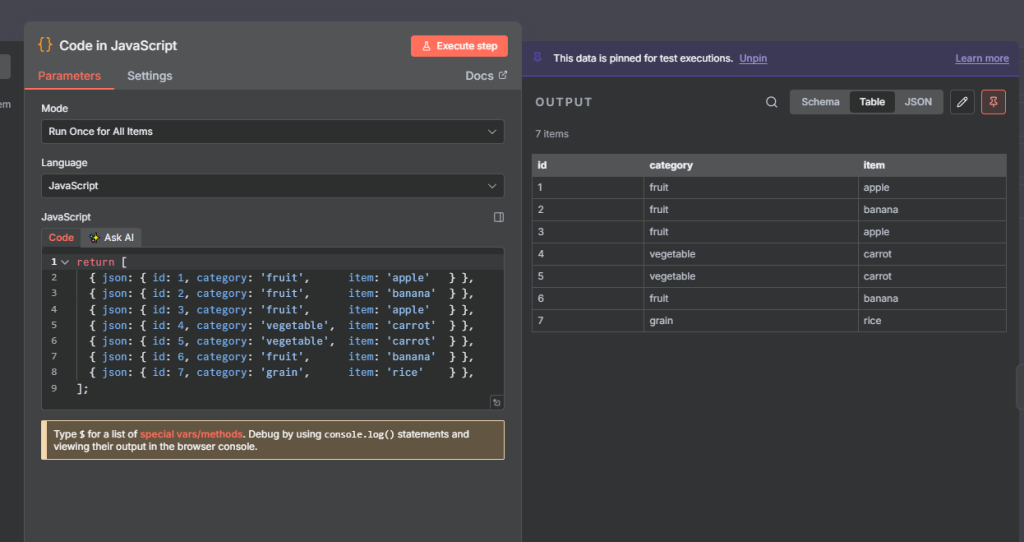
This example counts the total number of items in each category. Start with a Code node that returns this JSON:
return [
{ json: { id: 1, category: 'fruit', item: 'apple' } },
{ json: { id: 2, category: 'fruit', item: 'banana' } },
{ json: { id: 3, category: 'fruit', item: 'apple' } },
{ json: { id: 4, category: 'vegetable', item: 'carrot' } },
{ json: { id: 5, category: 'vegetable', item: 'carrot' } },
{ json: { id: 6, category: 'fruit', item: 'banana' } },
{ json: { id: 7, category: 'grain', item: 'rice' } },
];
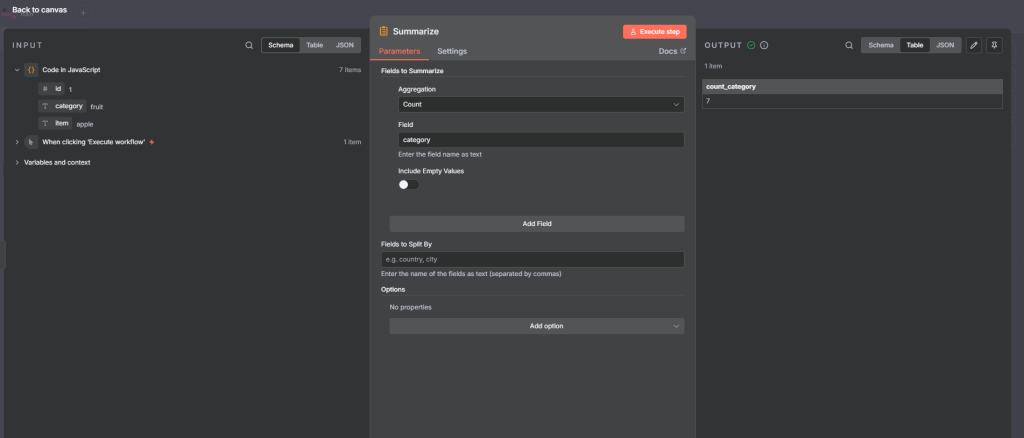
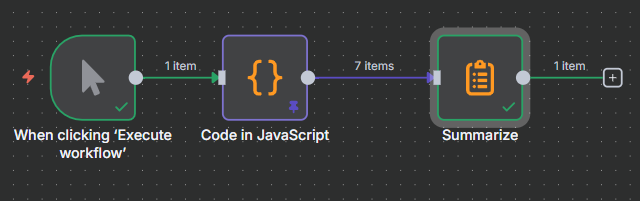
Connect a Summarize node. Set Aggregation = Count and Field = category.
The output returns count_category = 7. The output field name always follows the pattern: aggregation_fieldname.
Example 2: Count Unique Values
Using the same Code node output, this counts how many distinct category values exist in the dataset.
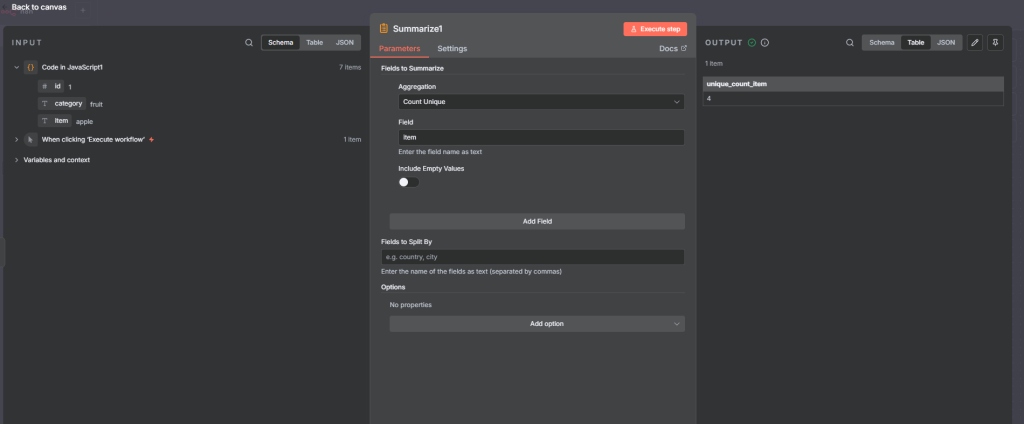
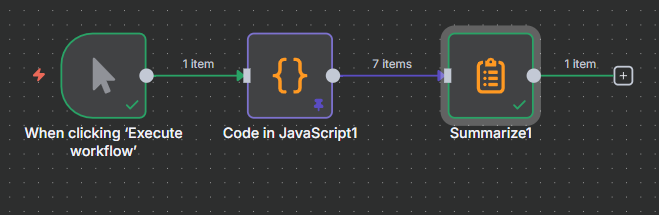
Set Aggregation = Count Unique, Field = category. The output returns count_unique_category = 3 (fruit, vegetable, grain). Try Field = item — Count Unique returns 4 distinct values since apple, banana, carrot, and rice are all unique items.
The complete workflow:
Example 3: Find the Minimum Value
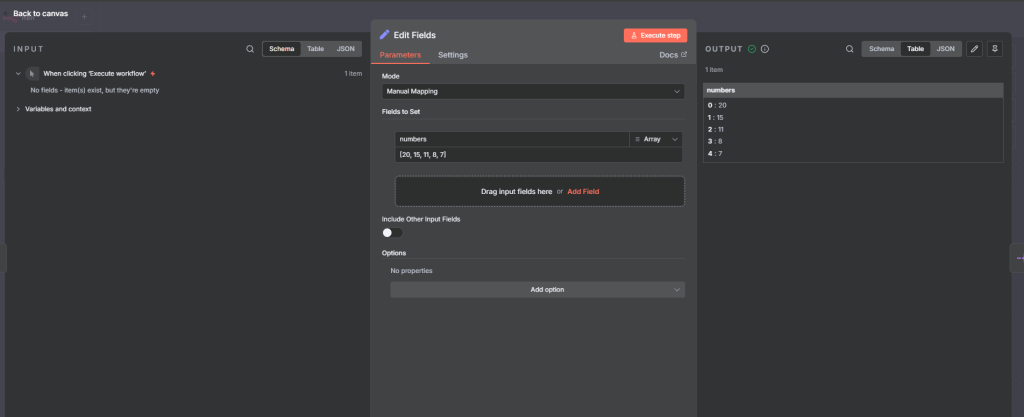
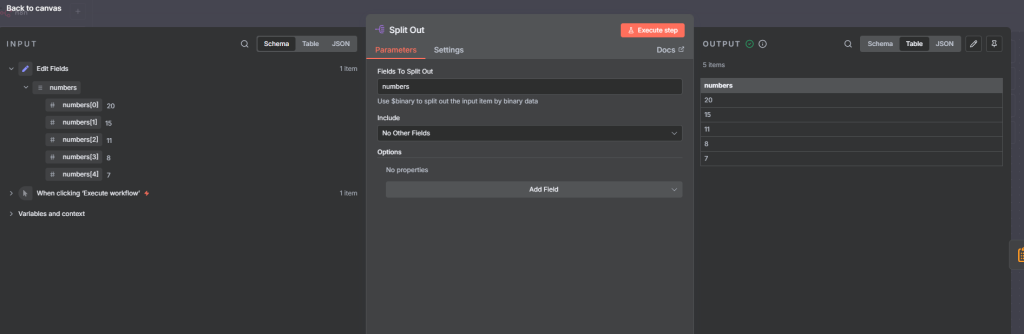
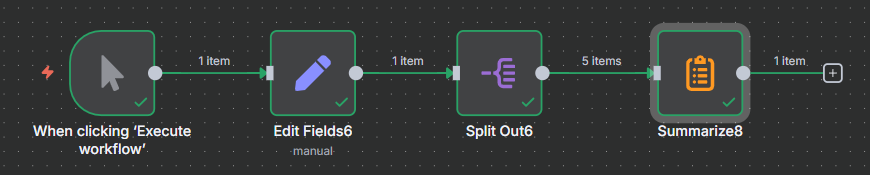
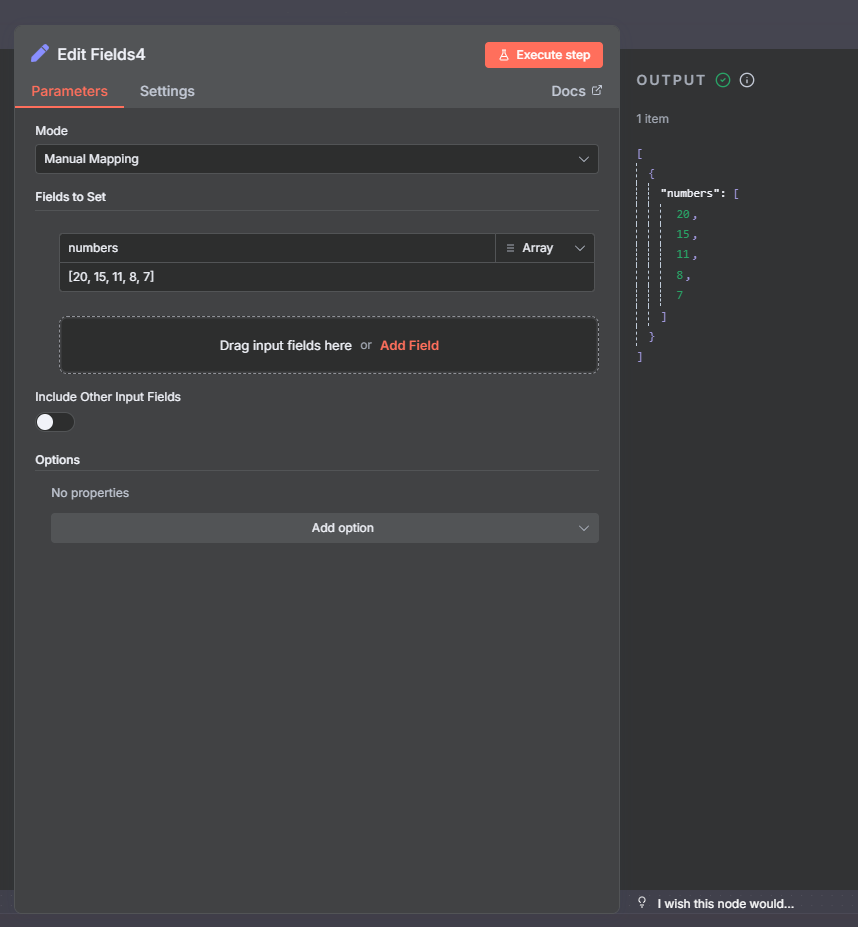
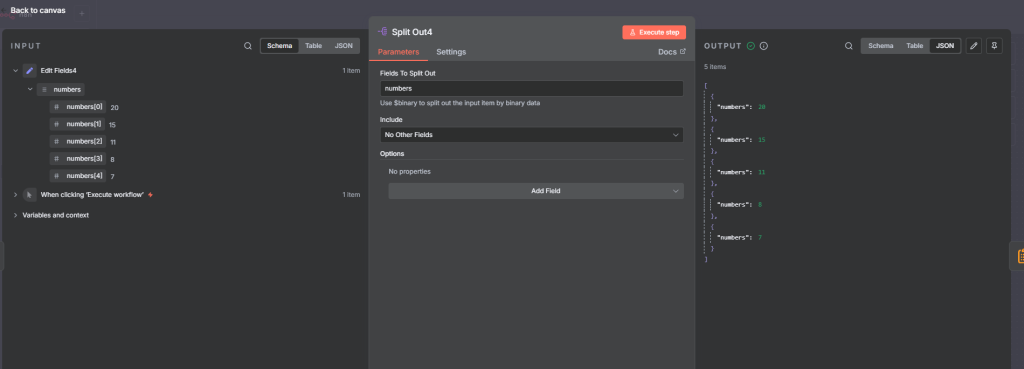
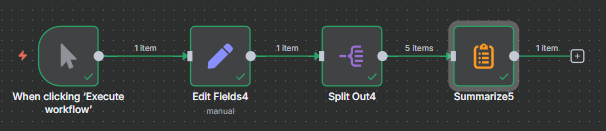
To aggregate a list of numbers you first need to break the list into individual items using the Split Out node. Start with an Edit Fields (Set) node and add a field called numbers with value [20, 15, 11, 8, 7]. Connect a Split Out node — set Field To Split Out = numbers to convert the array into 5 separate items.
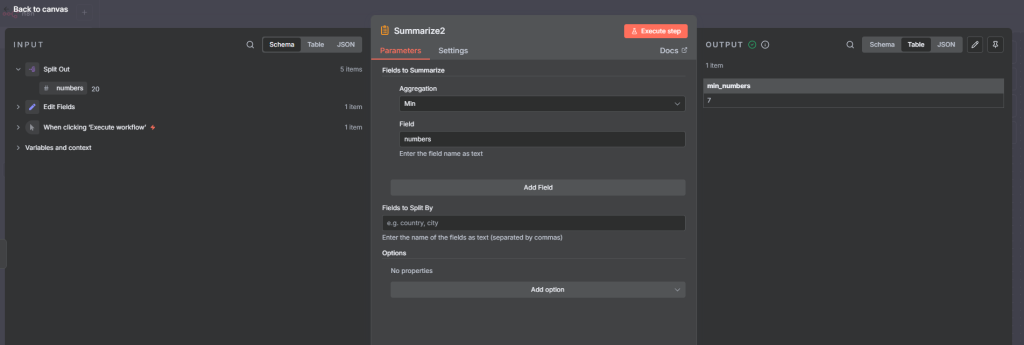
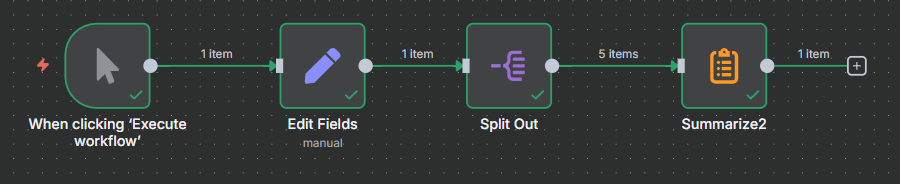
Connect a Summarize node with Aggregation = Min, Field = numbers. The output returns min_numbers = 7. The complete workflow:
Example 4: Find the Maximum Value
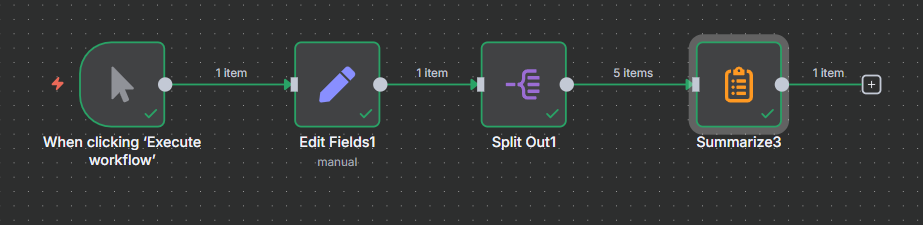
Same setup as Example 3 — Edit Fields with [20, 15, 11, 8, 7] connected to a Split Out node.
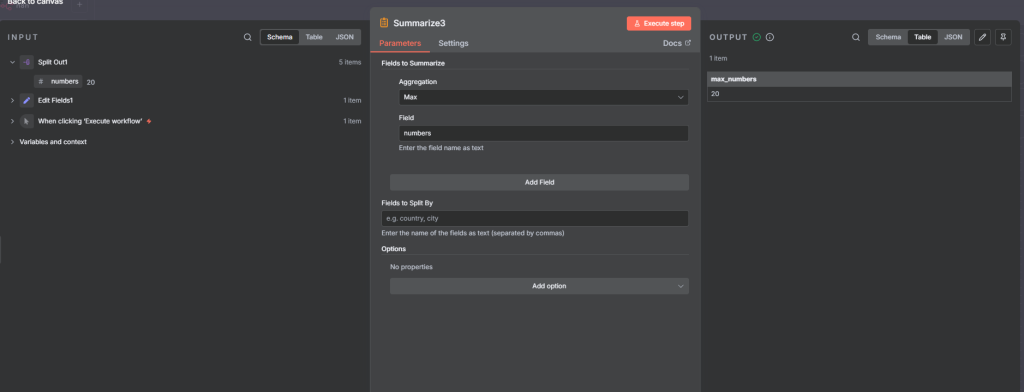
In the Summarize node, change Aggregation = Max, Field = numbers.
The output returns max_numbers = 20 — the largest value in the dataset.
The complete workflow:
Example 5: Sum All Values
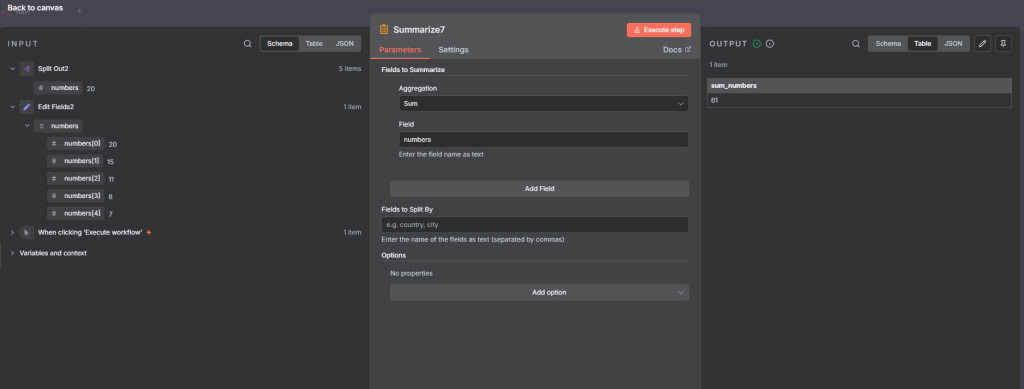
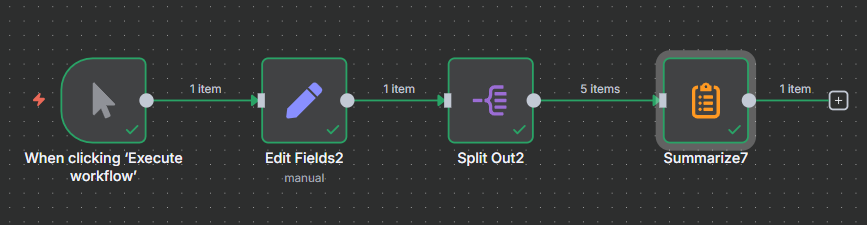
Using the same Edit Fields → Split Out chain, set Aggregation = Sum, Field = numbers.
The output returns sum_numbers = 61 (20 + 15 + 11 + 8 + 7 = 61). The complete workflow:
Example 6: Calculate the Average
Same setup, Aggregation = Average, Field = numbers. The node divides the sum (61) by the count (5).
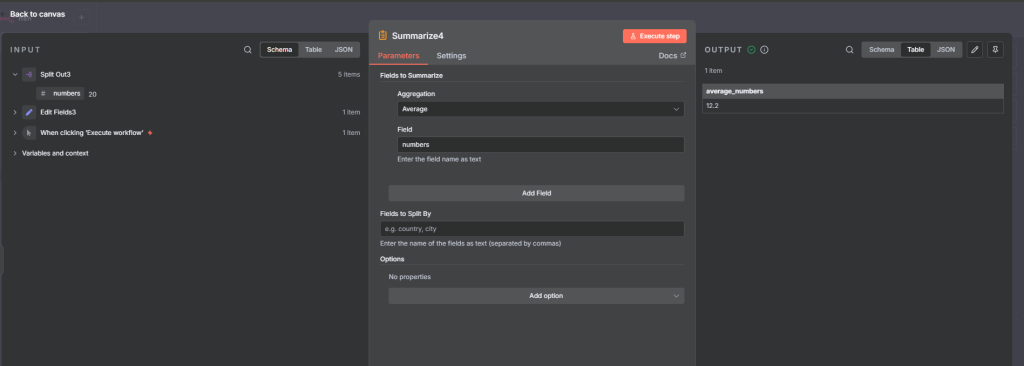
The output returns average_numbers = 12.2. Important: n8n has no Median aggregation — use the Code node if you need median. See the Caveats section below. The complete workflow:
Example 7: Multiple Aggregations at Once
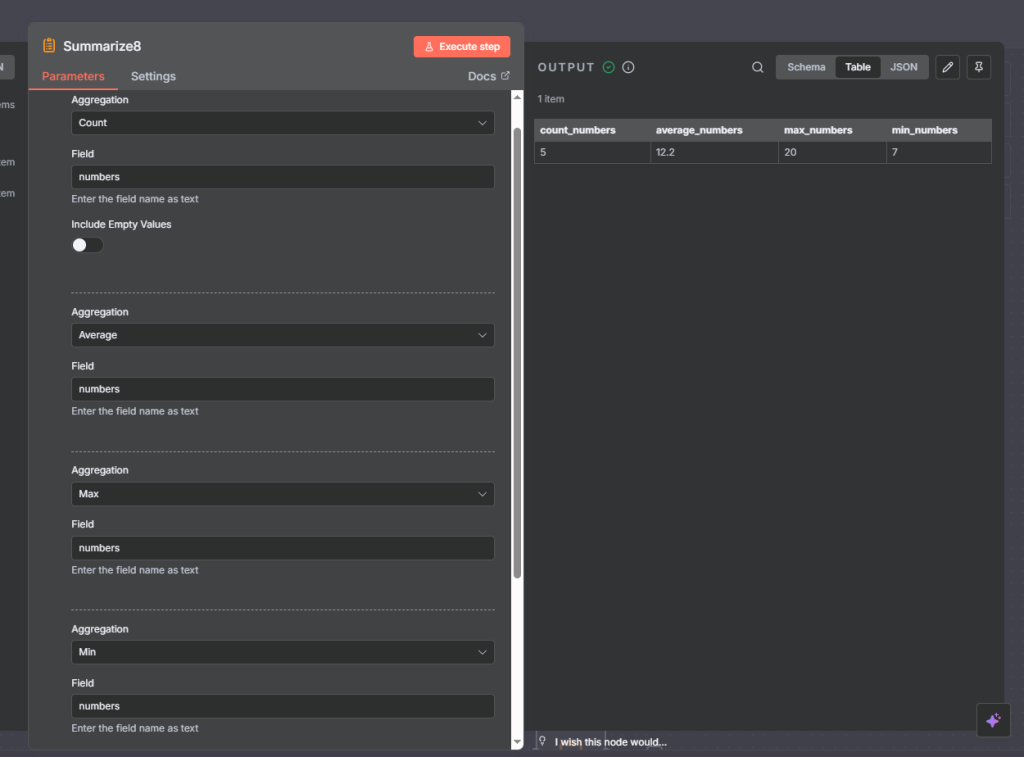
You can run several aggregations in a single Summarize node. Using the same number dataset, add four entries to Fields to Summarize:
- Aggregation: Count, Field: numbers
- Aggregation: Average, Field: numbers
- Aggregation: Max, Field: numbers
- Aggregation: Min, Field: numbers
The output returns all four values in one item: count_numbers = 5, average_numbers = 12.2, max_numbers = 20, min_numbers = 7. The complete workflow:
Example 8: Group Data by Field (Fields to Split By)
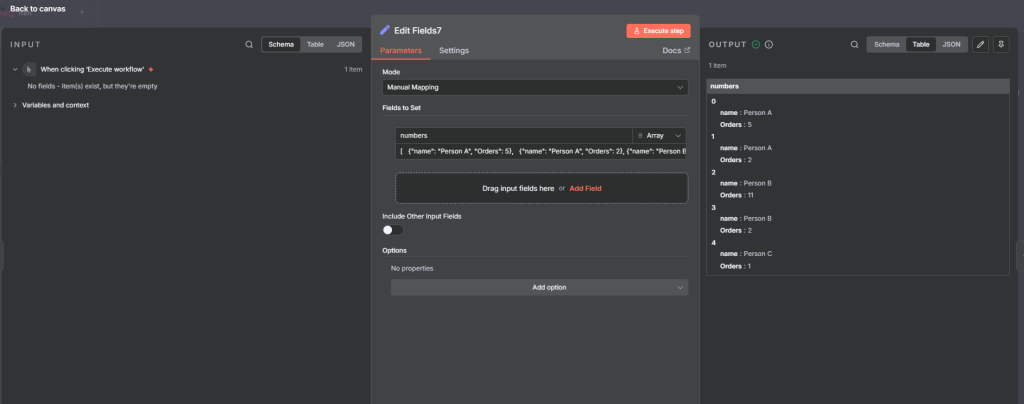
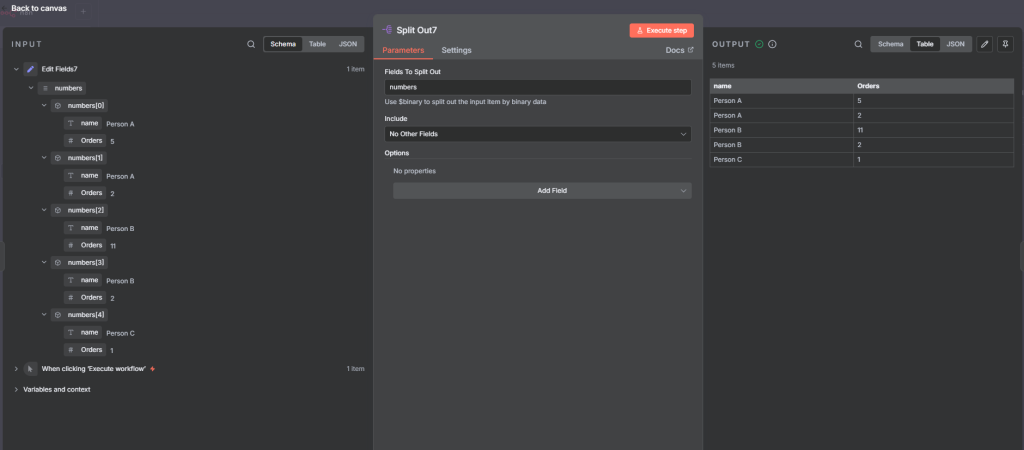
This is the full GROUP BY pattern. Start with an Edit Fields node returning orders per person:
[
{ json: { name: 'Person A', Orders: 5 } },
{ json: { name: 'Person A', Orders: 2 } },
{ json: { name: 'Person B', Orders: 11 } },
{ json: { name: 'Person B', Orders: 2 } },
{ json: { name: 'Person C', Orders: 1 } }
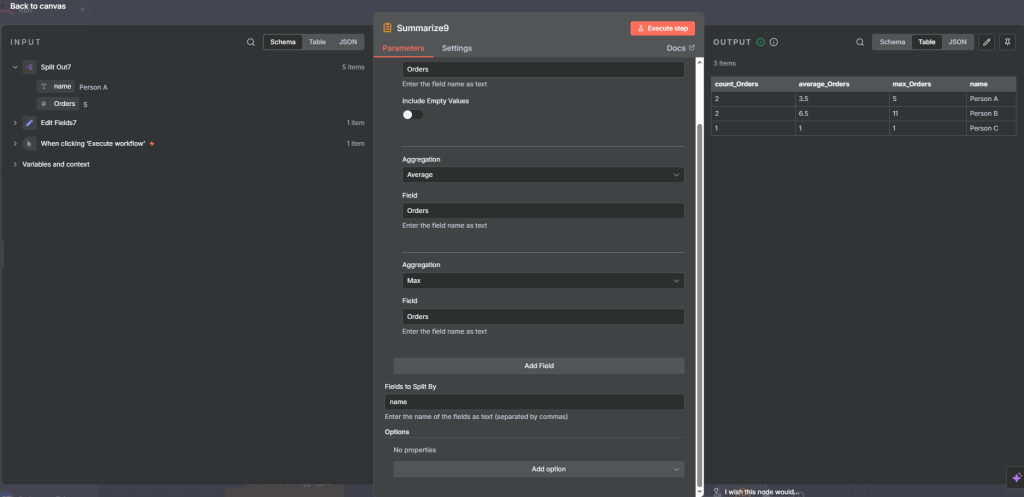
]Connect a Summarize node with three aggregation entries (Count / Orders, Average / Orders, Max / Orders) and set Fields to Split By = name.
The output returns one item per person:
- Person A: count_Orders = 2, average_Orders = 3.5, max_Orders = 5
- Person B: count_Orders = 2, average_Orders = 6.5, max_Orders = 11
- Person C: count_Orders = 1, average_Orders = 1, max_Orders = 1
This is equivalent to a SQL GROUP BY name query. The complete workflow:
Example 9: Output Format — All Splits in a Single Item
By default, the Summarize node with a split-by field returns one item per group — three separate items in Example 8. Here is what that default output looks like:
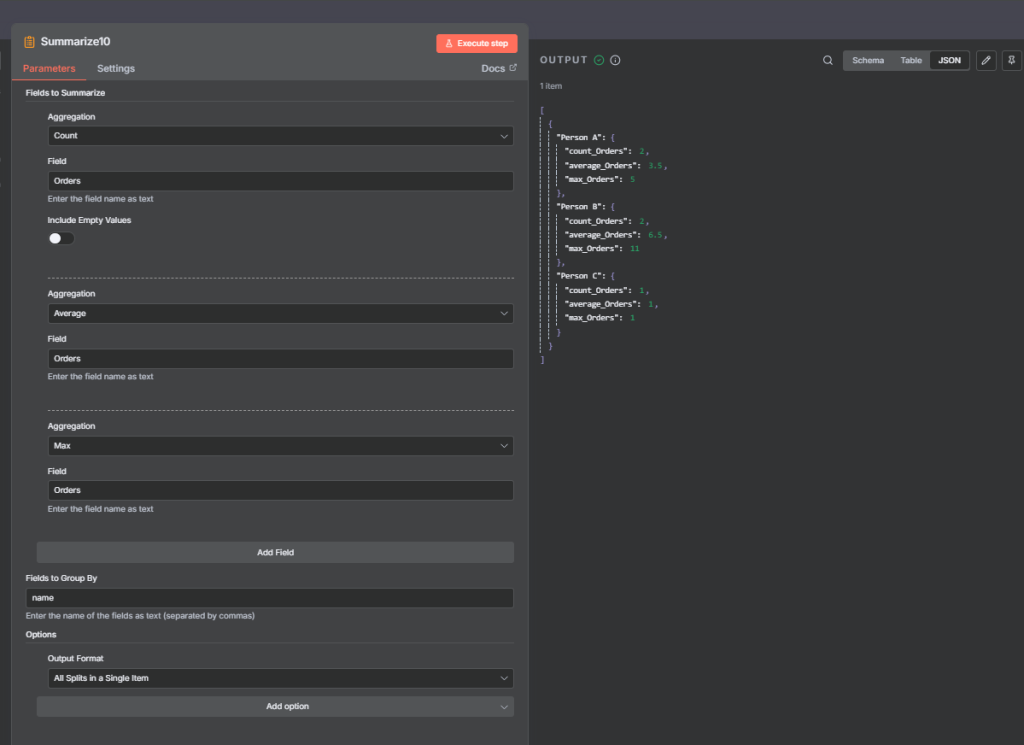
To return all groups in one compact item, go to Node Options and set Output Format = All Splits in a Single Item.
The output becomes one item containing all three groups as nested objects.
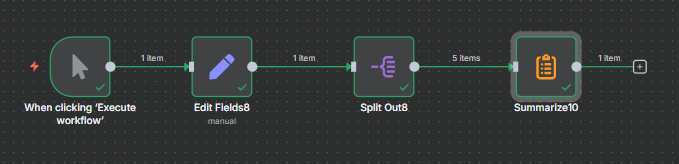
Use this when you need to send a compact summary to a webhook, email, or report template that expects a single payload. The complete workflow:
Example 10: Concatenate with a Custom Separator
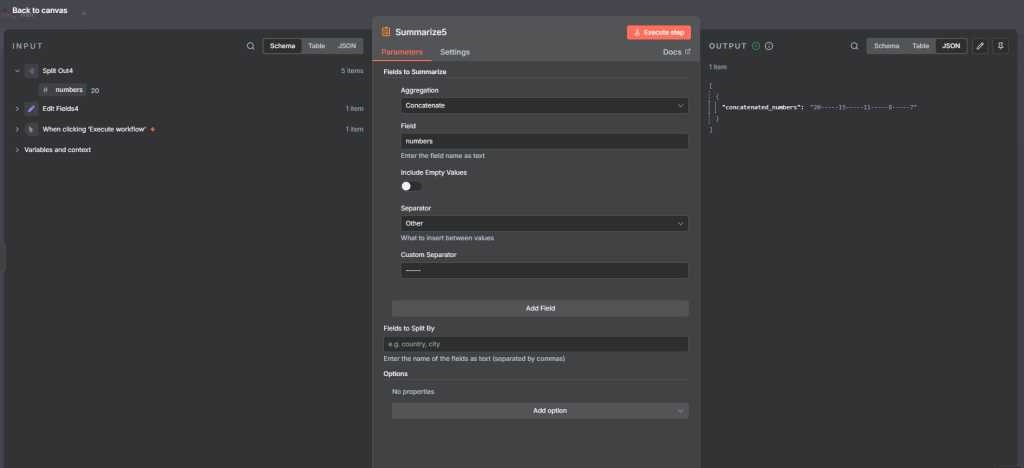
The Concatenate method joins all values into a single string. Using the Edit Fields → Split Out chain, set Aggregation = Concatenate, Field = numbers. Separator options: Comma, Comma and Space, New Line, None, or Other (custom string).
The Other separator option is the most flexible — set it to | and you get 20 | 15 | 11 | 8 | 7, which is useful for formatted message strings or report lines. The complete workflow:
Example 11: Append Values into an Array
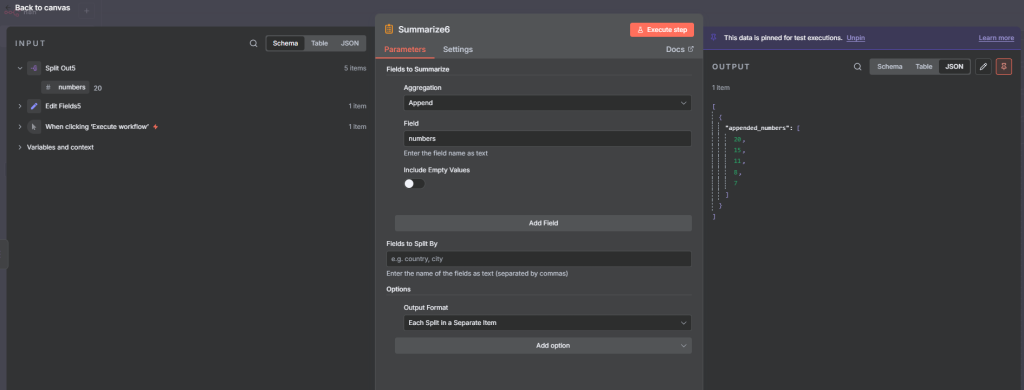
The Append method collects all values into an array. Using the same setup, set Aggregation = Append, Field = numbers.
The output returns numbers_append = [20, 15, 11, 8, 7] — the original values preserved as a proper array.
The key difference: Append gives you an array (useful for downstream node processing), Concatenate gives you a string (useful for display or messaging).
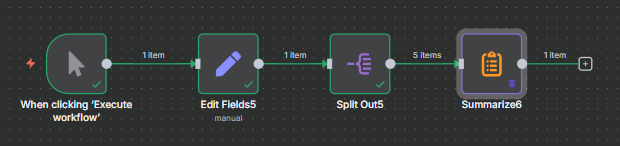
The complete workflow:
The Include Empty Values option controls whether null or missing values appear in the collected array. Disabled by default — null fields are silently dropped.
Join Our AI Community
Important Caveats When Using the n8n Summarize Node
Median Is Not Available — Use the Code Node
The Summarize node does not have a Median aggregation option. If you need the median, write it in a Code node using JavaScript. This matters because average and median behave very differently with outliers — a dataset of [1, 2, 3, 4, 100] has an average of 22 but a median of 3.
Handle Outliers Before Summarizing
If your data contains outliers you want excluded from Average or Sum, filter them out before they reach the Summarize node. Use a Filter node to drop items outside an acceptable range — it keeps the workflow clean without splitting your pipeline unnecessarily.
Always Use Split Out Before Summarizing a List
The Summarize node aggregates across items, not across values within a single item. If your input has a field containing an array like [20, 15, 11, 8, 7], the Summarize node treats the entire array as one value. Add a Split Out node first to convert the array into individual items, then the Summarize node can correctly aggregate across all of them.
Frequently Asked Questions
What does the n8n Summarize node do?
It aggregates incoming workflow items using count, sum, average, min, max, concatenate, and append. Equivalent to a GROUP BY in SQL or a pivot table in Excel.
What is the difference between Count and Count Unique in n8n?
Count returns total items including duplicates. Count Unique returns only distinct values, equivalent to COUNT DISTINCT in SQL.
How do I group data by a field in n8n?
Use the Fields to Split By option and enter the field name. The node produces one output item per unique value with aggregated results for each group.
Can I run multiple aggregations in one n8n Summarize node?
Yes — click Add Field in the Fields to Summarize section to add more aggregation entries. All results appear in a single output item.
Does the n8n Summarize node support median?
No. Use the Code node and write the median logic in JavaScript.
When should I use the n8n Summarize node vs. a Code node?
Use Summarize for count, sum, average, min, max, and group-by. Use Code for median, percentiles, weighted averages, or any custom aggregation logic.
Next Steps
The Summarize node is most powerful in the middle of a larger pipeline. Pull data from Google Sheets, run a Summarize node to get per-category totals, then push results to a dashboard, Slack message, or email report.
For reporting workflows, combine the Summarize node with an n8n AI agent node to turn aggregated numbers into natural-language summaries. If you want help structuring these kinds of pipelines, take a look at our AI Community.
