
How to Use the n8n Remove Duplicates Node — Full Guide (2026)
Duplicate data is one of the most common problems in automated workflows. If duplicates slip into your analysis, results get skewed. If they hit an API, you’re paying for the same request multiple times. The n8n Remove Duplicates node solves this cleanly — no code required — and it has more depth than most people realize.
This guide walks through all three operations and seven concrete examples: deduplicating spreadsheet data, filtering post-merge results, removing items seen in previous workflow runs, clearing deduplication history, and using value and date comparisons to keep only the newest or highest data.
What Is the n8n Remove Duplicates Node?
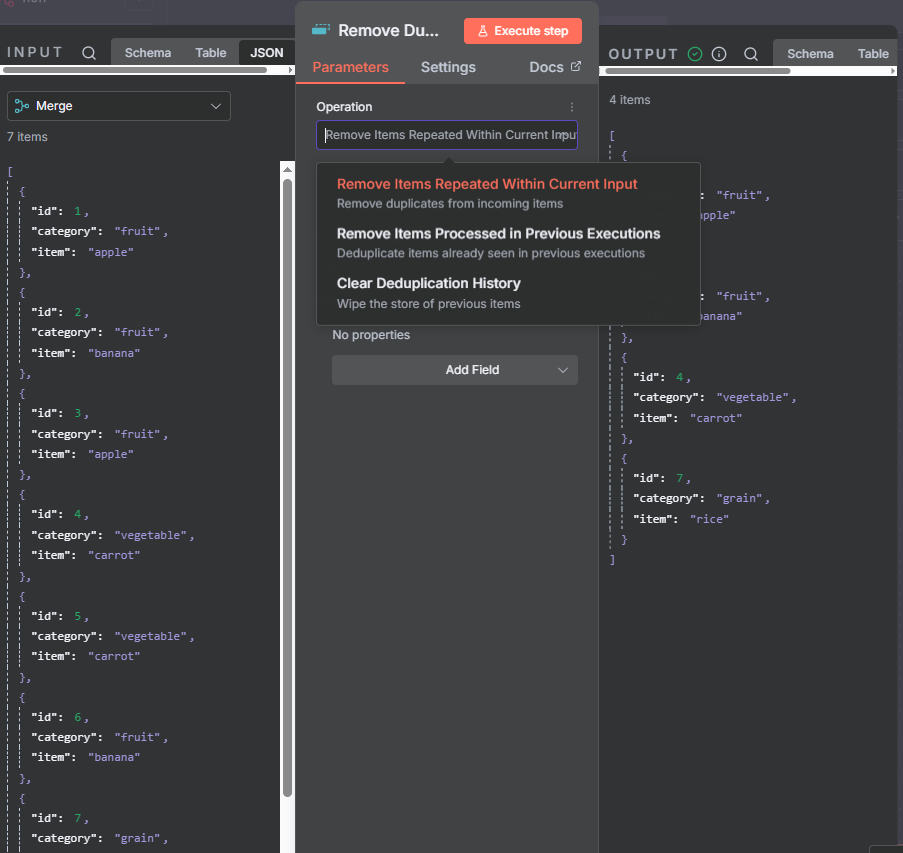
The Remove Duplicates node compares items flowing through your workflow and drops the ones that match something already seen — either within the current batch of items, or across previous workflow executions. Find it by clicking the + icon in any workflow and searching “remove duplicates”.
The node has three operations:
- Remove Items Repeated Within Current Input — filters duplicates from the items coming into this node right now. Works within a single workflow run.
- Remove Items Processed in Previous Executions — compares items against a stored history from past runs. Useful for recurring workflows that should skip already-processed data.
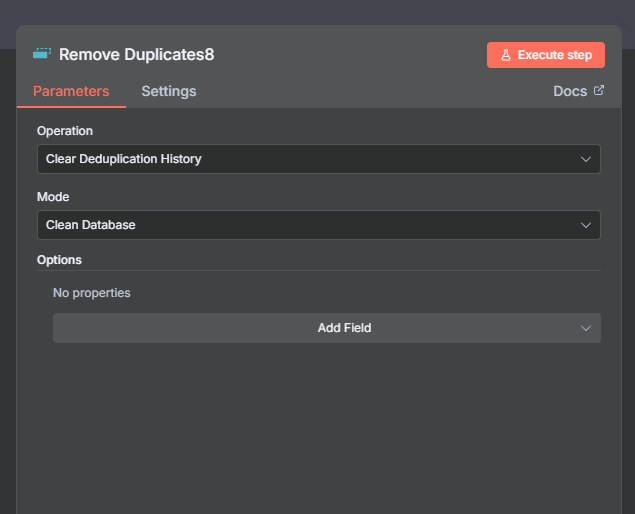
- Clear Deduplication History — wipes the stored memory of past items so the next run starts fresh.
Operation 1: Remove Items Repeated Within Current Input
This operation looks at all items arriving at the node in the current run and drops any that appear more than once. Use it any time you want to deduplicate a single batch of data — a spreadsheet pull, an API response, or the output of a merge.
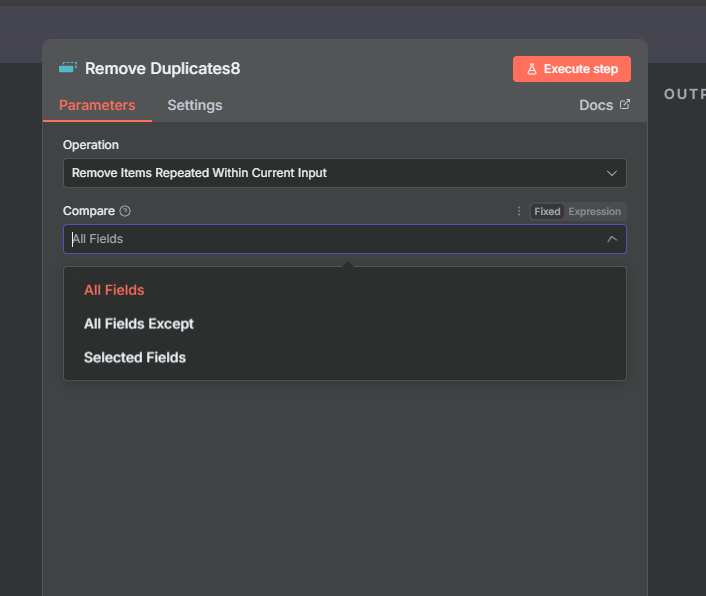
The Compare setting controls which fields n8n checks:
- All Fields — every field must match for an item to be considered a duplicate. This is the default.
- All Fields Except — all fields are compared except the ones you specify. Use this when your data includes a row number or ID that would prevent matches.
- Selected Fields — only the fields you name are compared. Use this to find items sharing one specific value regardless of other fields.
Example 1: Deduplicating Spreadsheet Data (Watch Out for Row Numbers)
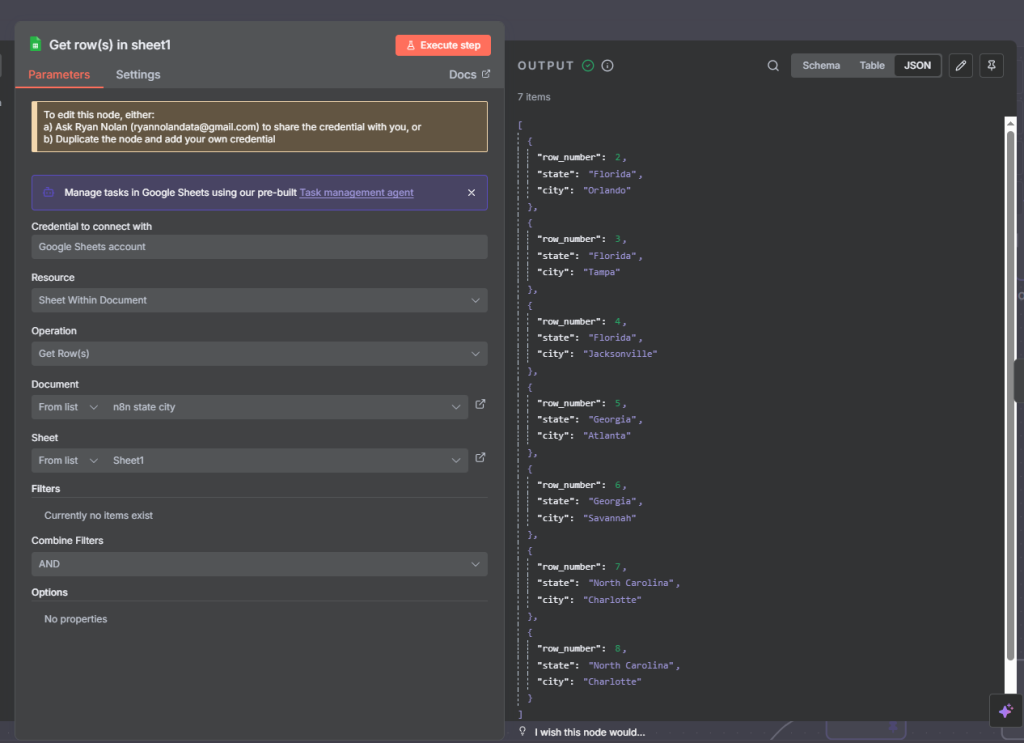
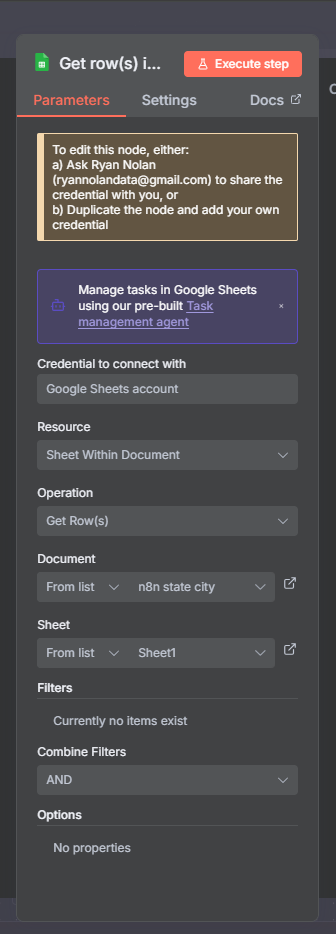
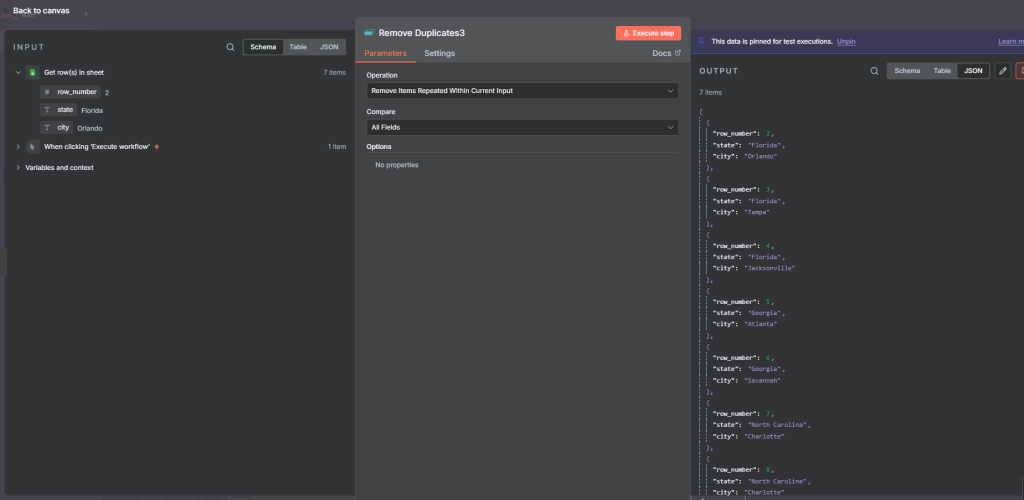
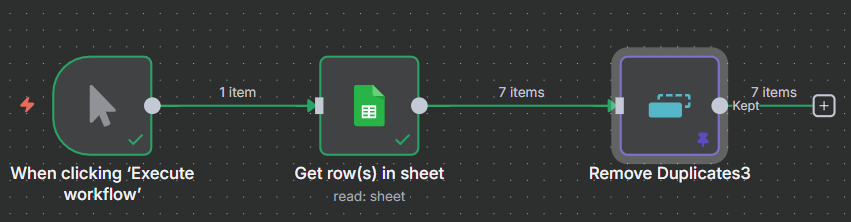
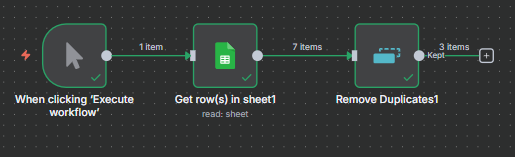
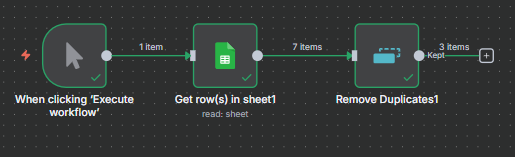
Connect a Remove Duplicates node after your Google Sheets, Airtable, or database node. Set Operation to Remove Items Repeated Within Current Input, Compare to All Fields, and execute.
You may find duplicates aren’t removed even when rows look identical. The reason: most spreadsheet integrations include a row_number field in their output. Because row 7 and row 8 have different row numbers, n8n sees them as distinct items.
The fix: change Compare to All Fields Except and add your row number field to the exclusion list. n8n now ignores the row number when comparing and correctly removes the duplicate.
Example 2: Deduplicating by a Specific Field
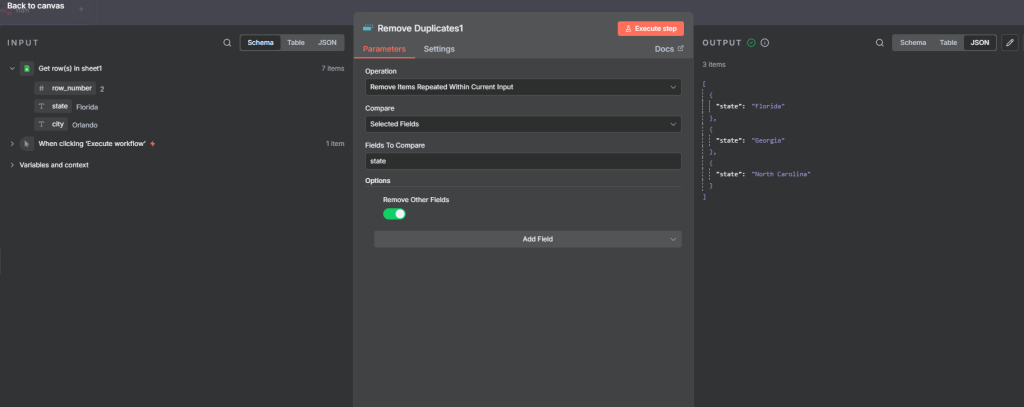
If you only care about unique values in one column — say you want one row per state regardless of how many cities are listed — change Compare to Selected Fields and enter the field name (e.g., “state”).
There’s also a Remove Other Fields toggle. Turn it on and n8n will drop all other columns from the output, leaving you with only the unique values for the field you specified. This is handy when you just need a clean unique list rather than full rows.
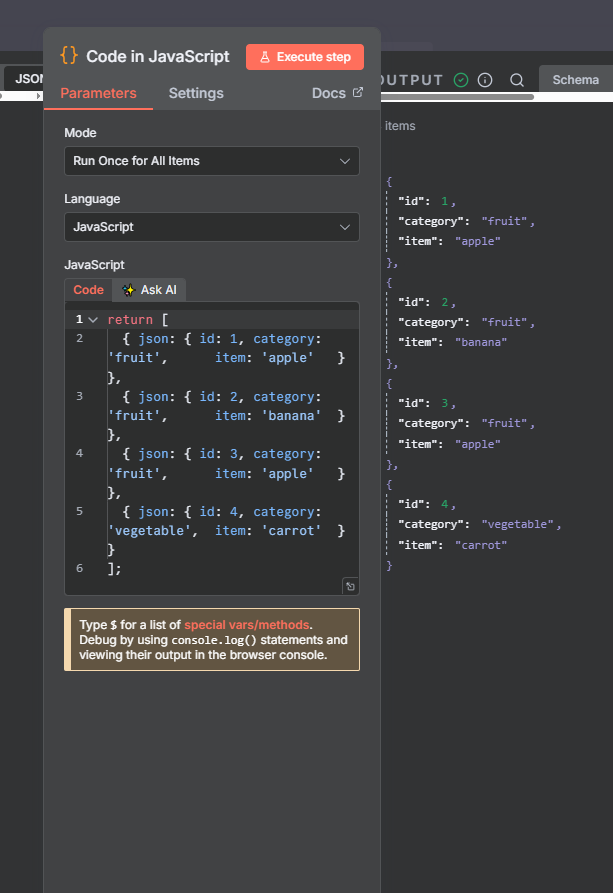
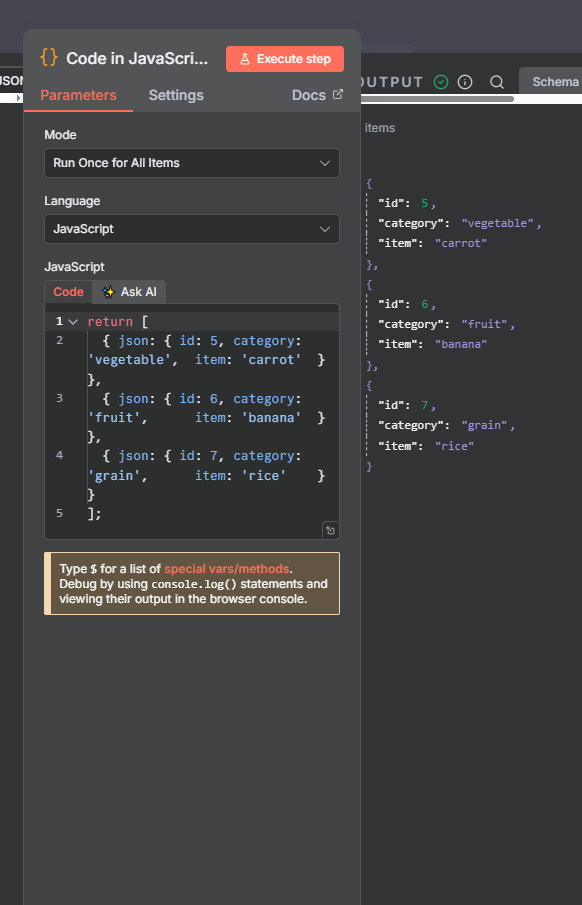
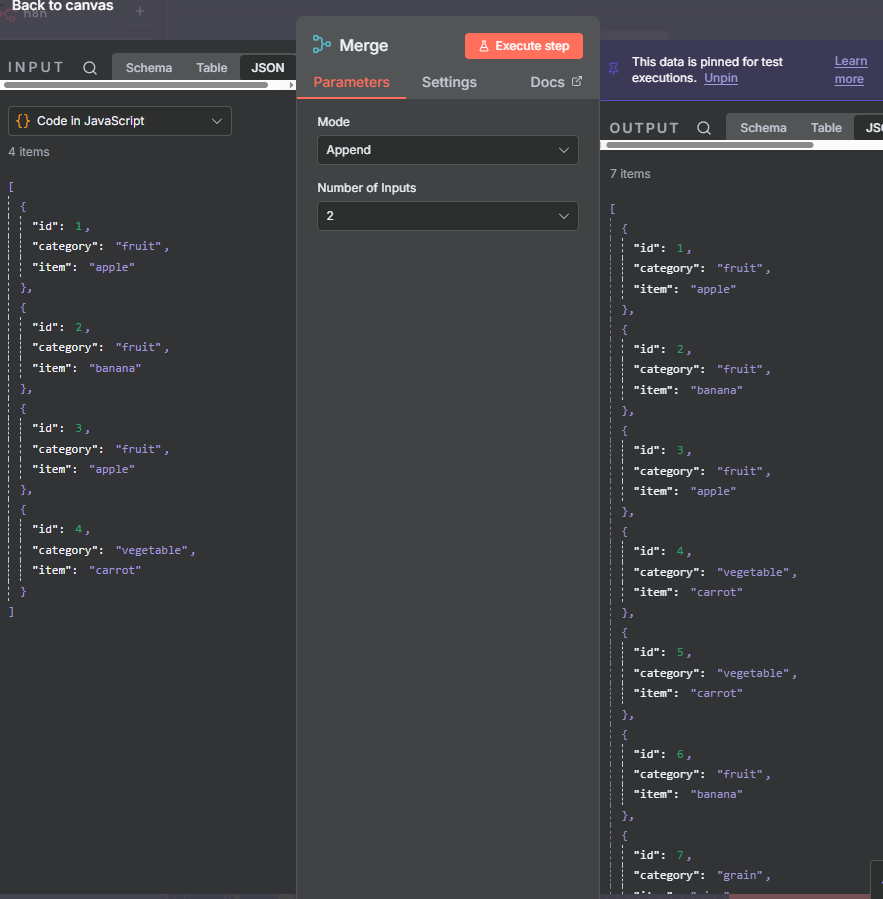
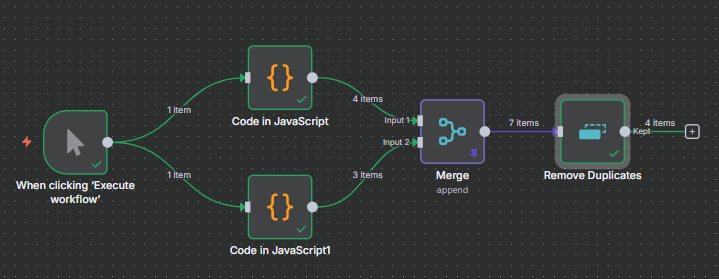
Example 3: Deduplicating After a Merge (Append)
The other most common situation is after a Merge node set to Append mode. When you append two data sources, you often get repeated items. Connect Remove Duplicates after the merge, set Compare to All Fields Except, and exclude the ID field (since IDs from the two sources differ even if the record content is the same).
The output gives you one unique record per item regardless of which source it came from — exactly what you want after combining two datasets.
Join Our AI Community
Operation 2: Remove Items Processed in Previous Executions
This is where the Remove Duplicates node gets significantly more powerful. Instead of deduplicating within a single run, it compares incoming items against a stored history from all past workflow runs.
Current Input vs Previous Executions: The Key Distinction
Operation 1 (current input) sees only the items arriving right now. If the same item appeared in yesterday’s run but not today’s, Operation 1 won’t catch it.
Operation 2 maintains a database of items seen across all executions (10,000 by default). Each time the workflow runs, new items are checked against that database — only genuinely new ones pass through.
A practical example: you’re scraping Google Maps businesses in two runs — one for a city, one for a suburb. Some businesses appear in both areas. Operation 1 won’t catch cross-run duplicates. Operation 2 will, because the first run’s results are stored and checked against the second run.
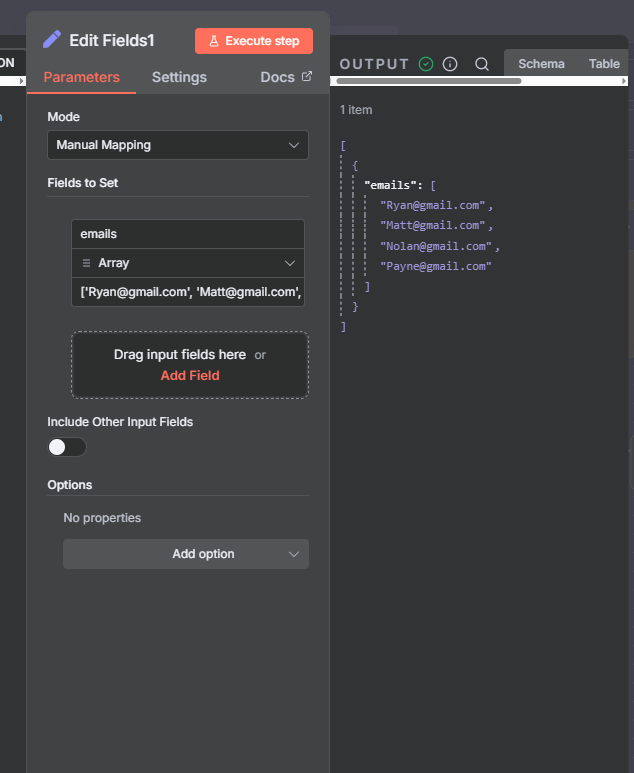
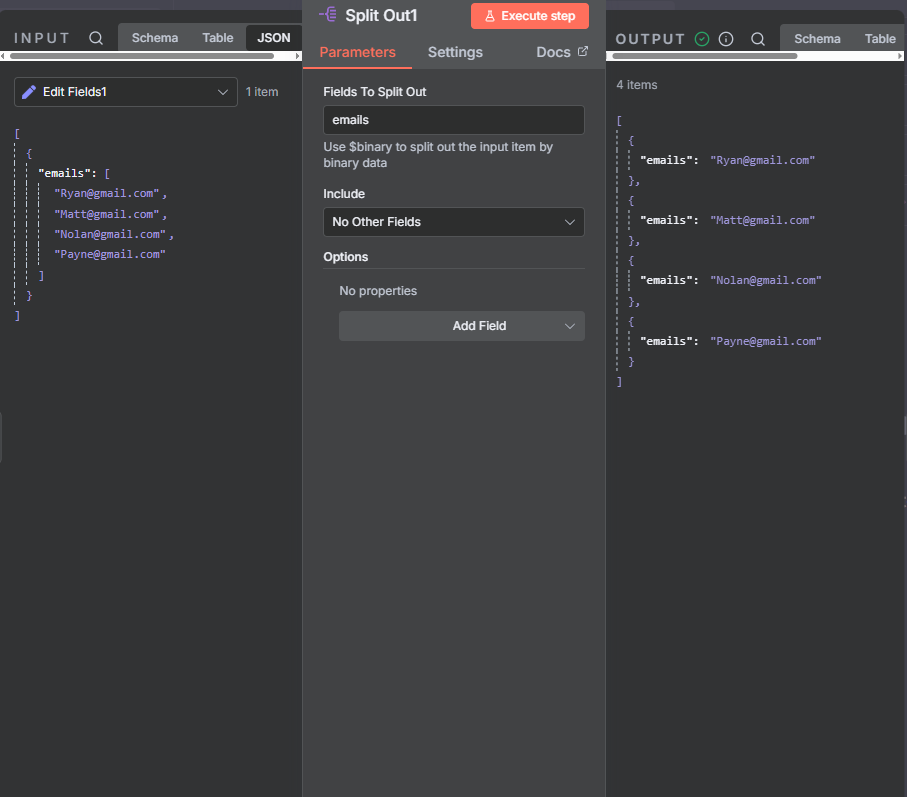
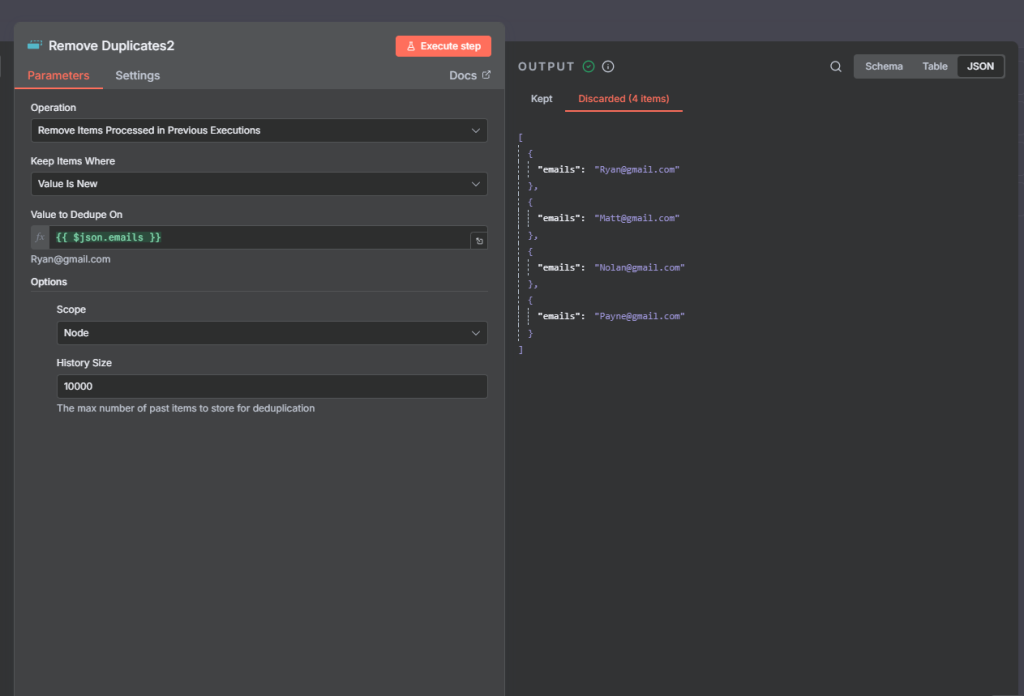
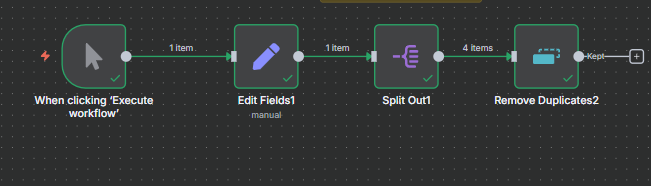
Example 4: Deduplicating Emails Across Multiple Runs (Value Is New)
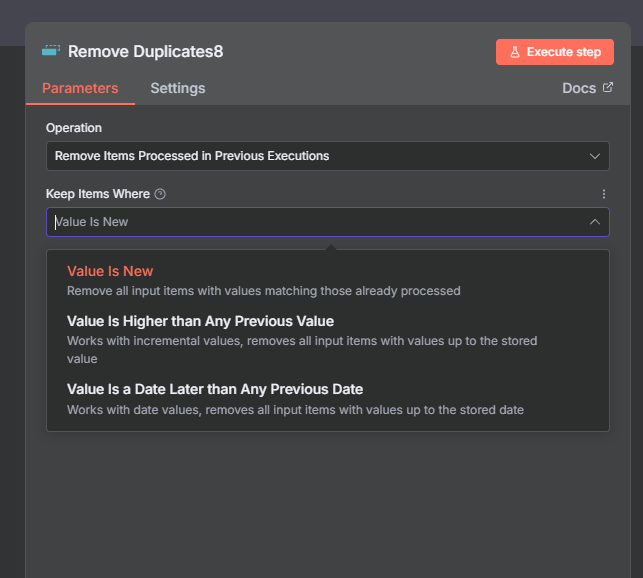
Set Operation to Remove Items Processed in Previous Executions. Set Keep Items Where to Value Is New. Set Value to Dedup On to your tracking field (e.g., email address).
- First run: all items pass through and are stored in the deduplication database.
- Second run (same items): all are blocked — already in the database.
- Second run (new items added): only the new ones pass through. Previously seen ones are blocked.
This pattern is ideal for any recurring workflow that processes incremental data — RSS feeds, API polling, form submissions, or scraped results.
Example 5: Clear Deduplication History
When you need to reset the memory so the next run processes all items as new: change Operation to Clear Deduplication History, enable Clean Database, and execute the node.
After this, the deduplication database is wiped. The next run will treat all items as new and re-store them in the empty database. Use this for testing, periodic resets, or when your data source has been fully refreshed and you want to reprocess everything.
Example 6: Value Is Higher Than Any Previous Value
This mode keeps an item only if its value is strictly higher than the highest value seen in any previous execution. Set Keep Items Where to Value Is Higher Than Any Previous Value and point it at a numeric field.
Example: a reading of 50 passes through and is stored. Next run sends 60 — higher, so it passes. The run after sends 13 — lower than the stored max of 60, so it’s discarded.
Use this for tracking incremental counters, sequence numbers, or any metric where you only want to act when a new high watermark is reached. Note: n8n currently only supports “higher than” — there’s no built-in “lower than” option.
Example 7: Value Is a Date Later Than Any Previous Date
This mode works identically to Value Is Higher, but for date values. It keeps an item only if its date field is more recent than any date previously seen.
Setup: use an Edit Fields node to create your date string, pass it through a Date and Time node to convert it to a proper date, then feed into Remove Duplicates with Value Is a Date Later Than Any Previous Date.
A date from 2023 passes on the first run. A 2024 date passes on the second (it’s newer). A 2020 date is blocked on the third (it’s older than the stored max of 2024). Useful for event-driven workflows where you only want to act on the most recent record — latest order, message, or file modification date.
Scope and History Size: Advanced Settings
Scope: Node vs Workflow
Node scope (default) — the deduplication history is stored independently for this specific node. Other Remove Duplicates nodes in the same workflow have separate databases. Use this in most cases.
Workflow scope — all Remove Duplicates nodes in the workflow share the same database. An item seen by any of them is considered seen by all. Use this only when you intentionally want to share deduplication state across multiple checkpoints in the same workflow.
History Size
History Size sets the maximum number of past items stored in the deduplication database. The default is 10,000. When this limit is reached, the oldest entries are rotated out — meaning very old items could pass through again once they fall off the list.
For most typical workflows — RSS feeds, form submissions, API polling — 10,000 is more than enough. For high-volume workflows that run continuously over a long period, increase this number to maintain a reliable memory window.
Join Our AI Community
Frequently Asked Questions
What is the difference between ‘current input’ and ‘previous executions’ in n8n Remove Duplicates?
“Remove Items Repeated Within Current Input” only looks at items arriving at the node in the current workflow run — no memory between runs. “Remove Items Processed in Previous Executions” maintains a stored database of items seen across all past runs and filters out anything already in that database. Use current input for single-batch deduplication; use previous executions for recurring workflows processing incremental data.
Why isn’t my n8n Remove Duplicates node removing duplicates from my spreadsheet?
The most common cause is a row number field. Most spreadsheet integrations include a row_number or similar field in their output. Because two otherwise-identical rows have different row numbers, n8n treats them as distinct. Fix it by setting Compare to “All Fields Except” and excluding the row number field.
How do I reset the Remove Duplicates history so all items are treated as new again?
Change the Operation to “Clear Deduplication History” and enable Clean Database, then execute the node. This wipes the stored database entirely. The next run of the workflow will treat all items as new and re-store them in the now-empty database.
What does the Scope setting do in the n8n Remove Duplicates node?
Scope determines where the deduplication database is stored. “Node” scope keeps the history private to this specific node instance — other Remove Duplicates nodes in the same workflow have separate databases. “Workflow” scope shares the database across all Remove Duplicates nodes in the workflow. Node scope is the default and is appropriate for most use cases.
What is History Size in n8n Remove Duplicates?
History Size sets the maximum number of past items stored in the deduplication database (default: 10,000). When the limit is reached, the oldest entries are dropped to make room for new ones. If your workflow processes very high volumes over a long period, increase this number to prevent old items from passing through again after rotating out.
Next Steps
The Remove Duplicates node fits best in the middle or end of a workflow — after you’ve fetched or merged data, and before you write it to a destination. The pattern is: fetch data, deduplicate, act on clean results.
For recurring workflows, the Previous Executions operation is one of the most underused features in n8n. Pair it with a scheduled trigger and any data source that updates over time — RSS feeds, APIs, databases — and your workflow will automatically process only what’s genuinely new.
If you need to count, group, or aggregate your deduplicated data, the n8n Aggregate node and the n8n Summarize node are natural next steps. And if you need to order results before they leave the workflow, the n8n Sort node handles that in one step.
