


Table of Contents

In this article, we will be taking a look at how you can set up GPT 5 / OpenAI in N8N. This process should take under 10 minutes in total. 

If you want to watch a video showcasing the same info we cover in the article, it is linked down below. 

Also if you need any help setting up N8N automations for your business, I’m taking on customer.

To start we’re going to create a simple dataframe in python:

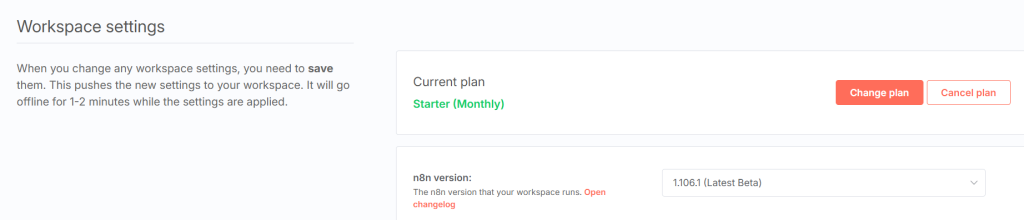
Updating N8N

Before starting, it is a good idea to upgrade your N8N version. You can do this inside your workspace settings.

Getting the OpenAI API

Next, you’ll need an OpenAI API key. Go to https://openai.com/

Login and go to API Platform. After go into your API Keys settings.

Note: You must have a valid payment method and fund your account to get this working!

Building a Basic Workflow

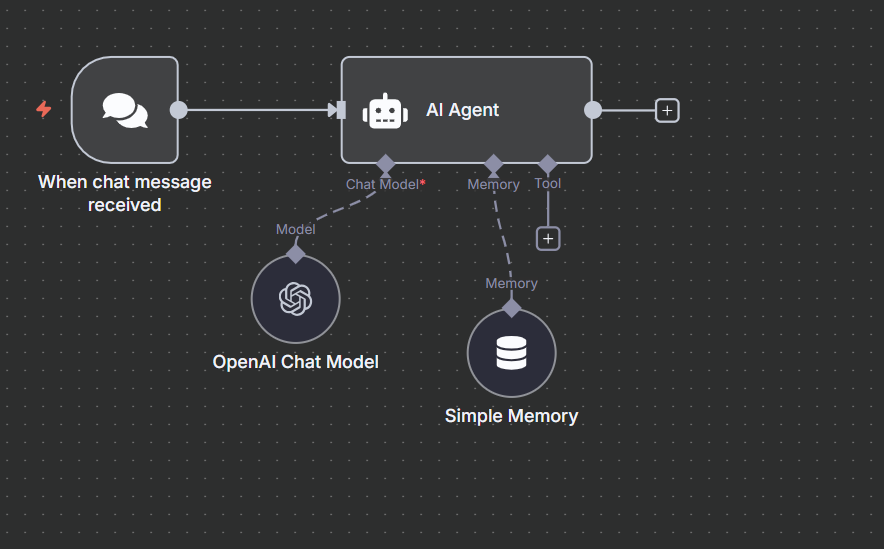
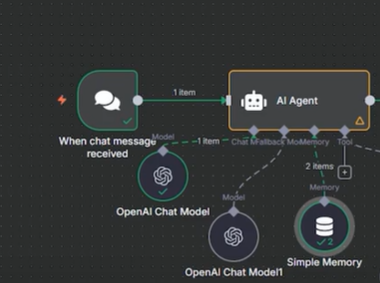
Let’s build this simple workflow down below.

We first want to drag in a Chat Trigger, we will be using this to prompt. After bring in an AI Agent.

We want to now add a Chat Model to the Ai Agent. Select the OpenAI Chat Model.

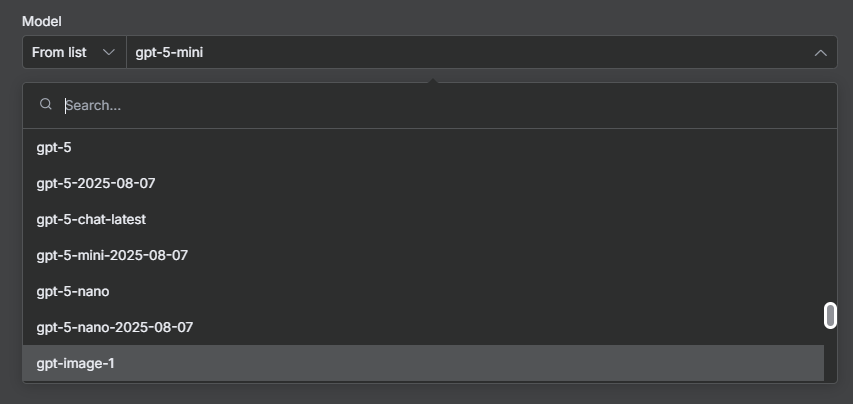
When you select model from list, you’ll see all the different GPT 5 options you can use. It’s best to utilize gpt-5, mini and nano.

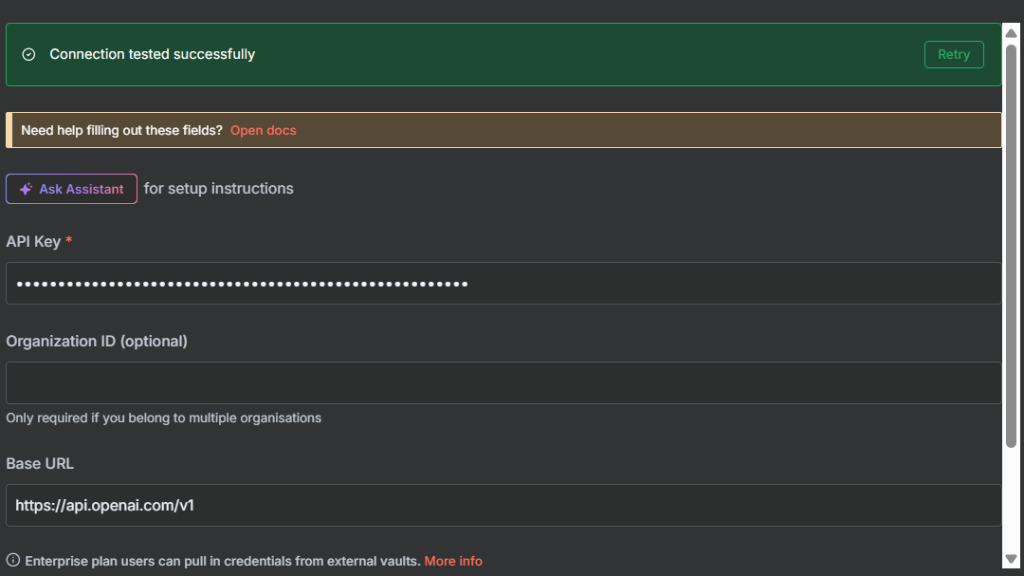
We now have to connect to our OpenAI account. If you have done this in the past you’ll have saved credentials. Otherwise click the pencil Icon to the right.

In this popup, you’ll want to paste in the API key we grabbed earlier from the OpenAI website. If the credentials work, you will get a confirmation like the image below.

If you just created your account or API key, its not uncommon for it to not work right away. Give it 30 minutes to an hour.

The only other addition to the workflow above is the chat memory. It’s set to 10. 

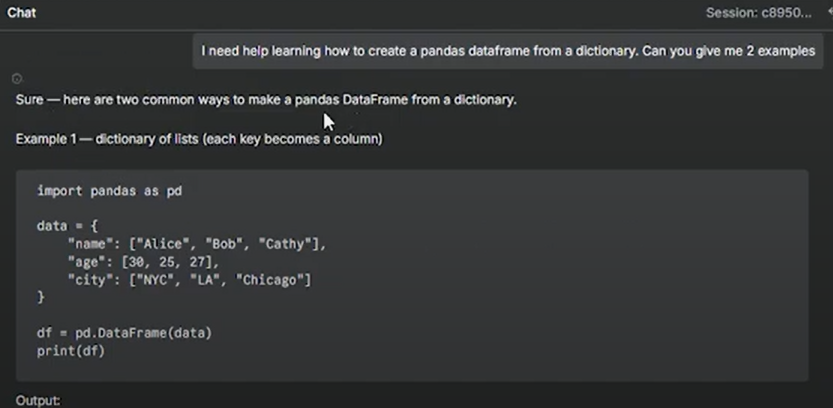
To test this out send a message in the bottom right chat. I’ll ask GPT-5 Mini to create some examples of moving a dictionary to a dataframe.

Other ways to use GPT 5 in N8N

In your AI Agent you can set a backup model.

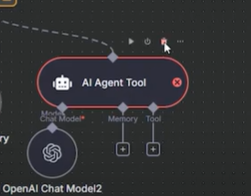
You can also set up GPT-5 with an AI Agent Tool

Lastly, due to limitations with GPT-5. If you need near real time information, you’ll need to use a tool like Perplexity. You can check out our article on Perplexity in N8N here.

Final Thoughts

It’s quite easy to setup OpenAI in N8N. Hopefully this tutorial was able to help you out. Thank you for checking our this article and check out our other N8N content. 

Free Community

Join 1,000+ AI Automation Builders

Weekly tutorials, live calls & direct access to Ryan & Matt.

Join Free →

Keep Learning

n8n Email Automation: Build an AI Classifier and Autoresponder (2026)

How to Connect ClickUp to n8n: Step-by-Step (2026)

The n8n ClickUp integration (see n8n clickup node documentation) gives you 57 actions and 27 triggers to automate almost anything in your...

How to Connect Notion to n8n: Step-by-Step (2026)

The n8n Notion integration lets you automate your Notion workspace without writing a single line of code. You can create pages, update...

How to Set Up the n8n Slack Integration (2026)

Slack is one of the most popular integrations in any n8n workflow. Customers want daily data reports pushed into specific channels, onboarding...