
n8n Information Extractor Node: Step-by-Step 2026 Tutorial
The n8n Information Extractor node takes unstructured text and converts it into clean, structured JSON output. Instead of building complex prompt engineering inside an AI agent, this node gives you a purpose-built interface for defining exactly what fields you want to extract and what format they should be in.
This guide covers all three schema types, the four attribute data types, four real workflow examples, and how the Information Extractor compares to using an AI agent for the same task.
What Is the n8n Information Extractor Node?
The n8n Information Extractor node extracts structured information from incoming text data using an AI language model. You define the fields you want (names, types, and descriptions), feed in raw text, and the node outputs a clean JSON object with those fields populated.
Quick Definition: The Information Extractor node takes unstructured text and extracts specific pieces of information into a structured JSON format. You define what to extract, connect a chat model, and the node outputs clean, typed data ready for the next step in your workflow.
This is one of the most useful AI nodes in n8n for building automation pipelines that need to turn messy text — emails, comments, reports, form submissions — into data you can actually work with downstream.
Information Extractor vs. AI Agent: When to Use Each
Everything the Information Extractor node does can also be done inside an n8n AI agent. So why use the dedicated node? Two reasons: it is faster to configure, and the output parser is already built in.
Information Extractor Node:
- Output is automatically formatted as JSON — no extra output parser node needed
- System prompt is pre-configured for extraction tasks out of the box
- Schema builder UI guides you through defining fields with names, types, and descriptions
- Tradeoff: no memory, no tools — extraction only
AI Agent:
- Supports tools, memory, and multi-step reasoning
- Can do extraction and much more
- Requires adding a structured output parser manually and more prompt engineering
Rule of thumb: use the Information Extractor when your only goal is pulling structured data out of text. Use the AI agent when you need tools, memory, or multi-step logic alongside the extraction.
How to Set Up the n8n Information Extractor Node
Finding the Node
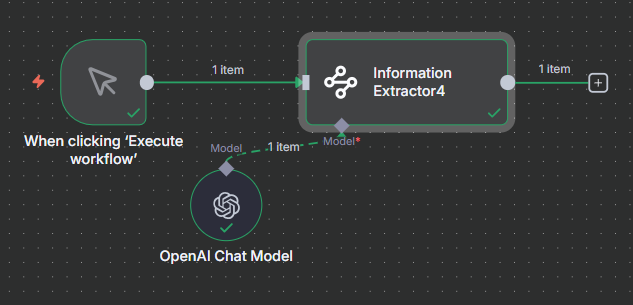
Click the plus icon in your workflow and navigate to AI > Information Extractor. You can also type “information” in the node search panel and it will appear at the top of the results.
Adding a Language Model
Like all AI nodes in n8n, the Information Extractor requires a connected Chat Model sub-node. Connect a model such as OpenAI GPT-4o Mini, Anthropic Claude Haiku, or Google Gemini Flash. For most extraction tasks, a smaller, faster model works well since the task is straightforward.
Configuring the Input Text
The first field in the node is where you specify the text to extract from. You can type static text directly, or use an expression to reference a field from a previous node. Drag a field from the previous node’s output panel into this input, or type {{ $json.fieldName }} to reference it by name.
For chat-based workflows, use {{ $json.chatInput }} as the input. For data that came from an Edit Fields or Set node, reference the specific field name you stored the text under.
Join Our AI Community
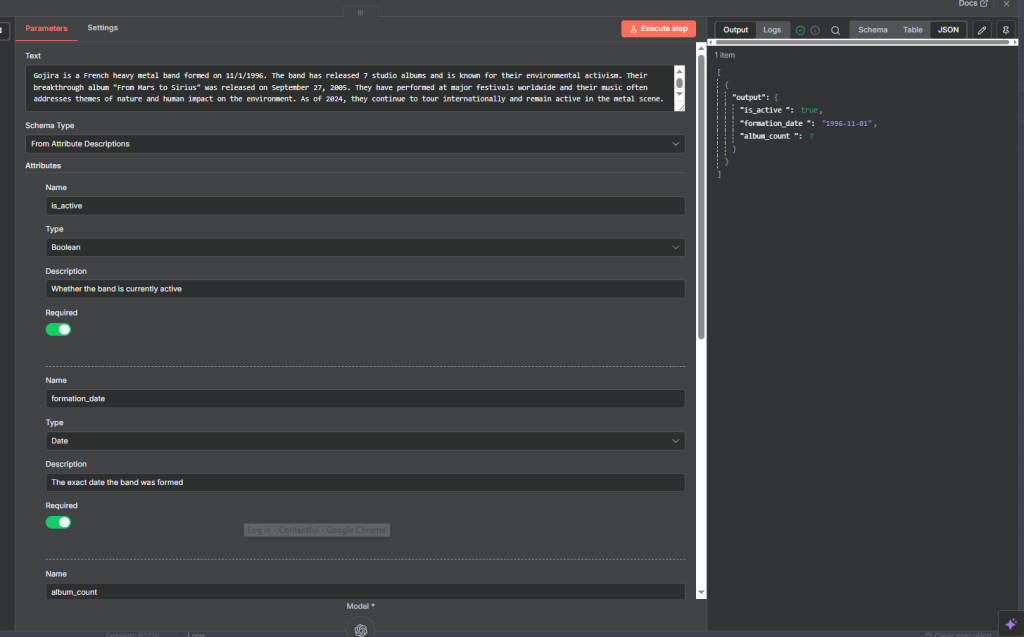
Schema Type 1: From Attribute Descriptions (Recommended)
“From Attribute Descriptions” is the most recommended schema type. For each piece of information you want to extract, you define three things: the attribute name, its data type, and a description of what it represents.
The description is what the AI model uses to understand what to look for in the text. The more specific your description, the more accurate the extraction will be. This is the key advantage over the other two schema types.
The Four Data Types
- Boolean — True or false. Use for yes/no questions like “Is the band still active?”
- Date — A specific date value. Use when you need a formatted date like a founding date or event date.
- Number — An integer or decimal. Use for counts, amounts, scores, or any numeric value.
- String — Text. Use for names, descriptions, locations, and any free-text value.
Required vs. Optional Attributes
Each attribute has a Required toggle. When on, the node always tries to populate that field. When off, the node skips the field and omits it from the output if the information is not present in the text.
Use required for fields that will always appear in your source text. Turn it off for fields that may sometimes be missing, such as an optional phone number or a secondary location that is not always mentioned.
Customizing the System Prompt
The node includes a default system prompt for extraction. Always customize it to add context about your use case. For example, if extracting data from customer support tickets, add: “You are extracting structured information from customer support tickets for a SaaS company.”
Even a single sentence of context can meaningfully improve accuracy. The more the model understands about what the text is and what you need, the better its extraction will be.
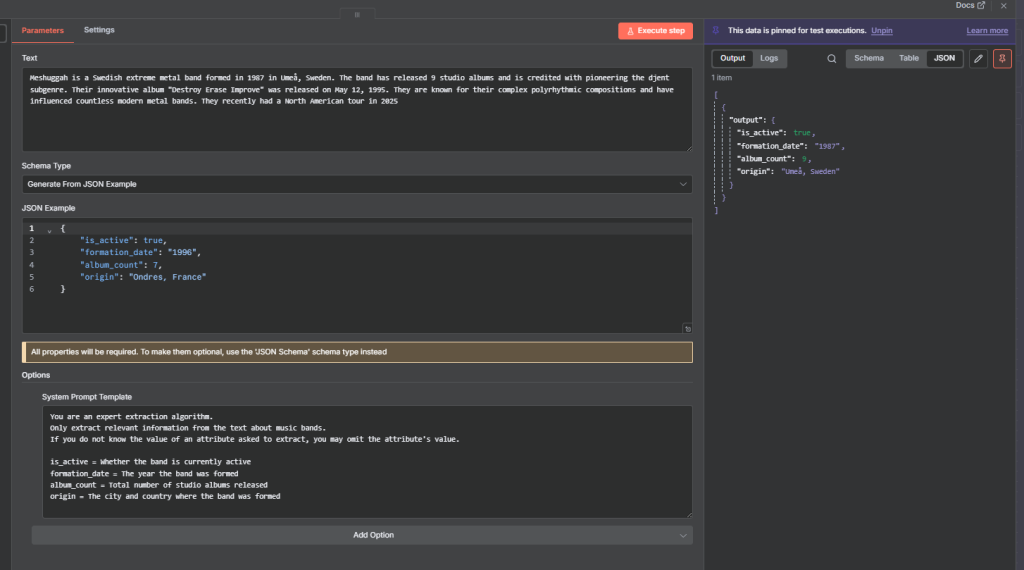
Schema Type 2: Generate from JSON Example
This schema type lets you define your output by providing a sample JSON object. Instead of building each attribute manually, you paste in an example of what the output should look like and n8n generates the schema from it.
For example, pasting {"is_active": true, "formation_year": "1991", "album_count": 8, "origin": "Gothenburg, Sweden"} tells the node to extract those four fields with those types.
This is faster when you already know your output structure, but it gives the AI less context than Attribute Descriptions since the model must infer meaning from key names alone. Compensate by adding detailed explanations to the system prompt for each field.
Schema Type 3: JSON Schema Definition
The JSON Schema option lets you define the output using a formal JSON Schema object. This gives you the most control over types and validation, but it provides the least contextual guidance to the AI model and requires the most system prompt customization to work well.
This is the least recommended option for most users. Start with Attribute Descriptions. Fall back to JSON Example if you prefer defining by example. Only use JSON Schema if you have a specific technical reason to need formal schema validation.
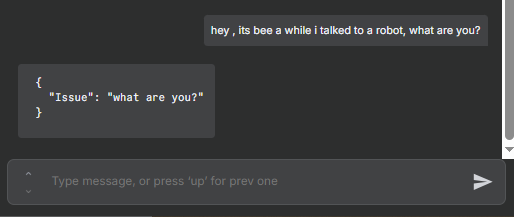
Example: Extract Structured Data from a Chat Message
A common use case is extracting structured information from incoming chat messages or support tickets in real time. Here is the setup:
- Add a Chat Trigger node as the workflow start
- Connect it to the Information Extractor node
- In the Text field, set the expression to
{{ $json.chatInput }} - Define attributes for what you want to capture (issue type, problem summary, etc.)
- Connect a Chat Model sub-node to the Information Extractor
For a customer support workflow, you might extract: the issue type (string), the specific problem described (string), and whether the user is requesting a refund (boolean). The node reads each message and outputs a structured object you can use to route the ticket, update a CRM, or trigger a follow-up.
Working with PDFs and Binary Files
The Information Extractor node does not process binary files directly. If your source data is a PDF or Word document, you need to extract the text from it first before passing it to the Information Extractor.
Typical workflow for PDF extraction:
- Use an n8n HTTP Request node or Google Drive node to fetch the file
- Add an “Extract from File” node to convert the binary file to text
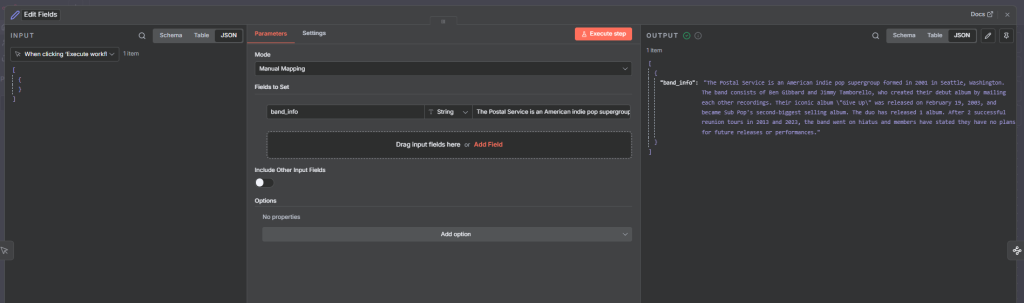
- Pass the extracted text into an Edit Fields node to store it as a named field
- Reference that field in the Information Extractor’s Text input
This applies to any binary file format. Always extract the text content first, then feed it to the Information Extractor. Once you have plain text, the node can extract any structured data you define from it.
Join Our AI Community
Frequently Asked Questions
What is the n8n Information Extractor node used for?
The Information Extractor node pulls specific, structured data out of unstructured text. Common uses include extracting fields from customer emails, parsing support tickets into categories, pulling key data from invoices or reports, and converting free-text responses into structured database records.
Which schema type should I use in the n8n Information Extractor?
Start with “From Attribute Descriptions”. It gives you the most control and the most context for the AI model. Use “Generate from JSON Example” if you prefer defining structure by example. Use “JSON Schema” only if you need formal schema validation and are prepared to write detailed system prompt instructions to compensate.
Can the Information Extractor node read PDFs?
Not directly. Use the Extract from File node to convert a PDF to plain text first, then pass that text to the Information Extractor. The same applies to Word documents and other binary file formats.
What is the difference between required and optional attributes?
Required attributes force the node to always output a value for that field. Optional attributes (required toggled off) are omitted from the output if the information is not found in the text. Use required for fields you know will always be present, and optional for fields that may sometimes be missing.
Can I use Claude or Gemini with the Information Extractor?
Yes. The Information Extractor works with any chat model supported by n8n. Connect OpenAI, Anthropic Claude, Google Gemini, Mistral, or a locally-hosted model. The model choice affects speed and accuracy but does not change how you configure the node.
Next Steps
Now that you understand the n8n Information Extractor node, here is how to start using it:
- Build a simple extraction workflow with a manual trigger and a few attribute descriptions to see how the output looks.
- Try all three schema types on the same text to compare outputs and find which you prefer.
- Add the Information Extractor after a Chat Trigger to automatically parse incoming messages into structured fields.
- Combine it with a Google Sheets node to log extracted data into a spreadsheet as records come in.
- For PDF workflows, test the Extract from File node first to pull text from a document before passing it to the Information Extractor.
The Information Extractor is one of those nodes that unlocks an entire category of workflows. Any time you have unstructured text coming in and need clean structured data coming out, this node is the fastest path to get there.
