
n8n IF Node: Complete Guide with 11 Examples
One of the quickest ways to add conditional logic to your n8n workflow is the IF node. Like programming’s if/else statement, it routes items in two directions — a true path and a false path — based on conditions you define. This guide covers every data type and every operator available in the IF node, with 11 real examples.
The IF node works with strings, integers, arrays, objects, booleans, and dates. For simple two-way branching, it’s your go-to. For multiple output paths, use the Switch node — for dynamic mixed logic, use the Code node.
What Is the n8n IF Node?
The IF node splits your workflow into two branches based on one or more conditions you configure. Items that meet the condition(s) travel down the true output. Items that don’t meet them travel down the false output. You then connect different actions to each branch.
Common real-world uses:
- Filtering orders above a certain value to a high-priority queue
- Routing emails by keyword or sender
- Checking whether an API response contains an error before continuing
- Skipping records that are missing required fields
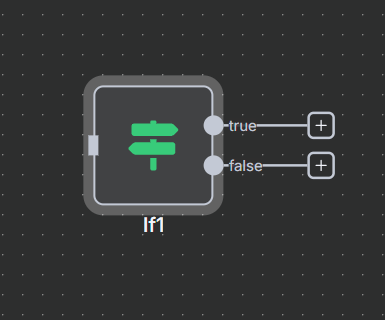
To add it, open the node panel, search for “if”. The node description reads: “Route items to different branches, true or false.”
Join Our AI Community
Example 1 — Number Conditions
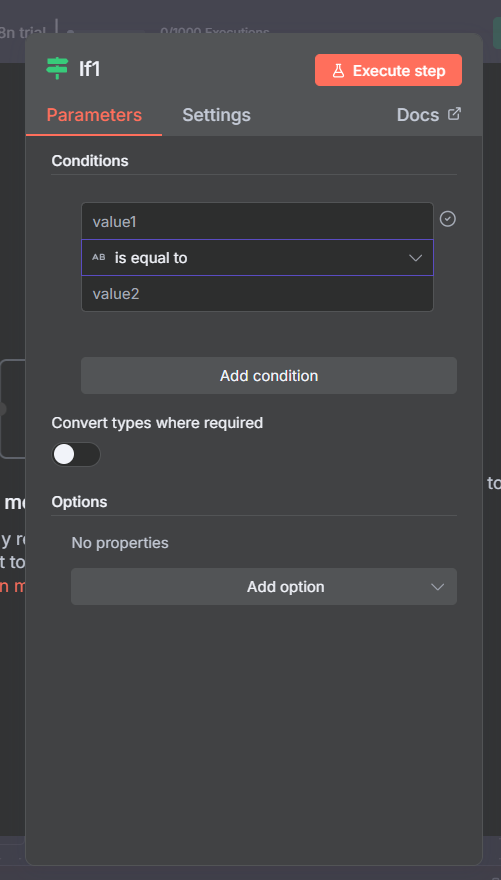
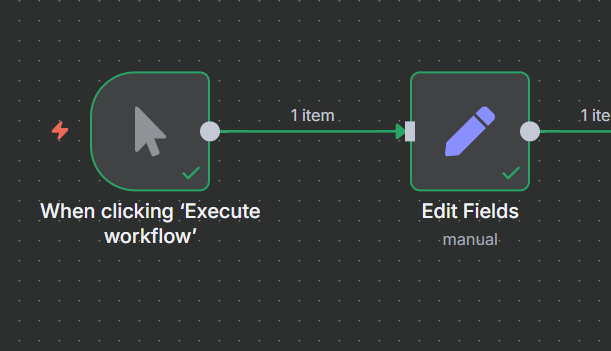
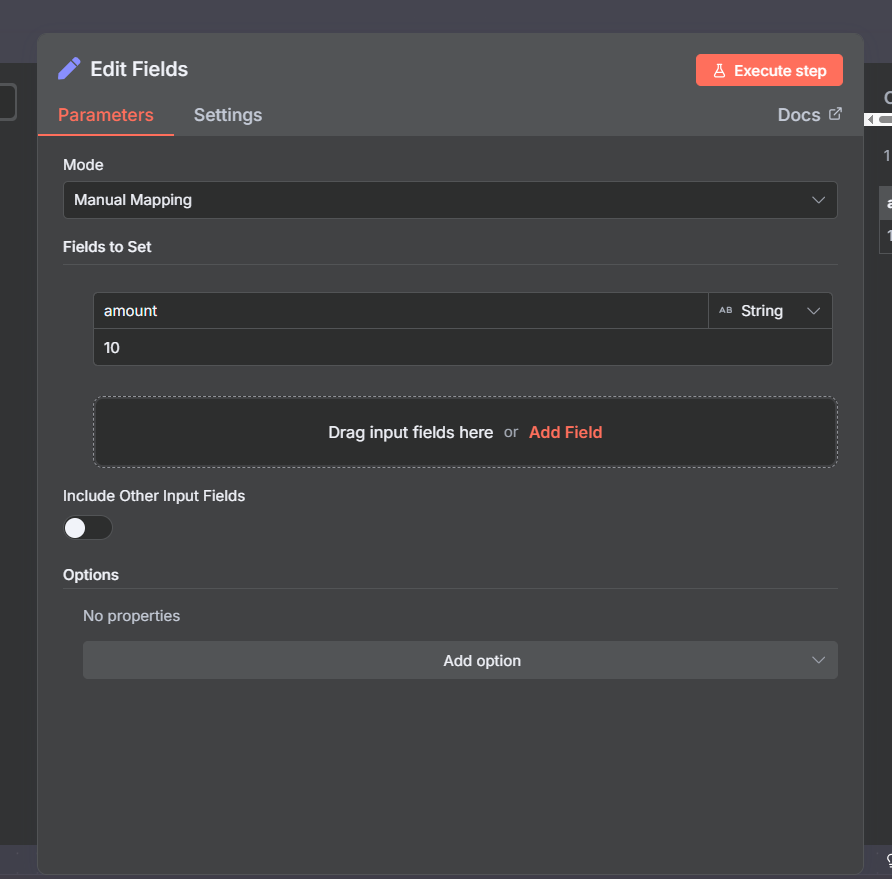
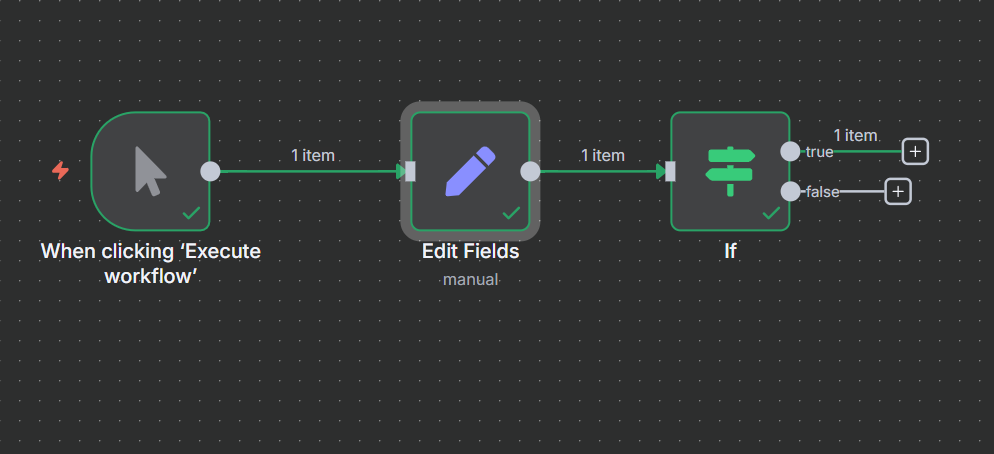
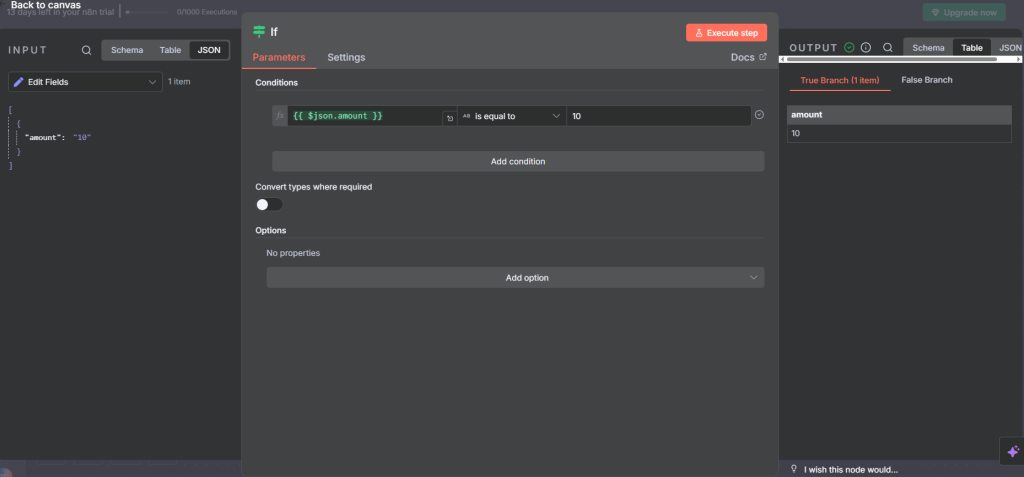
The most common use is comparing numbers. In this example, an Edit Fields (Set) node creates a field called amount with the value 10. Drag the amount field into the IF node’s condition input, then choose Number as the data type.
All available number operators:
- Is greater than or equal to (≥) — true if the value is above OR exactly equal to the threshold. amount = 10 against 10 → true.
- Is greater than (>) — true only if strictly greater. 10 > 10 → false.
- Is equal to (=) — exact match. 10 = 10 → true.
- Is not equal to (≠) — opposite. 10 ≠ 10 → false.
- Is less than (<) — 10 < 5 → false.
- Is less than or equal to (≤) — 10 ≤ 5 → false.
- Exists — true as long as any number value is present, even 0.
- Does not exist — true only if the field is null or undefined.
- Is empty / Is not empty — checks for empty values.
Practical pattern: use Is greater than or equal to with a threshold to separate high-value leads before sending personalized email sequences.
Example 2 — String Conditions
String conditions are the most commonly used type. In this example, an Edit Fields node sets name = "Ryan". Select String in the data type dropdown.
All string operators:
- Is equal to — exact match. “Ryan” equals “Ryan” → true.
- Is not equal to — opposite.
- Contains — checks if the comparison string appears anywhere. “Brian” contains “rian” → true. Case-sensitive by default.
- Does not contain — opposite.
- Starts with — “Brian” starts with “Br” → true.
- Does not start with — opposite.
- Ends with — “Brian” ends with “an” → true. Watch for trailing whitespace: “Brian ” with a space will go to false because it ends with a space, not “an”.
- Does not end with — opposite.
- Matches regex — powerful pattern matching. “R.a” matches “Rya”. Used for email validation, phone format checks, partial string matching.
- Does not match regex — opposite.
- Exists / Does not exist — whether the field exists. An empty string still counts as existing.
- Is empty / Is not empty — whether the string has zero characters.
Key gotcha: n8n string comparisons are case-sensitive by default. “Ryan” does not contain “ryan”. See Example 3 for how to handle this.
Example 3 — Ignore Case with Strings
In real-world data, you can’t always control capitalization. A user might type “RYAN”, “ryan”, or “Ryan” — all should match. The IF node’s Ignore Case option strips capitalization from both sides before evaluating.
To enable it, click the three-dot menu on your string condition and toggle Ignore Case on.
With Ignore Case enabled:
- “RYAN” is equal to “ryan” → true
- “Brian” contains “RIAN” → true
- “Hello World” starts with “hello” → true
Ignore Case also works on array conditions. An array [“Every Day is Exactly the Same”] will match the search “every day is exactly the same” case-insensitively when Ignore Case is enabled.
Example 4 — Boolean Conditions
A boolean has only two possible values: true or false. In n8n, set the data type to Boolean in Edit Fields and you can only select true or false.
Boolean operators:
- Is true — the cleanest check. If the field value is true, routes to the true branch.
- Is false — routes to true only when the field value is false.
- Is equal to — functionally the same as Is true/Is false, but allows expressions on the right side.
- Exists / Does not exist / Is empty / Is not empty — these test whether the boolean field is present, not its value.
Recommendation: Use Is true or Is false. The “is equal to” variants add unnecessary complexity and can confuse future readers of your workflow.
Example 5 — Date and Time Conditions
Date conditions let you route items based on when they occurred. Use the Date & Time node set to “Include current time” to generate a timestamp, then connect it to the IF node. Select Date & Time in the type dropdown.
Available operators:
- Is after — true if the data value occurs after the comparison date/time.
- Is before — opposite. A timestamp of 9:22 AM is before 9:27 AM → true.
- Is after or equal to — equivalent to ≥ for dates.
- Is before or equal to — equivalent to ≤ for dates.
- Is equal to — Use with caution. This requires an exact timestamp match including milliseconds. Two dates on the same day but recorded at different times will not match.
Comparing by Day Only
To compare only the date (ignoring time), switch to Expression mode and format the value to ISO date:
{{ $json.currentDate.toISODate() }}
This strips the time component so that 2025-09-22T07:59:00 and 2025-09-22T09:22:00 both become 2025-09-22 — and Is equal to will pass. You can also use {{ DateTime.now().toISODate() }} on the comparison side to check against today.
Example 6 — Array Conditions
Arrays hold multiple values. In this example, an Edit Fields node creates an array of three Nine Inch Nails songs. The IF node can check both the content and the size of the array.
Select Array as the data type.
Content Operators
- Contains — checks whether the array includes a specific value. Case-sensitive by default; enable Ignore Case to match regardless of capitalization.
- Does not contain — opposite.
Length Operators
- Length is equal to — an array of 3 items has length = 3 → true.
- Length is not equal to — opposite.
- Length is greater than — length > 2 with 3 items → true.
- Length is less than — length < 3 with 3 items → false.
- Length is greater than or equal to — length ≥ 3 with 3 items → true.
- Length is less than or equal to — length ≤ 3 with 3 items → true.
Length checks are useful for validating that a required list field isn’t empty (length > 0) or for capping batch sizes before sending to an API.
Example 7 — Object Conditions
An object is a key-value structure — for example, a person object with name, age, and birthdate. When you select Object as the data type, the IF node only offers four operators on the object itself: Exists, Does not exist, Is empty, Is not empty.
The real power comes from drilling into the object’s properties. Instead of referencing the whole person object, reference a nested field:
{{ $json.person.age }}
Then use a Number condition on that. Examples:
{{ $json.person.age }}is less than 40 → true if age is 30{{ $json.person.name }}contains “Ryan” → true if name matches
Tip: Drag and drop from the data inspector to auto-fill the correct JSON path — no need to type nested paths manually.
Example 8 — Multiple Conditions with AND
You can add multiple conditions to a single IF node and require all of them to be true. This is AND mode. In this example, a Google Sheets node reads a spreadsheet of music bands with columns: band, song, genre, seen_live.
Two conditions are configured:
- genre is equal to “metal”
- seen_live is equal to “no”
With AND logic, an item only reaches the true output if both conditions are satisfied. Out of 10 bands, only one (Rivers of Nil) is a metal band that hasn’t been seen live — so 1 item routes to true, 9 to false.
To add a second condition, click Add Condition inside the IF node. The AND/OR toggle appears between conditions. Ensure it is set to AND.
Example 9 — Multiple Conditions with OR
OR logic routes an item to true if any one condition is satisfied. Using the same spreadsheet, two conditions are set:
- genre is equal to “metal”
- genre is equal to “bluegrass”
With OR logic, items go to true if they are metal OR bluegrass. 5 of the 10 bands fall into one of those genres — so 5 go to true, 5 go to false.
To switch from AND to OR, click the toggle between conditions and select OR. You can also mix data types in a multi-condition IF node — one number condition and one string condition in the same OR group is perfectly valid.
Important: You Cannot Mix AND and OR in the Same IF Node
A critical limitation of the n8n IF node: when you change the AND/OR toggle, it changes all conditions in the node at once. You cannot have “Condition A AND Condition B OR Condition C” in a single IF node.
If you need mixed AND/OR logic, your options are:
- Chain multiple IF nodes (see Example 10)
- Use the Code node and write JavaScript with custom Boolean logic
- Restructure your conditions using De Morgan’s laws to avoid mixing AND and OR
Join Our AI Community
Example 10 — Nested IF Nodes
Nested IF nodes chain two or more IF nodes in sequence. The true (or false) output of the first IF connects into the second IF, applying another layer of conditions.
Example using the music spreadsheet:
- First IF node: genre is equal to “metal” → 5 metal bands to true, everything else to false
- Second IF node (connected to the true output): seen_live is equal to “yes” → splits the 5 metal bands by whether they’ve been seen live
Result: 4 metal bands seen live go one direction; Rivers of Nil (not yet seen) goes another. The same second IF node can also be connected to the false output of the first IF to further split non-metal bands.
Readability note: A single IF node with multiple conditions is easier to read than deeply nested chains. Use nesting when the second condition only applies to one branch, or when the logic genuinely requires sequential filtering.
Example 11 — Type Conversion (Loose Type Validation)
By default, n8n uses strict type validation. The string “42” does not equal the number 42, even though they represent the same value. This is a common source of unexpected false results when working with API responses that return numbers as strings.
In this example, a string field string_as_num is set to “42” (a string). The IF node compares it to the number 42 using Is equal to under the Number type. Without conversion, this goes to the false branch.
To fix this, open the IF node options and enable “Convert Types When Required”. The node will cast the string to a number before comparing. With this enabled, “42” = 42 → true.
Best practice: Convert data types before the IF node using an Edit Fields node or expression. Use Number($json.amount) or String($json.status) to ensure the correct type before the condition runs. This makes your workflow easier to debug and avoids silent type-cast failures.
IF Node vs Switch Node vs Code Node: When to Use Each
Use the IF Node when:
- You need exactly two output paths (true or false)
- All conditions use the same AND or all use OR logic
- The branching is simple and readable at a glance
Use the Switch Node when:
- You need three or more output paths
- You are routing based on multiple possible values of the same field (e.g., status = “pending” / “active” / “closed”)
- You want a fallback default route for items that don’t match any condition
Use the Code Node when:
- You need to mix AND and OR in the same condition group
- Your logic involves complex comparisons not available as built-in operators
- You want to compute a derived value and branch based on it in one step
Frequently Asked Questions
Can the IF node have more than two outputs?
No. The IF node always produces exactly two outputs: true and false. If you need three or more output paths, use the Switch node.
Why is my string condition always going to false?
The most common causes: (1) case mismatch — enable Ignore Case if needed, (2) trailing whitespace — check for spaces at the start or end of your value, (3) type mismatch — your field might be a number but you’re comparing it as a string. Enable “Convert Types When Required” or convert the type in an expression first.
Can I use expressions on both sides of a condition?
Yes. Switch the value input from Fixed to Expression for both the left and right side of any condition. This lets you compare two dynamic fields, such as checking whether {{ $json.startDate }} is before {{ $json.endDate }}.
What happens to items on the false branch if nothing is connected?
Items on the false branch simply stop processing — they don’t cause an error. This is useful for filtering: send only matching items forward without needing to route the rest anywhere.
Can I change AND to OR mid-way through a condition list?
No. The AND/OR toggle applies to all conditions at once. For mixed logic (A AND B OR C), use chained IF nodes or the Code node.
How do I check if a date is today?
Use an expression on the comparison side: {{ DateTime.now().toISODate() }}. Format both the field value and the comparison to ISO date strings so the Is equal to check ignores the time component.
Next Steps
Now that you’ve mastered the IF node, explore these related nodes:
- Switch Node — route items to multiple output paths based on different field values.
- Filter Node — similar to the IF node but drops non-matching items rather than routing them to a separate branch.
- Loop Over Items Node — process large batches in chunks, useful after an IF node filters a large dataset.
- Edit Fields (Set) Node — use before the IF node to add computed fields, convert types, or normalize string case.
- Code Node — for complex branching that combines AND and OR conditions the IF node can’t handle alone.
