
If you’re building larger n8n workflows, you’ve probably hit a point where letting AI run completely unchecked isn’t an option. Maybe you’re in an enterprise environment where policy requires a human to review AI-generated content before it goes anywhere. Maybe you just want a safety net before an action is irreversible.
That’s exactly what n8n human in the loop is for. The workflow pauses, sends a notification to a person, and waits. That person approves or denies — and the workflow continues accordingly.
In this guide, you’ll see five real n8n human in the loop workflow examples — from a basic Gmail approval to Telegram tool-call reviews and the new in-app Chat node. By the end, you’ll have everything you need to add human oversight to any workflow you’re building.
What Is n8n Human in the Loop?
If you are new to the platform and want foundational context before diving into approvals, we recommend reviewing n8n beginner workflow basics.
n8n human-in-the-loop is a built-in feature that pauses an active workflow and waits for a person to take an action before continuing. That action is typically an approval or a denial, but it can also be a custom form response.
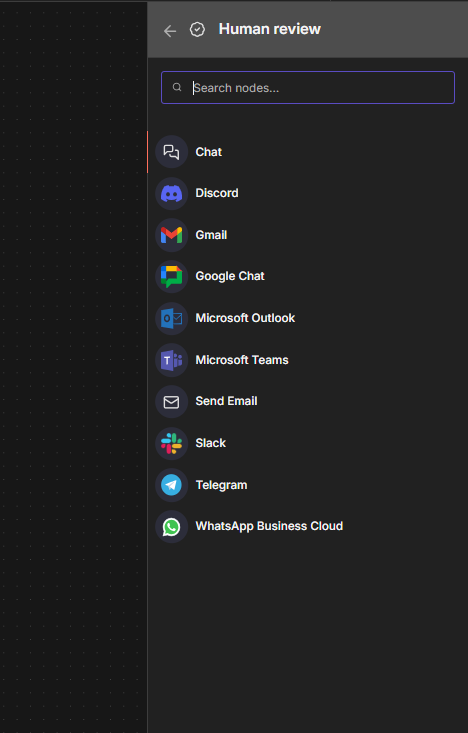
When the workflow reaches a human-in-the-loop node, n8n sends a notification to your chosen channel — Gmail, Slack, Telegram, Discord, Microsoft Teams, WhatsApp, or the built-in Chat — and halts execution. The workflow only resumes once the reviewer responds.
This is different from a manual trigger. With manual triggers, a human starts the workflow. With human in the loop, the workflow starts on its own and calls a human in at a specific decision point.
This n8n human in the loop feature was significantly expanded in recent n8n updates to include tool-level approvals directly on AI agent nodes. You may also see it called human-in-the-loop n8n automation or human in loop n8n — all describing the same mechanism.
When Should You Use Human in the Loop in n8n?
Not every workflow needs a human checkpoint. Overusing approval steps slows down the automation and defeats the purpose. Here are the situations where n8n human in the loop approval workflows genuinely add value:
- AI-generated content that will be published or sent externally (social media posts, emails, YouTube titles)
- Image generation workflows where the first draft may need refinement before being used downstream
- Workflows that interact with sensitive systems: databases, CRMs, payment platforms
- Corporate environments with a policy requiring human review of AI outputs before storage or distribution
- Any tool call by an AI agent where the action is hard to reverse
The principle is simple: use human in the loop at decision points where getting it wrong is expensive. Setting up an n8n approval workflow human in the loop at the right checkpoint keeps automation fast while keeping a human in control. For teams new to human in the loop n8n, Gmail is the easiest starting point — no extra accounts required. Let the automation handle everything else
5 n8n Human in the Loop Examples (Step-by-Step)
Example 1: Gmail Approval Before Writing to a Spreadsheet
This is the most straightforward n8n human in the loop workflow and the best starting point. An AI agent produces output — in this case, a YouTube title — and the workflow sends that output to a Gmail inbox for review before adding it to a Google Sheet.
Here’s how to set it up:
- Add an AI Agent node. In the example, the prompt is: Write one YouTube title for a video on human in the loop in n8n. Connect your preferred model (GPT-4o, Gemini, Claude — any works).
- Add the n8n human in the loop approval node. Click the + connector after your AI Agent, scroll to the Human Review section, and select Gmail.
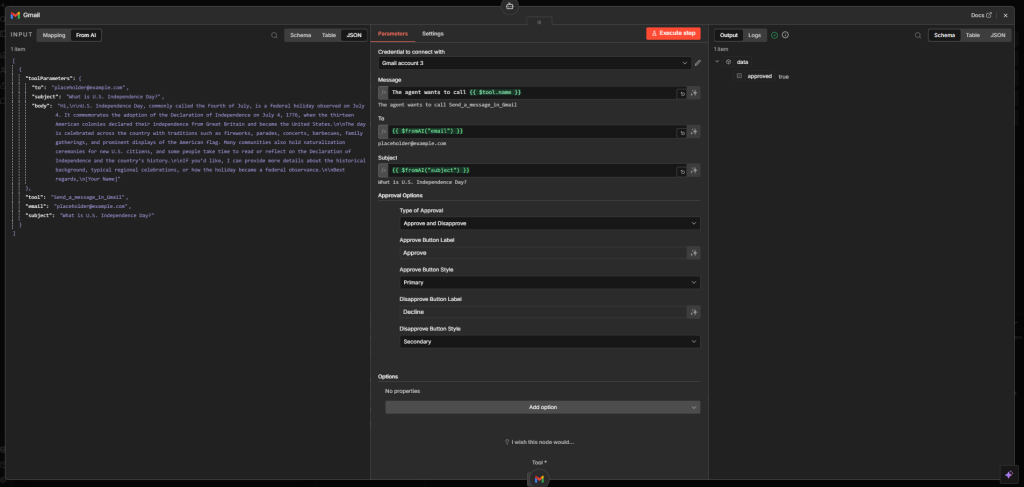
- Configure the Gmail node. Set the recipient (your review email), a subject line like ‘Approve YouTube Title’, and map the AI agent’s output as the message body.
- Set Response Type to Approval. Under Approval Options, choose Approve Only or Approve and Disapprove. Approve Only is simpler. Approve and Disapprove gives you two routing paths downstream.
- Connect the output to your Google Sheets node. When the reviewer clicks Approve in the email, n8n resumes the workflow and writes the title to your sheet.
When the workflow runs, it pauses at the Gmail node. The reviewer receives an email with an Approve button. Clicking it resumes the workflow. The execution ID stays alive while it waits — n8n’s wait node architecture handles this internally.
Join Our AI Community
Example 2: Image Generation Review with Approve or Decline
Image generation workflows often require multiple rounds of refinement. The first output from a model like Ideogram or DALL-E may be close but not quite right. Rather than running the whole workflow again blind, you can add a human review step after the first image is generated.
The key difference in this example is using Approve and Disapprove instead of Approve Only, then routing the two outcomes with an If node:
- Build your image generation chain. The first node creates the image. The output (image URL or base64) passes forward.
- Add the Human in the Loop node (Gmail or Telegram both work well here). Set the message to include the image URL so the reviewer can see what they’re approving. Set Approval Options to Approve and Disapprove.
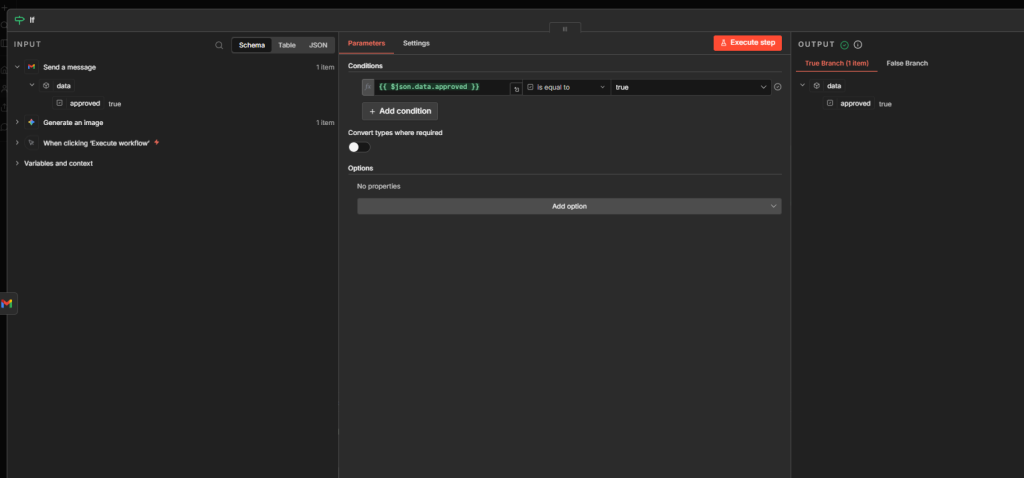
- Add an If node after the human review node. Use the expression: {{ $json.data.approved }} — if true, go to the publish/use branch. If false, loop back to regenerate.
The Approve and Disapprove + If node combination is more powerful than Approve Only because it gives your workflow two distinct paths. On approval, the image goes to production. On decline, the workflow can regenerate or escalate.
In real client work, multi-round image workflows often go through three or four revision cycles. Building the decline path from the start saves significant manual intervention later.
Example 3: Human Approval Before an AI Agent Tool Call (Telegram)
This is one of the most powerful additions to n8n human in the loop functionality. Rather than reviewing the final output, you can require approval before an AI agent is allowed to execute a specific tool. The workflow pauses and asks a human to confirm before the action happens.
This is particularly valuable for tools with real-world side effects: sending emails, posting to social media, or modifying a database row.
The n8n approvals feature human in the loop mechanism targets individual tool calls, not the entire workflow run. What was previously called the n8n manual approval node human in the loop gating is now built directly into the Tools panel — no custom webhook setup required.
Here’s how to set it up:
Open your AI Agent node. Click the + connector on the Tools section (not the main workflow connector). This opens the Tools panel.
Add Human Review. Scroll to Human Review at the bottom of the Tools panel. Select Telegram (or your preferred channel). This creates a human review node that is specifically tied to that tool call — not the overall workflow.
Configure the Telegram node. Add your bot credentials and chat ID. Set the approval type to Approve and Disapprove. Customize button labels if needed (e.g., “Yes, Send” and “No, Cancel”).
Write a clear system prompt. Include instructions for what the AI agent should tell the user when approval is needed. Example: “If you call the Gmail tool, tell the user: I have drafted an email and sent it to your manager for approval. Please wait.” This keeps the chat interface informative during the pause.
Note: Readers building this workflow will benefit from understanding how the core agent functions before configuring tool-level approvals. For a deeper dive, check out our guide on the n8n AI agent node.
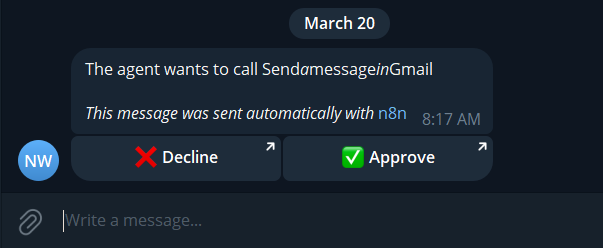
Test the flow. Ask the AI agent a question that triggers the tool. You should receive a Telegram notification. Approve or decline on your phone, and the workflow will resume accordingly.
The notification that arrives on Telegram reads: ‘Agent wants to call [tool name]’ along with the input parameters the agent is about to pass. You can see exactly what will happen before it does.
Need Help Building n8n Workflows?
Example 4: Human Review Inside n8n Chat
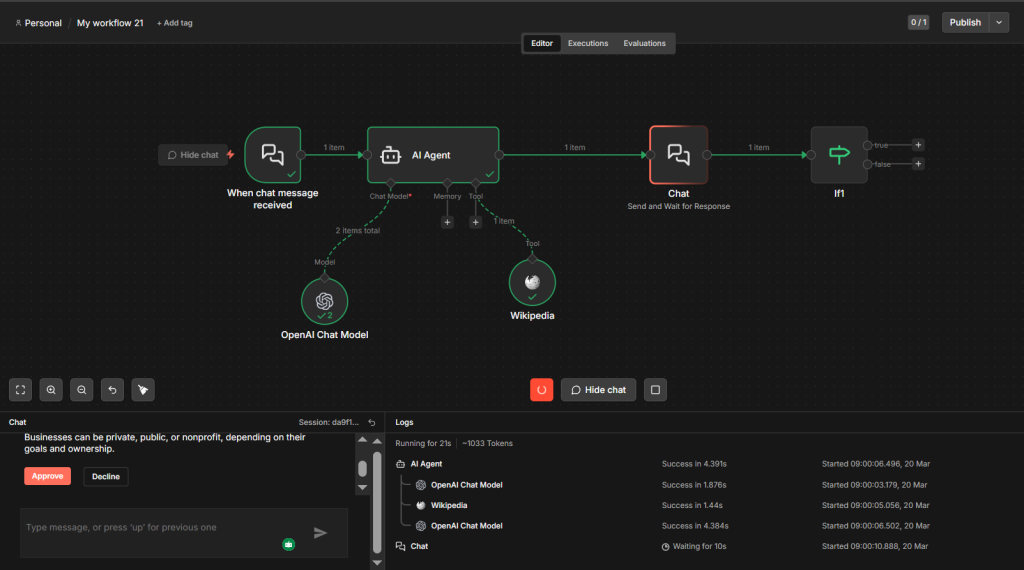
If you want to keep everything inside n8n without external notifications, the Chat node now supports send-and-wait functionality. This means you can run a human-in-the-loop approval directly within an n8n chat session.
Setup steps:
- Start your workflow with a Chat Message Received trigger.
- Add an AI Agent node after the trigger. Configure your model and any tools you need.
- Add the Human Review node using Chat as the channel. In the main workflow connector (not the Tools connector), click + and navigate to Human Review, then select Chat. This creates a send-and-wait node that uses the same chat interface.
- Enable ‘Block user input while waiting for approval’ in the Chat node settings. This prevents the user from sending more messages while the review is pending.
- Add an If node after the Chat review node and route on $json.data.approved to split into your approve and decline branches.
This is particularly useful for internal tools where the reviewer is the same person using the chat interface — they get the AI’s output and can approve or decline without ever leaving the n8n chat window.
Example 5: Chat as a Tool (Tool-Level vs. Workflow-Level Chat Approval)
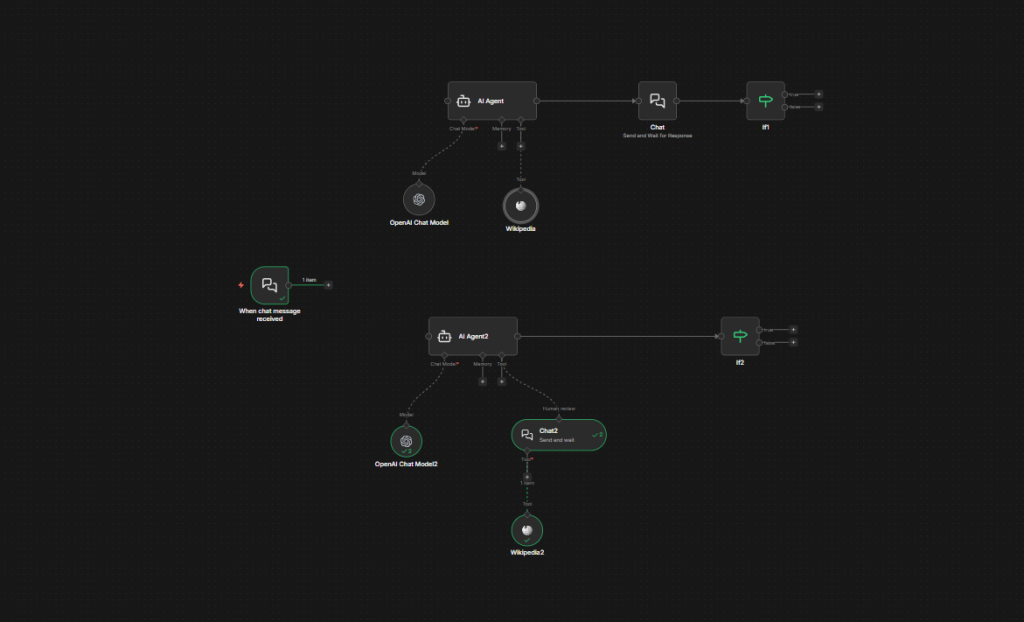
n8n has two distinct Chat nodes that serve different purposes in human-in-the-loop workflows. Confusing them is one of the most common setup mistakes.
Here’s the difference:
- Workflow-level Chat approval: Added from the main workflow + connector under Human Review. This pauses the whole workflow and waits for a person to approve or deny. Use this when you want a broad checkpoint anywhere in your workflow.
- Tool-level Chat approval: Added from the Tools connector on an AI Agent node under Human Review. This specifically gates one tool call. The AI agent has to get a human thumbs-up before that particular tool executes. Use this for high-risk tool calls.
To add tool-level Chat approval: open your AI Agent node, click the + on the Tools connector, scroll to Human Review, select Chat, then set the operation to Send and Wait for a Response.
To add workflow-level Chat approval: close the AI Agent, click + on the main workflow connector, scroll to Human Review, select Chat. Same node type, different context, different behavior.
Both support the same settings: approve/decline buttons, custom labels, block user input while waiting.
How to Set a Timeout on n8n Human in the Loop Approvals
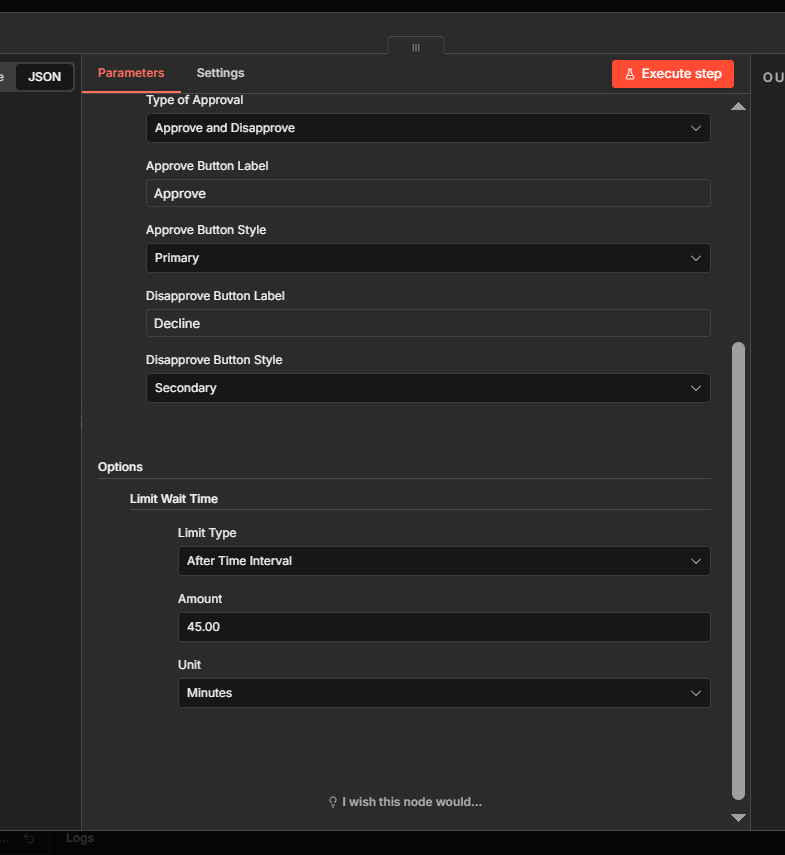
Every n8n human-in-the-loop node supports a wait time limit. If the reviewer doesn’t respond within the set timeframe, the workflow can take a fallback action instead of waiting indefinitely.
To configure it: open your Human in the Loop node, expand Options, and set Limit Wait Time to on. Choose your unit (minutes, hours, or days) and enter a value.
The n8n wait node human in the loop approval timeout is set in that same Options panel. For the full configuration reference, the n8n human in the loop node documentation on the official n8n docs covers every available parameter. Configuring the n8n human in the loop approval workflow wait node to a reasonable interval prevents executions from hanging indefinitely.
For most use cases, a time interval of 45 minutes to 2 hours is practical. A one-day timeout is available but generally not recommended — long-paused executions consume resources and the context may be stale by the time someone responds.
If the timeout expires, n8n routes through a Timeout branch that you can wire to a fallback action, an escalation notification, or simply logging the skipped item.
Supported Channels for n8n Human in the Loop Approval
n8n supports nine channels for n8n human-in-the-loop approvals:
- Gmail — email-based approval, best for low-urgency reviews or corporate email workflows
- Slack — fast, great for teams already using Slack for internal comms
- Telegram — works well for individual approvals on mobile
- Discord — good for developer teams with existing Discord servers
- Microsoft Outlook — same behavior as Gmail but for Microsoft 365 environments
- Microsoft Teams — similar to Slack for Microsoft shop environments
- WhatsApp — mobile-first, personal, useful for solo operators
- Email (generic SMTP) — use this if Gmail/Outlook aren’t an option
- Chat (n8n built-in) — fully internal, no external account needed
All channels other than Chat require a credential to be set up in n8n. The credential links your n8n instance to your account on the relevant platform. Chat works out of the box with no external account required.
The n8n approvals human in the loop setup is consistent across all nine channels — same approval buttons, custom labels, and configurable wait timeouts. For channel-specific credential setup, check the n8n human in the loop node docs on the official n8n documentation site.
For corporate deployments, the typical recommendation is to route approvals to a shared team inbox or a dedicated Slack channel, rather than an individual’s personal account. That way, coverage doesn’t depend on one person being available.
Frequently Asked Questions
What is n8n human in the loop?
n8n human-in-the-loop is a built-in feature that pauses a workflow at a defined checkpoint and waits for a person to approve or deny before continuing. The workflow sends a notification to a channel you configure (Gmail, Slack, Telegram, Chat, etc.), and execution halts until the reviewer responds. This lets you add human oversight to any step in an automated workflow without writing custom code.
How do I add a human approval step to an n8n workflow?
Click the + connector after the node where you want the pause to happen. Scroll to the Human Review section and select your notification channel (Gmail, Telegram, Slack, etc.). Configure the message content and set Approval Options to Approve Only or Approve and Disapprove. When the workflow runs, it will pause and send the notification. Clicking Approve in the notification resumes the execution.
Can n8n pause a workflow and wait for a human response?
Yes. The human-in-the-loop node uses n8n’s wait node infrastructure to pause execution and hold the state of the workflow. The workflow can wait for minutes, hours, or up to a day. You can also set a timeout so the workflow takes a fallback action if no response arrives within the defined window.
What is the difference between the n8n wait node and the human in the loop node?
The n8n wait node pauses a workflow for a fixed time interval or until a webhook is called. The human-in-the-loop node is a higher-level abstraction built on top of the wait node that also handles sending the notification, formatting the approval buttons, and capturing the reviewer’s response. For most human approval use cases, the human-in-the-loop node is faster to set up and handles more of the logic automatically.
Can I require human approval before an AI agent uses a specific tool in n8n?
Yes. This is supported via the Tools connector on the AI Agent node. Add a Human Review node through the Tools panel rather than the main workflow connector. The AI agent will pause and send a notification before executing the specified tool, showing the reviewer exactly what parameters the agent intends to pass. If the reviewer denies, the tool call is cancelled and the agent receives feedback to inform the user.
Final Thoughts and Your Homework
n8n human in the loop approval workflows sit at the intersection of speed and accuracy. You get the efficiency of full automation most of the time, with a human checkpoint at the exact moments where mistakes are costly.
Whether you need a simple n8n human in loop checkpoint or a full multi-step approval chain, n8n provides the tools to build it without writing any custom code.
The five examples above cover the core patterns: email-based approvals, image generation review, AI agent tool-call gating, in-app chat approvals, and the distinction between tool-level and workflow-level Chat nodes. Each one builds on the same underlying mechanism.
Here’s a challenge to put it into practice: build a support ticket triage workflow. An incoming ticket gets auto-categorized by an AI node. Any ticket flagged with low confidence or an escalation keyword triggers a human-in-the-loop review before the auto-response goes out or the ticket gets routed. You choose the channel and the routing logic.
If you want to share your build, the n8n community calls in the Skool group are a good place to walk through it and get feedback.
