
Table of Contents

n8n Aggregate Node: Complete Guide with Examples

When you need to consolidate data from multiple workflow items into a single output — whether you’re building reports, batching API payloads, or summarizing records — the n8n Aggregate node is the tool for the job.

The Aggregate node takes many items and combines them into one. It’s the direct opposite of the Split Out node, which breaks one item into many. Together they give you full control over how data flows through your workflows.

This guide walks through four hands-on examples: aggregating individual fields, combining all item data into a named list, pulling from Google Sheets, and extending with a Code node to compute sum, min, max, and average.

What Is the n8n Aggregate Node?

The n8n Aggregate node combines several items (or selected fields from multiple items) into a single item. Instead of your workflow carrying 10 separate records forward, the Aggregate node wraps them into one item containing all that data as an array.

An important distinction: the Aggregate node is for grouping, not arithmetic. It collects values into a structured array. If you want a sum or average, you use the Aggregate node first to gather the values, then pass the result to a Code node to do the math.

To add it to a workflow, click the plus icon and search for Aggregate. The description reads: “Combine a field from many items into a single list item.”

The Two Aggregation Modes

The Aggregate node has two main modes, and choosing the right one depends on what you want to do with the data downstream.

Aggregate Individual Fields pulls a single named field out of every item and combines all the values into one array. Use this when you only need one field — for example, extracting every order amount into a flat list.

All Item Data into a Single List wraps every item (or a subset of fields) inside a named container. Use this when you need a structured payload — for example, grouping all order records into a “payments” array to send in one API call.

Mode 1: Aggregate Individual Fields

This mode extracts a single field from each incoming item and combines all the values into a flat array. Here’s how to set it up with a customer orders example.

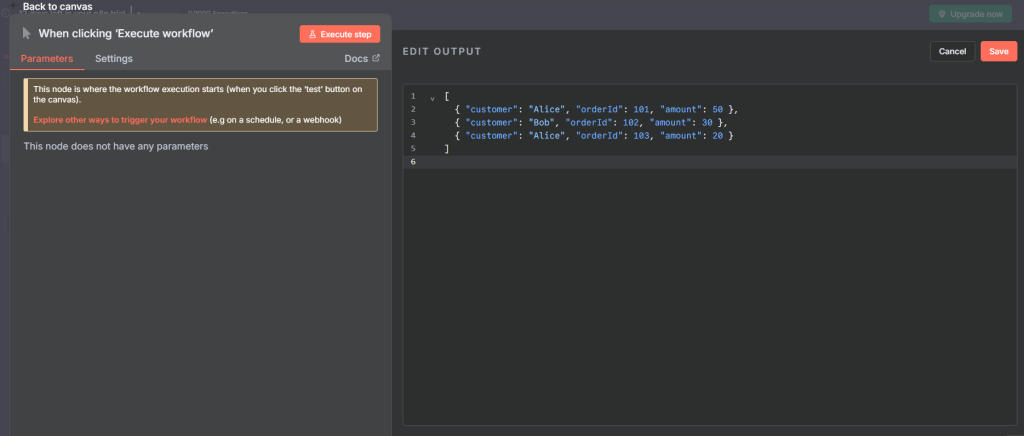
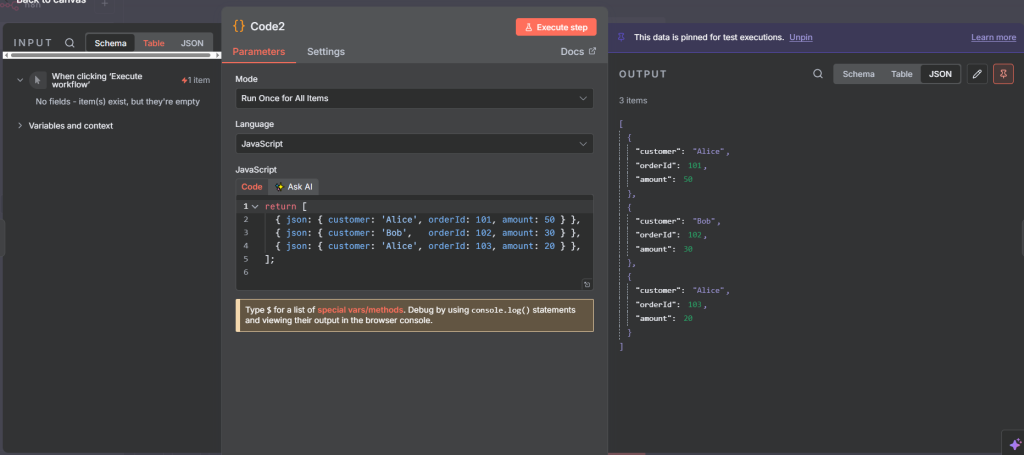
Say you have three incoming items, each with a customer, order_id, and amount field:

{ "customer": "Alice", "order_id": "A1", "amount": 50 }
{ "customer": "Bob",   "order_id": "B2", "amount": 30 }
{ "customer": "Alice", "order_id": "A3", "amount": 20 }

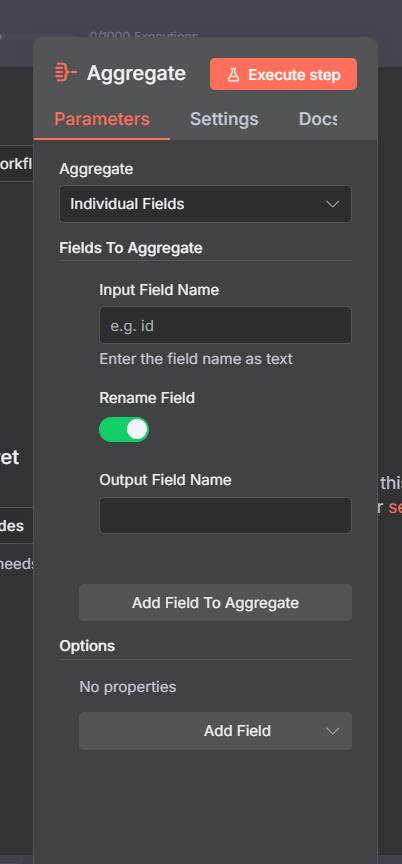
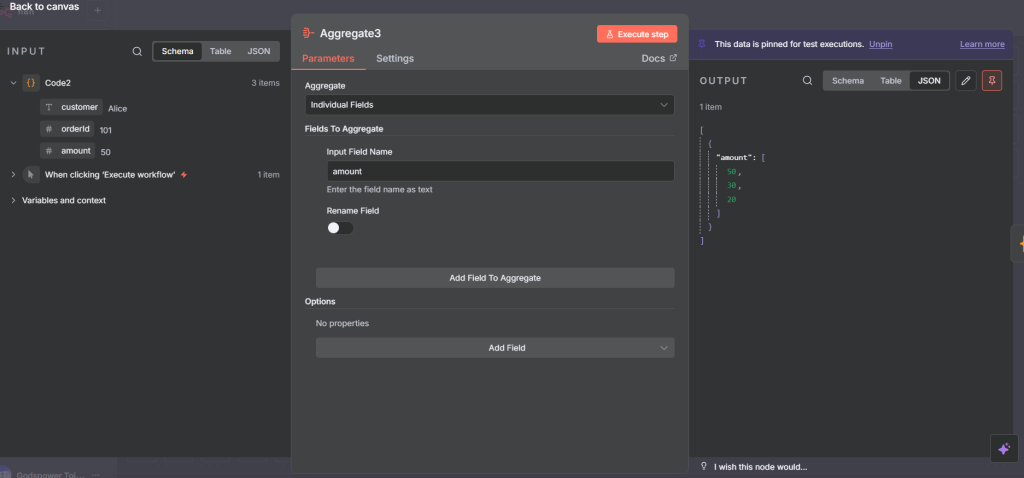
In the Aggregate node, set the mode to Individual Fields, then type or drag in the field name amount. The output becomes a single item with one field:

{ "amount": [50, 30, 20] }

You can also rename the output field. If you want the array labeled totals instead of amount, just enter the new name in the Output Field Name setting. Three items in, one item out.

You can also add multiple individual field entries to the same Aggregate node to pull several fields in parallel. Each field gets its own array in the output item.

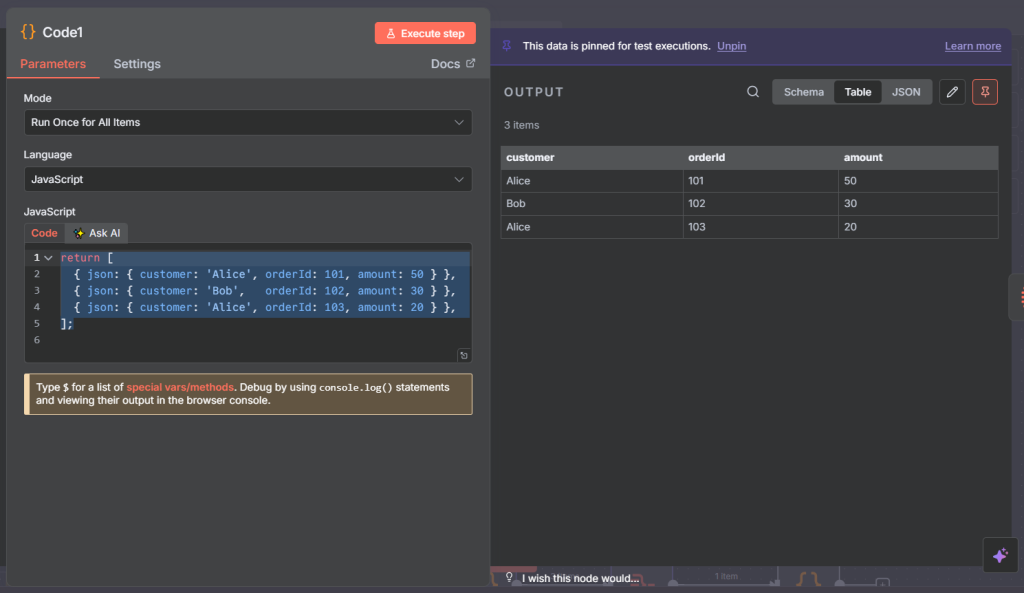
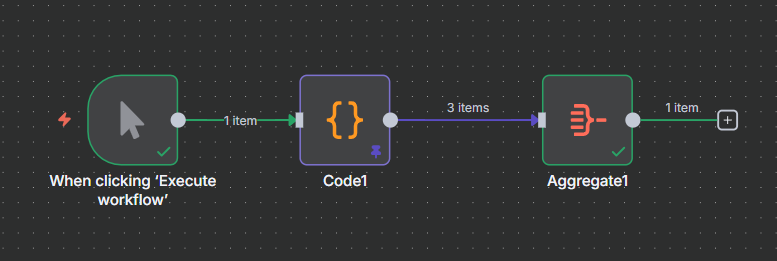
The complete flow for this example: a Code node generates the order data, feeds into the Aggregate node, and the output is a single item with the amounts array ready for downstream use.

Join Our AI Community

Get access to the JSON workflow files from this article, weekly live sessions, and a community of builders working through the same challenges. Everything is free and the community is active.

Mode 2: All Item Data into a Single List

This mode wraps all incoming items inside a named container. It’s the right choice when you need to pass a structured batch of records to an API, a Code node, or an email template.

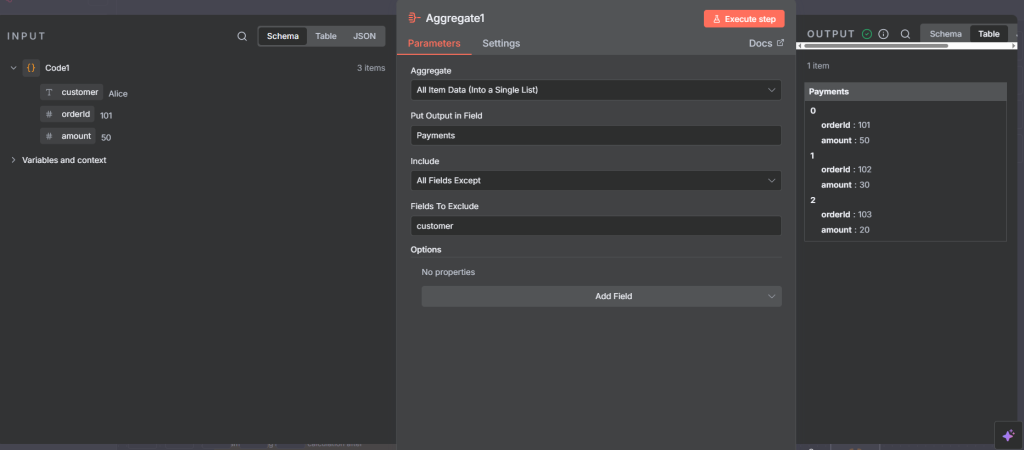
Using the same three order items, set the mode to All Item Data into a Single List and give the container a name — for example, payments. The output becomes:

{ "payments": [
  { "order_id": "A1", "amount": 50 },
  { "order_id": "B2", "amount": 30 },
  { "order_id": "A3", "amount": 20 }
]}

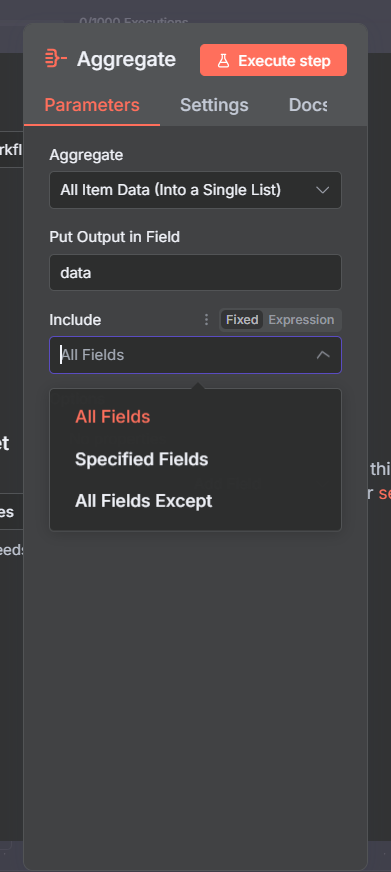
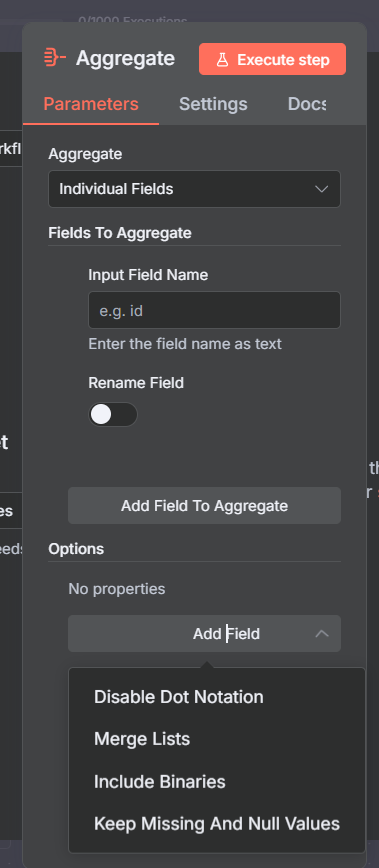
You control exactly which fields are included using one of three options:

  • Specify Fields: Drag in only the fields you want (e.g. order_id and amount, excluding customer).
  • All Fields: Every field from every item is included inside the container.
  • All Fields Except: Include everything but exclude specific fields by name — useful when you have a large schema and just want to drop one or two fields.

The choice between these three options comes down to your downstream needs. If you’re sending to an API that expects a specific payload shape, use Specify Fields. If you’re passing to a Code node that needs everything, use All Fields. If your items have a large number of fields and you want to strip one out, All Fields Except is the fastest path.

Here is the result with specified fields only — the output contains a payments array with just order_id and amount per record. The customer name was excluded.

The complete workflow for this example: three order items flow into the Aggregate node set to All Item Data mode, producing a single structured payments array.

Example: Aggregate from Google Sheets

The Aggregate node works with any data source, not just generated JSON. Here’s a practical example pulling from a Google Sheets spreadsheet.

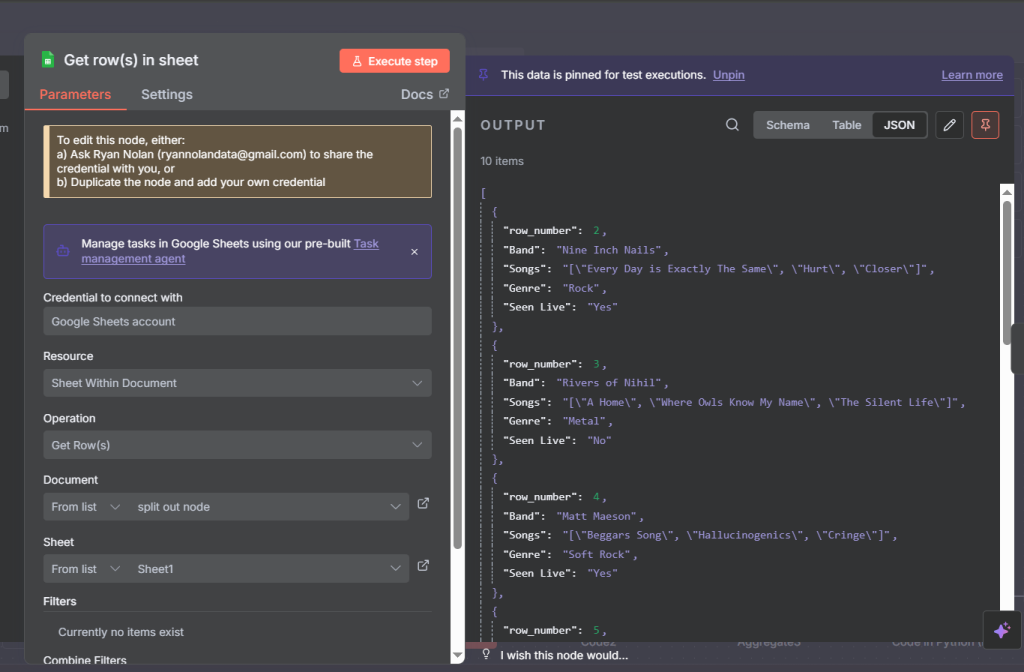
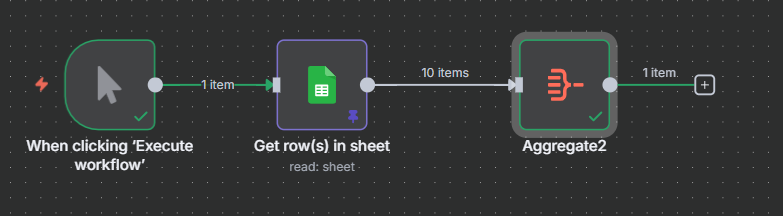
Start with a Google Sheets node reading 10 rows from a spreadsheet containing band names, song titles, genre, and a “seen live” flag. Without aggregation, this produces 10 separate items flowing through your workflow.

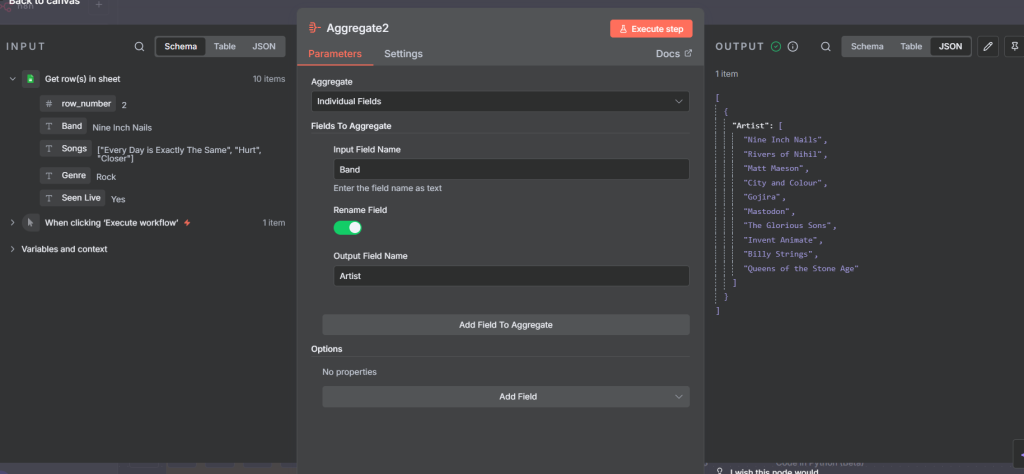
Add an Aggregate node set to Individual Fields mode and specify the band field. The 10 separate band name items collapse into a single item:

{ "band": ["Radiohead", "The National", "Wilco", "LCD Soundsystem", ...] }

If you want to rename the field (e.g., call it artists instead of band), use the Output Field Name setting. The result is the same array, just under a different key.

This pattern is common in reporting workflows: read all rows from a sheet, aggregate the key field into a list, and pass that list to a template, AI node, or notification.

Going Further: Computing Sum, Min, Max, and Average

The Aggregate node groups your data — but if you need actual calculations (totals, averages, ranges), you add a Code node after it.

Here’s the pattern using the order amounts example. After the Aggregate node produces { "amount": [50, 30, 20] }, connect a Code node that reads that array and computes the statistics:

const amounts = $input.first().json.amount;
const total = amounts.reduce((s, v) => s + v, 0);
const min   = Math.min(...amounts);
const max   = Math.max(...amounts);
const avg   = total / amounts.length;
return [{ json: { total, min, max, average: avg } }];

The output is a clean summary item:

{ "total": 100, "min": 20, "max": 50, "average": 33.33 }

This two-node pattern — Aggregate to collect, Code to compute — handles the vast majority of data summarization needs inside n8n without requiring any external tools.

The Code node receives the aggregated array and returns a single summary object with total, min, max, and average values.

The output is a single item containing the computed stats — ready to pass to a Slack message, email, Google Sheet, or any other downstream node.

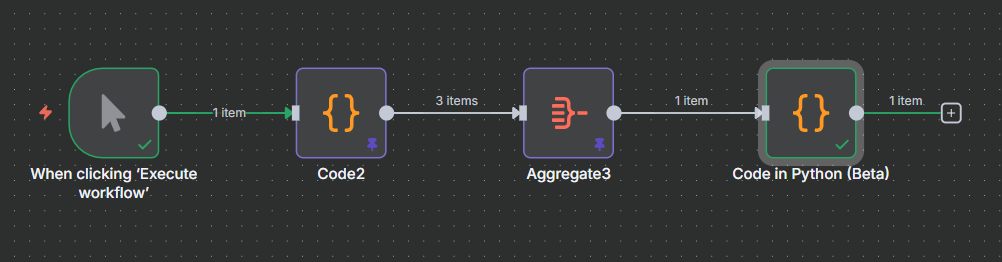
The complete workflow: generate order data, aggregate the amounts into an array, then use a Code node to compute totals and averages in one clean pass.

Join Our AI Community

Get access to the JSON workflow files from this article, weekly live sessions, and a community of builders working through the same challenges. Everything is free and the community is active.

Frequently Asked Questions

What is the difference between the Aggregate node and the Split Out node?

They are opposites. The Split Out node takes one item containing an array and turns it into multiple separate items — one per array element. The Aggregate node does the reverse: it takes multiple items and combines them into one. Use Split Out to expand data, Aggregate to consolidate it.

Can the Aggregate node do math like sum or average?

Not directly. The Aggregate node is for grouping data into arrays. To compute a sum, average, min, or max, aggregate the values first, then pipe the result into a Code node that does the calculation. This two-node pattern is the standard approach in n8n.

What is the difference between “Aggregate Individual Fields” and “All Item Data into a Single List”?

Individual Fields extracts a single named field from every item and produces a flat array of values. All Item Data wraps entire items inside a named container, keeping all their fields together as an array of objects. Use Individual Fields for a simple value list; use All Item Data when you need structured records.

Can I aggregate multiple fields at once in Individual Fields mode?

Yes. You can add multiple field entries to the same Aggregate node in Individual Fields mode. Each field gets its own array in the output item. This is useful when you need parallel lists — for example, separate arrays of order IDs and amounts from the same batch of items.

When should I use “All Fields Except” vs. “Specify Fields”?

Use Specify Fields when your items have many fields but you only need a few in the output — it’s cleaner to list what you want. Use All Fields Except when you need most fields but want to drop one or two — it’s faster than listing every field you want to keep.

Next Steps

The Aggregate node becomes most powerful when paired with other data transformation nodes. Here are the natural next steps:

  • Learn the n8n Split Out node — the counterpart to Aggregate for expanding arrays back into individual items
  • Use the Loop Over Items node to process large batches before aggregating results
  • Pass aggregated data into an n8n AI agent for summarization, classification, or analysis of the collected records
  • Combine with the HTTP Request node to send a batched payload to an external API in a single request

Join Our AI Community

Get access to the JSON workflow files from this article, weekly live sessions, and a community of builders working through the same challenges. Everything is free and the community is active.

Free Community

Join 1,000+ AI Automation Builders

Weekly tutorials, live calls & direct access to Ryan & Matt.

Join Free →

Keep Learning

n8n Email Automation: Build an AI Classifier and Autoresponder (2026)

How to Connect ClickUp to n8n: Step-by-Step (2026)

The n8n ClickUp integration (see n8n clickup node documentation) gives you 57 actions and 27 triggers to automate almost anything in your...

How to Connect Notion to n8n: Step-by-Step (2026)

The n8n Notion integration lets you automate your Notion workspace without writing a single line of code. You can create pages, update...

How to Set Up the n8n Slack Integration (2026)

Slack is one of the most popular integrations in any n8n workflow. Customers want daily data reports pushed into specific channels, onboarding...