
In streamlit applications, content can get cluttered when displaying multiple sections,
forms, widgets, or charts.
In other to make the UI cleaner and easier to read, we use dividers.
Dividers are horizontal lines that visually separate sections
Streamlit provides a built-in function called st.divider() for this purpose.
Need a Streamlit developer? Click Here
Syntax
st.divider(*, width="stretch")
| Parameter | Type | Default | Description | Example |
|---|---|---|---|---|
| width | "stretch" or int | "stretch" | Defines the width of the divider element. | st.divider() |
"stretch" | String | (Default) | The divider automatically stretches to match the full width of the parent container. | st.divider() |
int | Integer (pixels) | Optional | Sets a fixed width for the divider in pixels. If the value exceeds the parent container width, the divider automatically adjusts to fit. | st.divider(width=300) |
Basic Example 1
					import streamlit as st

st.divider()

Basic Example 2
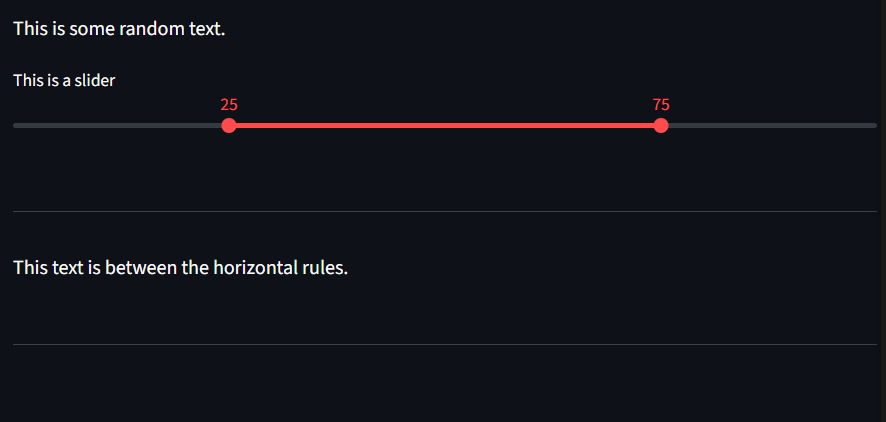
Here we add multiple horizontal line
					import streamlit as st


st.write("This is some random text.")

st.slider("This is a slider", 0, 100, (25, 75))

st.divider()  # This Draws a horizontal rule

st.write("This text is between the horizontal rules.")

st.divider()  # This Draws a horizontal rule
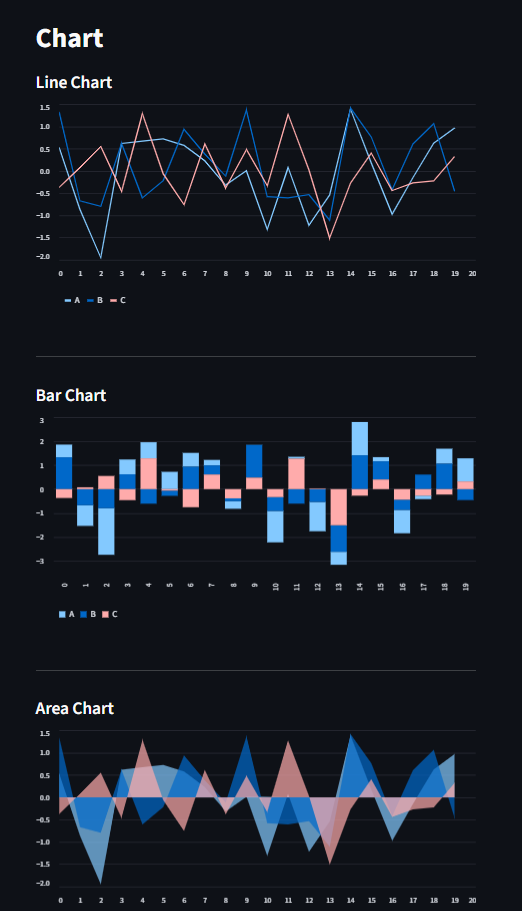
Using st.divider() between Charts
Separating charts and visualizations improves readability.
import streamlit as st
import pandas as pd
import numpy as np


st.title("Chart")

df = pd.DataFrame(np.random.randn(20, 3), columns=["A", "B", "C"])

st.subheader("Line Chart")
st.line_chart(df)


#Add a divider
st.divider()


st.subheader("Bar Chart")
st.bar_chart(df)


#Add a divider
st.divider()


st.subheader("Area Chart")
st.area_chart(df)
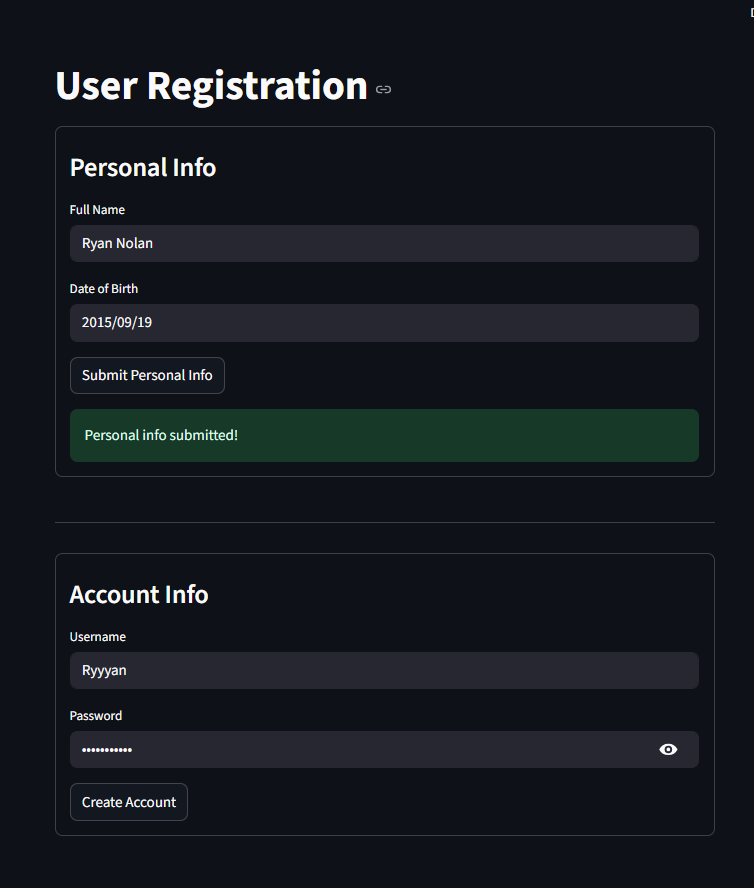
Using st.divider() with Forms
When you have multiple forms, separating them is important for clarity.
import streamlit as st

st.title("User Registration")

with st.form("personal_form"):
    st.subheader("Personal Info")
    st.text_input("Full Name")
    st.date_input("Date of Birth")
    submitted = st.form_submit_button("Submit Personal Info")
    if submitted:
        st.success("Personal info submitted!")

st.divider()

with st.form("account_form"):
    st.subheader("Account Info")
    st.text_input("Username")
    st.text_input("Password", type="password")
    account_submit = st.form_submit_button("Create Account")
    if account_submit:
        st.success("Account created successfully!")
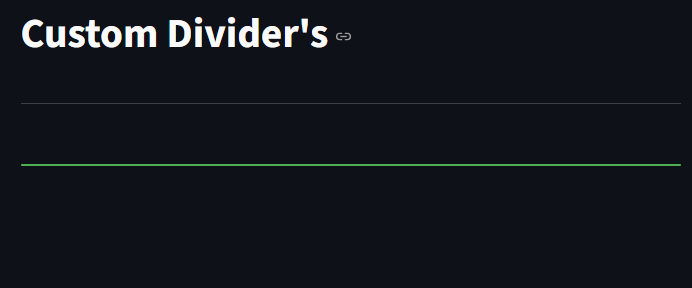
Alternatives to st.divider()
st.markdown() with HTML/CSS can also be used to create custom dividers.
					import streamlit as st

st.title("Custom Divider's")

st.markdown("---")  # Simple Markdown-based divider

st.markdown(
    "<hr style='border:2px solid #4CAF50; border-radius:5px;'>",
    unsafe_allow_html=True
)
Summary
st.divider() is a simple, clean, and quick approach to separate content visually.
Great for layouts, reports, forms, and dashboards.
Supports a simple design style.
You can use st.markdown() with HTML and CSS to make your own designs.
Learn More about Streamlit: Click Here
Watch Videos on Streamlit:
